
Mobile1 min read
Mobile Setup
Get OpsKnight running on your phone in minutes. Install the PWA, enable push notifications, and start responding on the go.
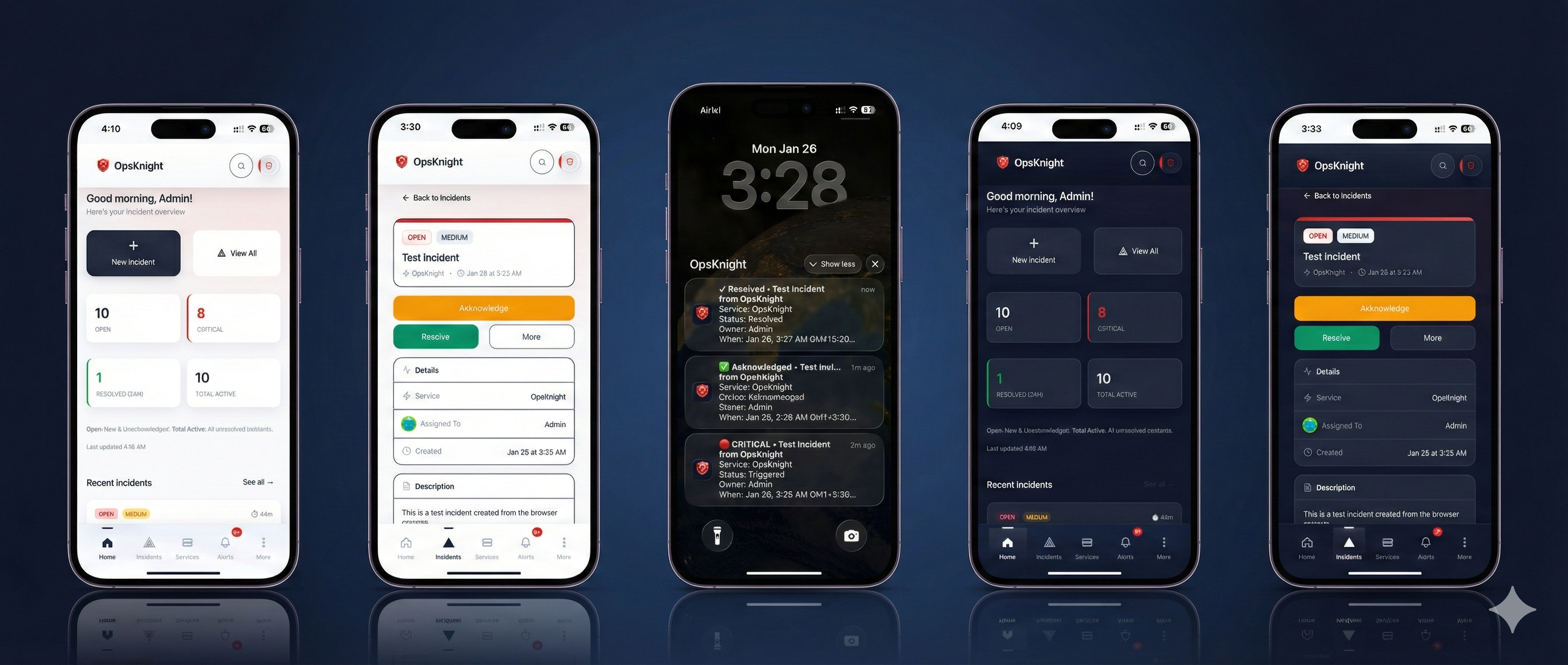
1) Install the PWA
iOS (Safari)
- Open OpsKnight in Safari
- Tap the Share button (square with arrow)
- Tap Add to Home Screen
- Tap Add
Android (Chrome)
- Open OpsKnight in Chrome
- Tap the three-dot menu
- Tap Add to Home Screen or Install App
- Tap Install
Desktop (Chrome/Edge)
- Open OpsKnight in your browser
- Click the install icon in the address bar
- Click Install
2) Enable Push Notifications
When prompted, tap Allow for notifications. Then verify your device is registered:
- Go to Profile → Devices
- Confirm your device appears in the list
- Ask your admin to enable Push in Settings → Notification Providers
3) Test Delivery
- Trigger a test incident or use a test alert integration
- Confirm you receive a push notification
- Open the incident from the notification and acknowledge it
Troubleshooting
- No prompt? Ensure you installed the PWA and notifications are allowed in OS settings.
- No device listed? Sign out/in and revisit Profile → Devices.
- No push delivery? Verify push is enabled in Settings → Notification Providers.
Last updated for v1.3
Edit this page on GitHub