
Sign-in problems with single sign-on
Every message a person can see when signing in with single sign-on, what it means, and how to fix it.
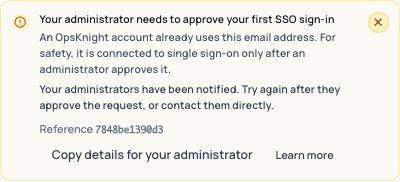
When a single sign-on sign-in does not work, the sign-in page names the problem, says what to do next, and shows a reference ID. The person can select Copy details for your administrator to send you the message, code and reference.
To investigate: search the server log for the reference ID. The log entry
[Auth] OIDC sign-in rejected holds the internal reason, and the audit log has a matching
LOGIN_FAILED entry with failure reason SSO_FAILED.
Messages on the sign-in page
Your administrator needs to approve your first SSO sign-in
Code SSO_LINK_NOT_APPROVED. An OpsKnight account already uses this email address. For safety, it is connected to single sign-on only after an administrator approves it.
What the person sees next: Your administrators have been notified. Try again after they approve the request, or contact them directly.
What an administrator can do: Approve the person in 2 · Who can sign in (the request appears under Waiting for your approval), or turn on automatic connection for verified company emails. See link existing accounts.
Your SSO approval has expired
Code SSO_LINK_APPROVAL_EXPIRED. The approval to connect your account to single sign-on expired before it was used.
What the person sees next: Your administrators have been notified. Ask them to renew the approval, then sign in again.
What an administrator can do: Approve the person again. Bulk approvals can last up to 30 days.
This email domain is not allowed
Code SSO_DOMAIN_NOT_ALLOWED. Your identity provider account uses an email domain this workspace does not accept.
What the person sees next: Sign in with your work account, or ask an administrator to add your domain.
What an administrator can do: Add the domain to Allowed email domains in 2 · Who can sign in, or ask the person to use their work account. For Google Workspace the signed hd claim is checked.
This organization is not allowed
Code SSO_ORGANIZATION_REJECTED. Your identity provider account belongs to a different organization or tenant.
What the person sees next: Sign in with the account your company gave you for OpsKnight.
What an administrator can do: Check the Auth0 organization ID under Advanced provider settings, or that the person signs in to the right organization.
You do not have an OpsKnight account yet
Code SSO_AUTO_PROVISION_DISABLED. This workspace only lets existing members sign in with single sign-on.
What the person sees next: Ask an administrator to invite you, then sign in again.
What an administrator can do: Invite the person in Users, or turn on Create an account on first sign-in in 2 · Who can sign in.
Your account is not assigned to OpsKnight
Code SSO_ROLE_UNMATCHED_DENIED. You signed in successfully, but none of your groups or roles grant access to this workspace.
What the person sees next: Ask your identity administrator to add you to an OpsKnight group.
What an administrator can do: Add the person to a group that a role rule matches, or change When no rule matches in 3 · Roles & teams. See map groups to roles and teams.
OpsKnight could not read your groups
Code SSO_GROUP_CLAIMS_INCOMPLETE. Your identity provider sent an incomplete group list (for
Microsoft Entra, a "too many groups" marker for people in more than 200 groups), and the
workspace refuses people no rule matches. OpsKnight cannot evaluate a new person without their
groups, so it does not create an account. People who already have an account can still sign
in, but a role from SSO above the default role is lowered to the default until the full group
list arrives.
What the person sees next: Ask your identity administrator to send OpsKnight the groups or app roles it uses.
What an administrator can do: Use App roles (the roles claim) instead of groups, or emit
only groups assigned to the application. See
map groups to roles and teams.
Your OpsKnight account is disabled
Code SSO_ACCOUNT_DISABLED. An administrator or your company directory has deactivated this account.
What the person sees next: Contact your administrator if you still need access.
What an administrator can do: Reactivate the account in Users, or in your directory if SCIM manages it.
Your identity provider did not share an email address
Code SSO_EMAIL_REQUIRED. OpsKnight needs your email address to find or create your account.
What the person sees next: Ask your identity administrator to release the email claim to OpsKnight (for Microsoft Entra, add the optional "email" claim).
What an administrator can do: Release the email claim to OpsKnight. For Microsoft Entra add the optional email claim to the ID token.
Your email address is not verified
Code SSO_EMAIL_UNVERIFIED. Your identity provider reports that the email on your account is not verified.
What the person sees next: Verify your email with your identity provider, then sign in again.
What an administrator can do: Verify the email at the identity provider. When allowed domains are set, providers other than Microsoft Entra must send email_verified: true.
Your sign-in matches more than one account
Code SSO_IDENTITY_CONFLICT. OpsKnight could not tell which account this identity belongs to, so it stopped.
What the person sees next: Contact your administrator and share the reference below.
What an administrator can do: Search the server log for the reference ID. Two OpsKnight accounts claim this identity; remove the stale link.
Your identity provider sent an incomplete response
Code SSO_SUBJECT_MISSING. The response did not include a stable account identifier.
What the person sees next: Contact your administrator and share the reference below.
What an administrator can do: Check the application at the provider is an OpenID Connect application, not plain OAuth.
Single sign-on is not available right now
Code SSO_NOT_AVAILABLE. This workspace does not currently accept single sign-on.
What the person sees next: Use another sign-in method, or contact your administrator.
What an administrator can do: Check Settings → System → SSO / Authentication: SSO may be off (Password Only), or the provider may be unreachable. The server log has the detail.
Something went wrong while signing you in
Code SSO_INTERNAL_ERROR. OpsKnight could not finish your sign-in. Nothing about your account was changed.
What the person sees next: Try again. If it keeps happening, contact your administrator with the reference below.
What an administrator can do: Search the server log for the reference ID shown on the sign-in page.
Messages after being signed out
When a session ends, the sign-in page says why:
| Reason | Message | Detail |
|---|---|---|
SESSION_REVOKED_BY_POLICY |
Your organization changed how you sign in | Your administrator changed the sign-in policy, which ended earlier sessions. |
AUTHENTICATION_POLICY_DENIED |
Your organization changed how you sign in | This sign-in method is no longer allowed for your session. |
OIDC_SESSION_IDLE_TIMEOUT |
You were signed out after a period of inactivity | Your organization signs people out when they have been idle for a while. |
OIDC_SESSION_RENEWAL_REQUIRED |
Please confirm your sign-in | Your organization asks you to sign in with your identity provider periodically. |
OIDC_CONFIGURATION_CHANGED |
Single sign-on settings were updated | An administrator updated single sign-on, which signs everyone in again. |
SESSION_EXPIRED |
Your session has expired | You were signed out for your security. |
SESSION_REVOKED |
You were signed out | Your session ended because your account or access changed. |
USER_DISABLED |
Your OpsKnight account is disabled | An administrator or your company directory has deactivated this account. |
Password sign-in
- Incorrect email or password — the email or password is wrong, the account has no password, or password sign-in is blocked by policy. It never reveals which.
- Your OpsKnight account is disabled — shown only after the correct password, so it cannot be used to probe accounts.
Still stuck
- Your own test sign-in fails: see administrator test failures.
- You are locked out: see SSO lockout recovery.
Last updated for v2.2.0
Edit this page on GitHub