
Services and response ownership
Create and operate service ownership, alert ingestion, escalation, notifications, ChatOps, Jira, and reliability context.
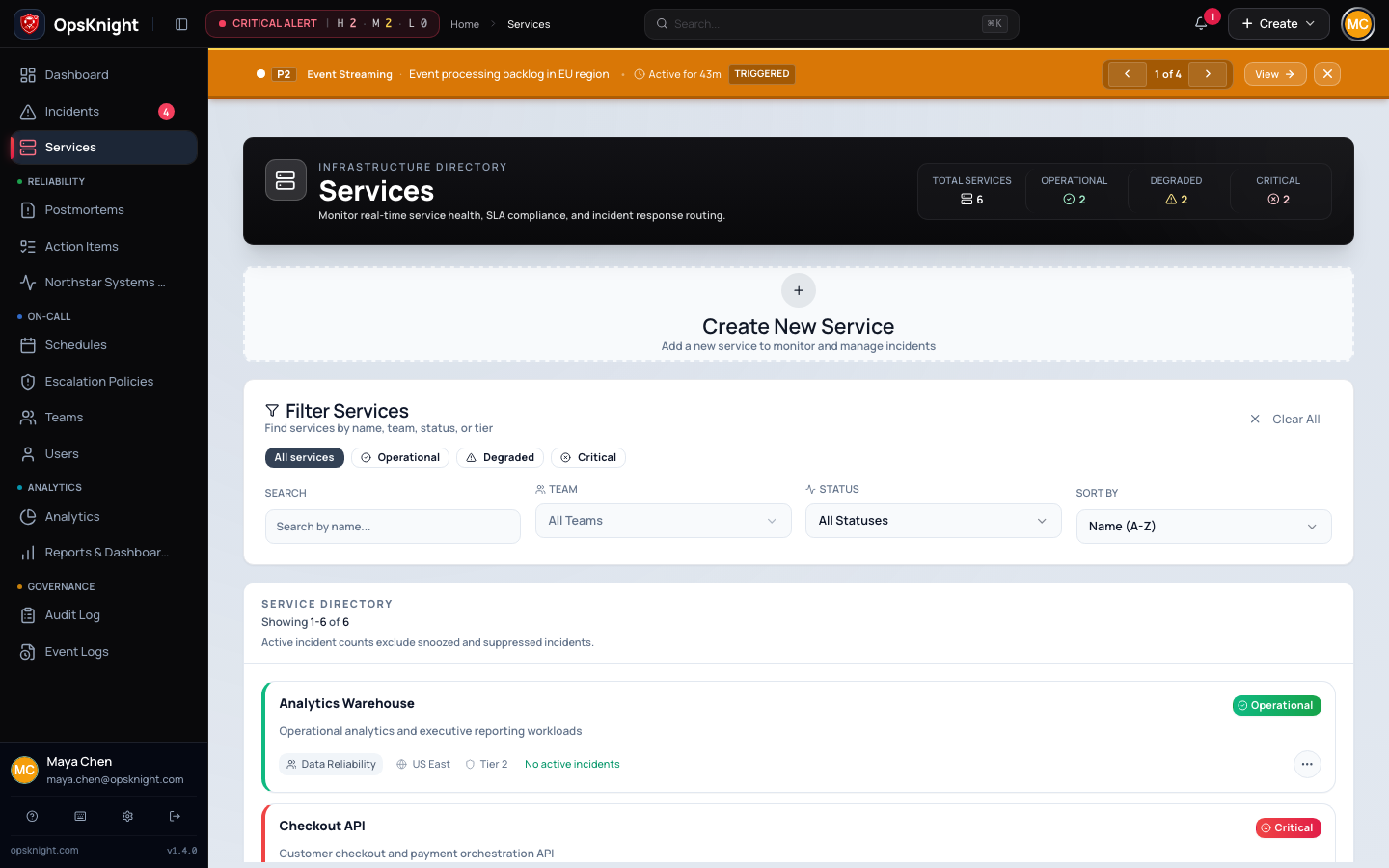
A service is OpsKnight's primary boundary for alert ingestion, incident history, operational ownership, escalation, reliability reporting, and downstream communications.
Monitoring event
  → service-bound integration and routing key
  → incident creation, deduplication, or recovery
  → attached escalation policy
  → responder paging and service notifications
  → optional Slack/Teams war room and Jira synchronization
  → SLA, status-page, analytics, and postmortem history
Use one service for one durable operational responsibility. Avoid creating a new service for each environment, alert, incident, or short-lived project unless those boundaries genuinely have different owners, escalation, integrations, and reporting requirements.
Access model
- Admins and Responders can create services.
- Admins can modify and delete any service.
- A Responder can modify a service only when they belong to its owning team.
- Admin, Responder, and Auditor roles can read all services.
- A User can read services owned by their teams.
- Only Admins can move a service into an arbitrary team; a non-Admin modifier must belong to the destination team.
- Only Admins can permanently delete a service.
Service modification includes metadata, policy attachment, integration credentials, service notifications, ChatOps policy, Jira mapping, and default incident visibility. Server authorization remains authoritative even if a control is visible.
Create a service
Before creation, agree on the owning team, production escalation policy, visibility default, upstream event sources, and expected customer impact.
- Open Services and select Create New Service.
- Enter a unique canonical name. Prefer
Payments APIorCustomer Web, not a current incident name. - Add a concise description defining what is included and excluded.
- Select the owning team. Leaving ownership unassigned is acceptable only during a short setup window.
- Enter an optional region used for operational context.
- Select an informational tier: Platinum, Gold, Silver, Bronze, or Internal.
- Attach an escalation policy, or explicitly accept manual assignment during setup.
- Create the service, open it, and finish every production-readiness section below.
Service names are normalized and unique. A duplicate is rejected. The tier is an informational classification; its displayed availability/acknowledgement labels do not by themselves configure incident response SLA rules. Configure actual response targets through the relevant SLA and escalation controls.
Use the service directory
The Services page is scoped to the current actor and supports search, team and health filters, sorting, and pagination. Its health view derives from incidents the actor is authorized to see and the SLA service. Do not use an aggregate count from a scoped account as proof of organization-wide health.
Operational status is based on active incident state:
- Operational — no visible active incident;
- Degraded — at least one active incident without critical impact; and
- Critical — at least one active critical incident.
Resolved and otherwise non-active incidents do not keep the service degraded. Open the service for the incident list and SLA metrics when a badge does not match operator expectations.
Configure general settings
Open the service and select Settings. Configure:
- canonical name and description;
- owning team;
- region;
- informational SLA tier;
- attached escalation policy; and
- default incident visibility.
Changing the display name does not change the service ID or existing integration routing keys. Update external labels/documentation where humans depend on the old name.
Transfer ownership
Before changing the owning team:
- Confirm the destination team has active Owners and responders.
- Verify destination members' notification endpoints.
- Review the attached escalation policy; it is not automatically rewritten.
- Review schedules, status-page components, dashboards, Slack/Teams destinations, and Jira mapping.
- Save the team change.
- Test access with one destination-team user and one former-team user.
- Send a test alert and confirm the intended response path.
Ownership changes affect resource scope. They do not automatically remove incident assignment/watch access or migrate external provider configuration.
Set default incident visibility
Choose Public when new incidents normally represent customer-facing outages eligible for status-page/client broadcasts. Choose Private for internal-only systems or when public communication always requires deliberate promotion.
The setting applies to future manual and integration-created incidents. Responders can override visibility per incident. Changing the default does not rewrite existing incident visibility.
Attach and test escalation
The Escalation Policy tab shows the attached policy and ordered steps. An unattached service can still receive incidents, but it has no automated policy route from this service configuration.
For production:
- Attach the correct enabled policy.
- Open it and verify every user, team, and schedule target resolves.
- Confirm delay order, repeat behavior, and channel settings.
- Confirm team-lead-only targets have an active lead.
- Trigger a controlled incident through the same integration used in production.
- Acknowledge and resolve it, verifying escalation cancellation and recovery.
Do not infer successful paging from the policy preview alone.
Configure inbound integrations
Open Integrations and add the provider used by the monitoring source. Each integration belongs to one service and gets a random routing key. CloudWatch also requires the exact SNS topic ARN during creation.
The integration card exposes the endpoint required for its type, enable/disable state, and—only to authorized service managers—connection credentials. Follow the provider-specific page in the integration catalog for payload, authentication, limits, deduplication, recovery, and provider UI steps.
For every integration:
- Give it a name that identifies provider, environment, and purpose.
- Copy the endpoint/routing key into the provider through an approved secret channel.
- Add an HMAC secret when the sender supports the documented signature contract.
- Send a unique trigger event and confirm one incident on this service.
- Send the same deduplication identity and confirm it updates rather than duplicates according to the provider contract.
- Send recovery/resolve and verify final incident state.
- Test invalid authentication and malformed payloads.
Enable, disable, rotate, or remove
Disabling an integration pauses new ingestion without deleting its record. Confirm the upstream provider's retry behavior before disabling during an incident.
Rotating the optional integration signature secret generates a new plaintext value and replaces the encrypted stored secret. Update the sender immediately; there is no documented dual-secret overlap. Clearing the signature secret removes HMAC enforcement and returns the endpoint to its base integration-key authentication contract. Treat that as a security-policy change, not routine troubleshooting.
Deleting an integration removes its endpoint configuration but does not delete the service's historical incidents. Disable first when you need a reversible cutover and retain the old provider configuration until the replacement test succeeds.
Configure service notifications
Service notifications are separate from escalation paging. In Notifications select the configured destinations/channels and choose lifecycle events:
- incident triggered;
- incident acknowledged;
- incident resolved; and
- SLA breached.
The service UI can link multiple Slack destinations, Microsoft Teams destinations, and outbound webhook integrations, subject to the corresponding workspace connection. Slack channels must be joined/connected where required; Teams discovery and linking require a valid tenant installation and permissions.
Disabling Slack as a service notification channel disables enabled Slack destinations for that service. Saving a channel name is not proof of delivery. For each selected event, perform a controlled incident transition and inspect the notification delivery record and destination.
Avoid duplicating the same audience through escalation, service notification, and ChatOps unless duplicate communication is intentional.
Configure ChatOps and war rooms
Service ChatOps policy can inherit the workspace policy, use Slack, Microsoft Teams, both providers, or disable war rooms for this service. It can also control automatic room creation.
Meeting/bridge options include inherited behavior, Microsoft Teams, Jitsi,
Zoom, Google Meet, or none. A custom bridge template is stored when supplied and
must resolve through HTTP or HTTPS; if it includes {incidentId}, OpsKnight can
substitute incident context.
Before enabling automatic war rooms:
- Complete the workspace Slack/Teams installation.
- Link and test service destinations.
- Select provider mode and meeting provider.
- Trigger one incident and confirm exactly the expected room(s) are created.
- Confirm the incident card, responder actions, video link, lifecycle updates, membership, and archive behavior.
Inheriting workspace defaults is preferable unless this service genuinely has a different response model. See the dedicated Slack and Microsoft Teams guides for permissions and troubleshooting.
Configure Jira mapping
When Jira is connected, the service mapping defines:
- project key;
- incident issue type;
- action-item issue type;
- default labels and optional component;
- whether synchronization is enabled; and
- whether incident issues are automatically created for selected High, Medium, and Low urgencies.
Auto-create requires at least one urgency. Use real project/issue-type values that the Jira connection can create. Test one incident and one action item, verify bidirectional behavior supported by the Jira guide, and confirm failures do not prevent the primary OpsKnight incident workflow.
Understand reliability context
The service workspace shows incident history and calculated availability, MTTR, incident frequency, and SLA compliance for the selected time window. These are derived operational measures, not promises created merely by choosing an SLA tier label.
When interpreting a result, verify time range, incident visibility/scope, excluded states, service objective revisions, and whether required scheduler/ projection jobs are healthy. Use the analytics and service-objective references for the exact calculation contract.
Connect status-page communication
A status page can expose selected service/component state, but internal service ownership and full incident data are not automatically public. For a customer-facing service:
- Set an intentional default incident visibility.
- Add the relevant service/component to the single supported status page.
- Trigger a test public incident.
- Verify only intended title/status/message fields appear externally.
- Resolve it and confirm the public component recovers.
Private incidents must remain internal until explicitly promoted. Service notifications and status-page updates are related but separate delivery paths.
Rename, merge, or retire a service
Rename
Rename only when ownership is unchanged. The service ID and integrations remain bound, but humans and provider labels may need updates. Verify dashboards, status components, runbooks, and alerts after the change.
Merge
There is no one-click service merge. Choose the surviving service, migrate monitoring senders, ownership, policies, destinations, status components, and reporting expectations, then stop ingest on the retiring service. Preserve historical incidents under their original service unless an explicit supported reassignment workflow is used.
Delete
Only an Admin can delete a service. Deletion is blocked while any incident or any service-objective revision references it. This preserves incident and reliability history rather than cascading it away.
Before deletion:
- Disable and remove upstream alert senders.
- Reassign/preserve every incident through an approved supported process.
- Preserve every service objective revision and its reporting context.
- Remove status-page, ChatOps, Jira, notification, webhook, and dashboard dependencies.
- Confirm the service has no incidents and no objective revisions.
- Record the approval and exact service identity.
- Delete and review the
service.deletedaudit event.
If history must be retained—and it normally must—leave the service in place and mark it retired through organizational naming/ownership practices rather than trying to bypass the deletion guard.
Production readiness checklist
- The unique name and description define a durable boundary.
- An accountable team with active Owners owns the service.
- Region and tier are intentional and not mistaken for configured SLA policy.
- The default incident visibility matches communication policy.
- An escalation policy is attached and reaches real test responders.
- Each inbound integration passes trigger, deduplication, recovery, invalid authentication, and malformed-payload tests.
- Integration secrets are stored in approved systems and rotation is rehearsed.
- Service notifications reach every selected Slack, Teams, webhook, or other destination for selected lifecycle events.
- ChatOps war rooms and meeting links behave exactly as configured.
- Jira mapping creates the intended project/issue types without blocking core response.
- Status-page behavior exposes only intended public incidents.
- SLA/health metrics update and their calculation boundary is understood.
- Audit events exist for configuration changes.
Troubleshooting
A service is missing from the directory
Clear filters, then check the actor's workspace role and team ownership scope. An unassigned service is not automatically visible to a scoped User. Test the direct URL in a fresh session.
The service shows Degraded or Critical unexpectedly
Open its incident list, clear filters, and inspect active incident state and visibility. Then check SLA/projector health. A stale browser badge is not the source of truth.
Alerts return authentication errors
Confirm the integration is enabled, endpoint and integration ID are exact, the routing key is current, and HMAC signing matches the provider contract when a signature secret is configured. Do not paste credentials into logs.
Alerts create incidents on the wrong service
The sender is using another service's integration URL or routing key. Correct the provider configuration and rotate exposed credentials if they crossed service boundaries.
An alert creates no page
Separate ingestion from paging: confirm an incident was created, then inspect the attached policy, target eligibility, schedule coverage, team participation, provider health, and delivery records.
A Responder cannot modify the service
They need OPERATIONS_MANAGE and membership in the service's owning team.
Unowned services and services owned by another team require an Admin to change
or transfer.
Service deletion is blocked
Count all incidents, not only active ones, and inspect service-objective revisions. The guard deliberately preserves historical incident and reliability records. Do not delete database rows to bypass it.
Continue with teams, incidents, and the integration catalog.
Last updated for v2.0.0
Edit this page on GitHub