
Teams and operational ownership
Organize responders, service ownership, team roles, leads, and notification participation.
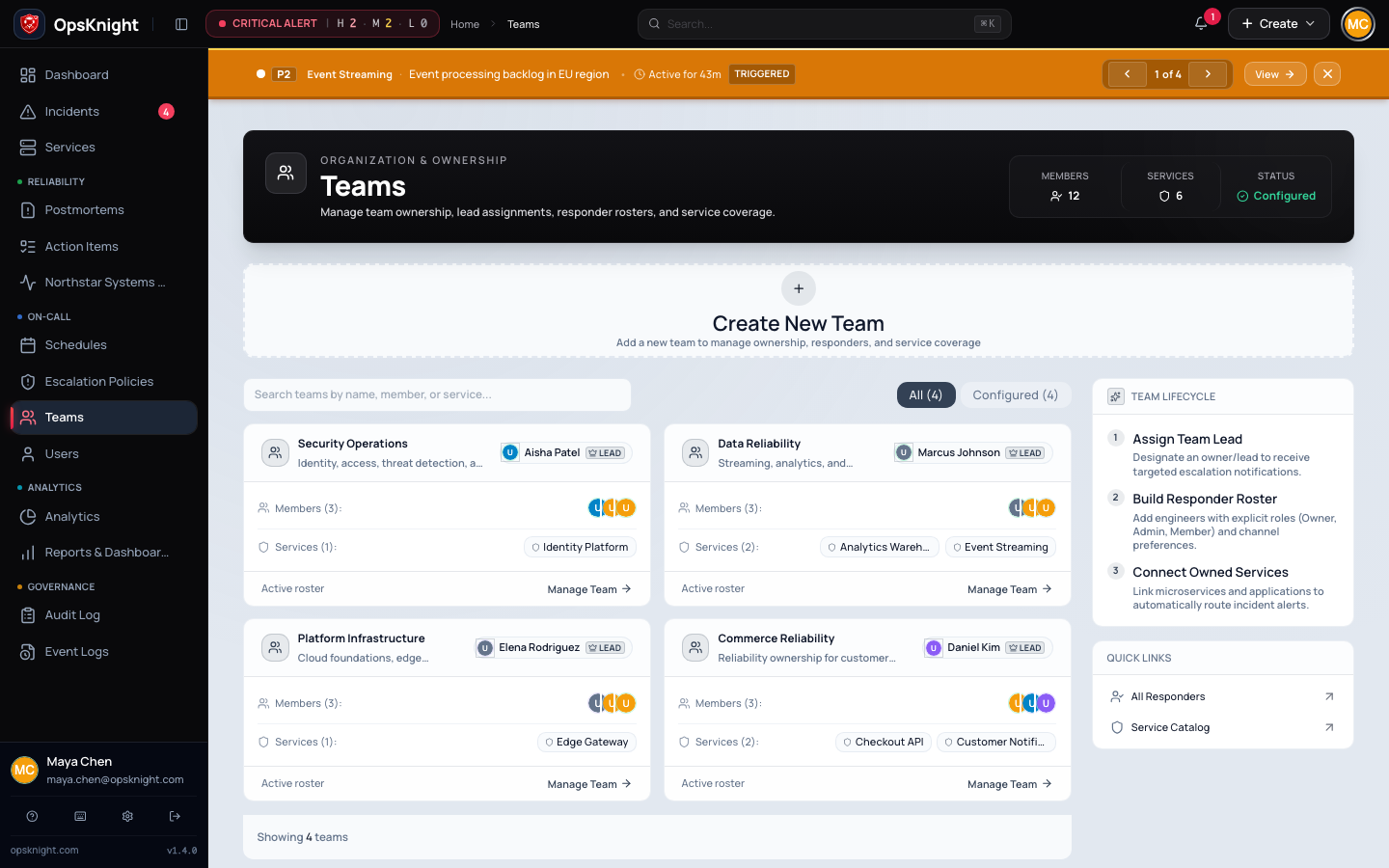
Teams group active users around service ownership and resource scope. A team has a unique name, description, members with team-local roles, an optional lead, owned services, per-member notification participation, and audit activity.
Team membership can make team-owned services, related schedules, metrics, and eligible incidents visible to scoped users. It does not automatically put a member on an on-call schedule or page them. Escalation policies, schedules, notification endpoints, and provider destinations remain separate controls.
Workspace roles, team roles, and team lead
These are different concepts:
| Control | Values | Purpose |
|---|---|---|
| Workspace role | ADMIN, RESPONDER, AUDITOR, USER |
Organization-wide capability bundle |
| Team role | OWNER, ADMIN, MEMBER |
Membership and administration inside one team |
| Team lead | One optional existing member | Named lead and lead-only escalation target |
A team OWNER is not a workspace Admin. A workspace Auditor remains read-only
even if an old membership says Owner. The lead is not a fourth membership role
and must already be a member of the same team.
Use team roles as follows:
- Owner — accountable for membership, elevated team roles, service ownership, notification participation, and lead designation.
- Admin — elevated team membership without final ownership responsibility.
- Member — normal participant and scoped-access subject.
Every populated production team should retain at least two active Owners. OpsKnight rejects demotion or removal of the last active Owner.
Who can manage teams
- Admins and Responders can create teams.
- Workspace Admins can administer any team and delete teams.
- A non-Auditor team Owner can administer that team.
- Team Owners can assign currently unowned services or services already owned by their team; only workspace Admins can move a service from another team.
- Signed-in access to a team and its resources remains subject to current workspace capability and resource-scope policy.
The server-side check is authoritative. A visible control does not grant access if the current actor fails the workspace/team policy.
Create a production team
- Open Teams and select Create Team.
- Enter a unique, durable name. Use an ownership name such as
Payments Platform, not a temporary project code. - Describe the systems and response responsibility the team owns.
- Create the team.
- Open it and add active members.
- Promote at least two appropriate members to Owner.
- Designate a Team Lead if lead-only escalation will be used.
- Assign the services the team actually owns.
- Attach schedules and escalation policies through their respective workflows.
- Run a test incident/escalation and verify the expected recipients.
Creating a team does not automatically make its creator an Owner. Confirm ownership immediately so the team is not left dependent on workspace Admins.
Add and manage members
From the team detail page:
- Select Add Member.
- Choose an active user; disabled or incomplete users are not operational routing targets.
- Choose
MEMBERby default,ADMINfor delegated team administration, orOWNERfor accountable ownership. - Save and confirm the roster and audit activity.
The member receives an in-app notification. Adding membership invalidates or refreshes authorization state as necessary; test the person's newly scoped service rather than relying on the sidebar.
To change a role, select the member's role control. Demoting an Owner is blocked when no other active Owner exists. Role changes increment the user's session security version so authorization does not remain indefinitely stale.
Team notification participation
Each membership has Receive team notifications. When enabled, that member can participate in a notification targeting the whole team. When disabled, team-targeted notification expansion omits them.
This setting does not make a channel deliverable. The user must also have the required email, phone, device, Slack/Teams identity, WhatsApp endpoint, or other provider configuration, and the provider must be healthy. Review the toggle after staffing changes and test the actual channel.
Observers can reasonably opt out, but disabling the setting for responders can silently reduce paging coverage. Record why a responder is excluded.
Designate a team lead
Open the team settings and select one current member as lead. The action fails if the user is not a member. The lead can be changed or cleared by a workspace Admin or team Owner.
Lead designation is used by policy steps configured to notify only the team lead. Before enabling that mode:
- confirm a lead is set and active;
- confirm the lead's channel endpoints work;
- provide alternate escalation steps for absence/failure; and
- test the policy end to end.
Removing the lead's membership clears the team-lead association. It does not automatically select a replacement.
Assign services
From the team, select Assign Services and choose one or more services.
- An Admin can assign unowned services and move services between teams.
- A team Owner can assign unowned services or services already owned by the same team.
- A team Owner cannot take a service away from another team.
Service ownership drives directory responsibility and scoped access. It does not attach an escalation policy, configure an inbound integration, add the team to a schedule, or page all team members. After moving a service, verify service visibility, incident access, metrics, status-page mapping, policy targets, ChatOps destinations, and on-call ownership.
Remove a member safely
Before removing someone:
- Check whether they are the last active Owner or current Team Lead.
- Inspect their schedule layers, future shifts and overrides.
- Replace direct user targets in escalation policies.
- Reassign active incidents and incomplete action items.
- Confirm other members provide channel and time-zone coverage.
- Promote a replacement Owner and lead when necessary.
Then remove the membership and verify the in-app notification/audit event. The action clears the lead field when the removed user was lead and increments the user's session security state. Last-active-Owner removal is blocked.
Removing membership changes resource scope but does not delete the user, remove them from schedules, reassign incidents, or rewrite historical events. Test one formerly in-scope resource and one remaining in-scope resource in a fresh session.
How teams participate in response
Service ownership
Each service can reference one owning team. This supplies accountability, filtering, and scoped visibility. Service alerts still use the service's attached escalation policy for automated paging.
Incident assignment
An incident can be assigned to a team to show response ownership. Assignment is not the same as escalation delivery; verify the escalation path separately.
Escalation target
A policy step can target a team. It can notify eligible participating members or only the configured lead. A valid team target therefore requires active members, intentional notification participation, usable provider endpoints, and a lead when lead-only mode is selected.
Resource visibility
For scoped users, membership can permit team-owned services, related schedules, metrics, and public incidents in the relevant team scope. Assignment and watch relationships can independently permit particular incidents.
Find and audit teams
The Teams directory presents team ownership, lead assignment, responder roster, service coverage, and aggregate counts. Open a team for the full roster, owned services, linked policy context, and recent activity.
Member addition/removal, role changes, notification changes, lead changes, service assignment, team edits, and deletion emit audit activity. Use the workspace Audit Log for retained organization-wide investigation; the team activity panel is an operational view, not a separate audit store.
Delete a team
Only a workspace Admin can delete a team. Current implementation performs an irreversible transaction that:
- deletes all team memberships;
- clears the team from owned services;
- clears team assignment from incidents;
- clears the target team from escalation rules;
- clears team scope from dashboards; and
- deletes the team record.
It does not automatically choose replacement teams or policy targets. Because these references are cleared rather than migrated, deletion can create unowned services and escalation steps with no team target.
Before deletion:
- Inventory every member, owned service, assigned incident, policy step, and team-scoped dashboard.
- Move services to their new owning teams.
- Reassign incidents.
- Replace every team escalation target and test each policy.
- Move or recreate team-scoped dashboards as required.
- Remove memberships only after access and response coverage are verified.
- Capture the approved reason and maintenance window.
After deletion, confirm no service is unintentionally unowned, no policy has a null target, affected users have the expected scope, and a test alert reaches the new response path. Team deletion does not delete user accounts or historical incident records.
Readiness checklist
- The team name and description state a durable ownership boundary.
- At least two active Owners are assigned.
- The Team Lead is current when lead-only escalation is used.
- Member notification participation is intentional.
- Every responder has usable endpoints for required channels.
- Owned services, schedules, policy targets, and active incidents are accurate.
- A real test alert reaches the expected on-call destination.
- Former or disabled users are absent from active response paths.
Troubleshooting
Team escalation notifies nobody
Confirm active membership, Receive team notifications, provider/contact configuration, policy step channel, and whether lead-only mode lacks a lead. Then inspect notification delivery records and provider errors.
An Owner cannot change workspace settings
Team Owner is team scoped. The user still needs the required workspace role for organization-wide settings.
A user cannot be removed or demoted
They may be the last active Owner. Promote and verify another active member as Owner first. Also transfer lead and response responsibilities.
A service cannot be moved to this team
A non-Admin team Owner cannot take a service from another team. Ask a workspace Admin to approve and perform the ownership transfer.
Access remains after membership removal
Start a fresh authenticated request and check other teams, schedule participation, incident assignment/watch state, and any global workspace role. Membership is not the only resource-scope path.
Continue with services and roles and permissions.
Last updated for v2.0.0
Edit this page on GitHub