
Escalate an incident
Request manual escalation from a capability-enabled Microsoft Teams card and verify the resulting pages safely.
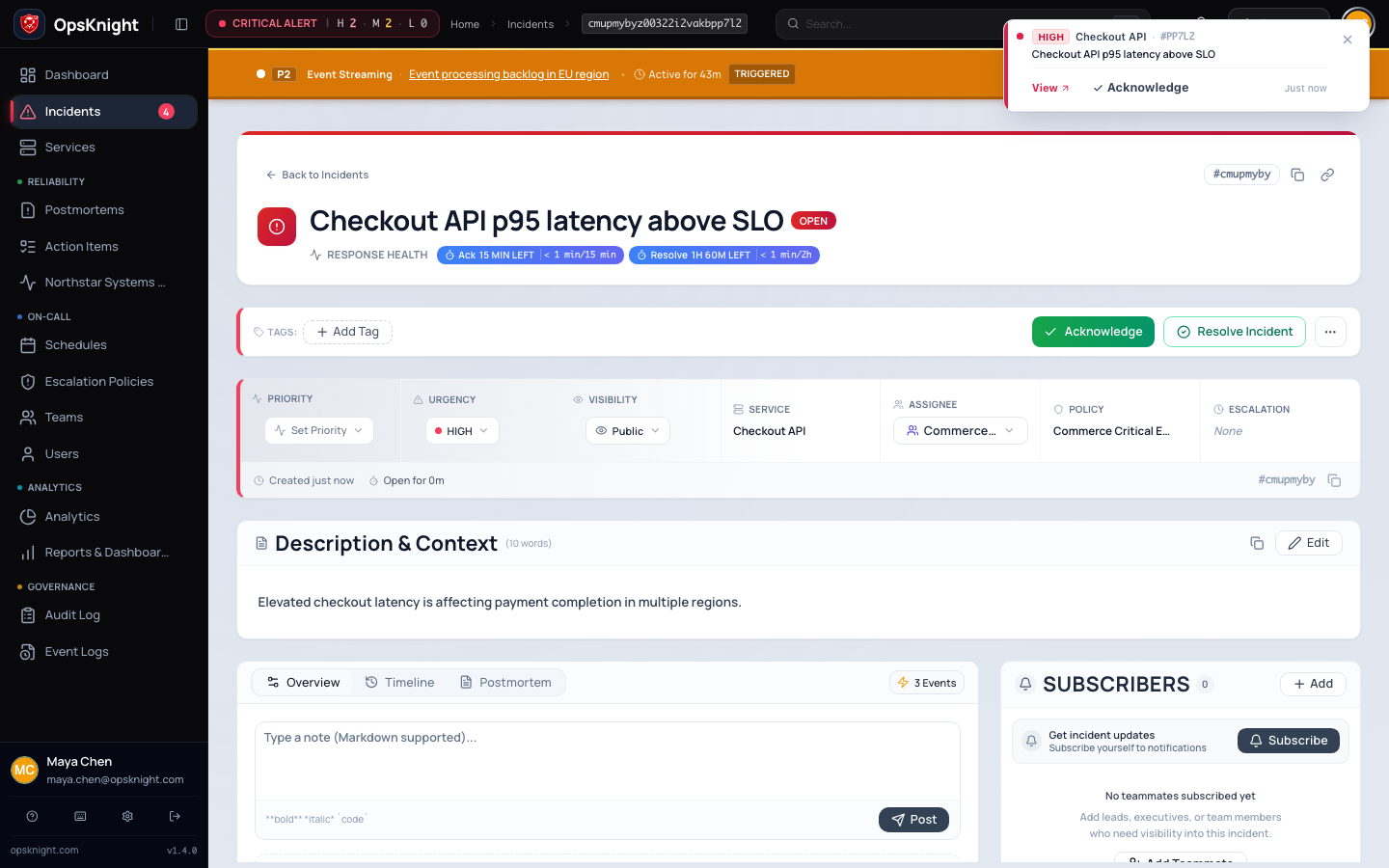
Manual escalation asks OpsKnight to execute the current step of an open incident's escalation plan immediately. In 2.0, this action is exposed only by a capability-enabled Microsoft Teams Adaptive Card. The Web incident page is used to inspect the resulting state; it has no manual Escalate control. Standard Slack incident actions do not expose manual escalation.
Prerequisites
Before escalating, confirm:
- The incident is Open. Human-requested escalation does not advance acknowledged, snoozed, suppressed, or resolved incidents.
- The service has a valid escalation policy with at least one usable step.
- You have
incident.escalate.scopedor broader access to this incident. - The current step, next scheduled time, and target are appropriate.
- The incident is not already being acknowledged or escalated by another responder.
An acknowledged incident normally means somebody accepted response ownership. Coordinate with that owner instead of reopening or manipulating state merely to send another page.
Open the feature
Open the current Microsoft Teams incident card in its configured service destination or war room. Confirm that the card shows Escalate. Its presence is capability- and phase-dependent; do not infer support from an old card.
Configure and request escalation
Use the authenticated Microsoft Teams card that exposes Escalate.
- Open the incident in OpsKnight Web and note its current escalation step and status.
- In the current Microsoft Teams Adaptive Card, select Escalate once.
- If prompted, confirm the incident identity.
- Wait for the result before selecting the action again.
- Return to the incident page and refresh its timeline and notification history.
The request acts on the incident's current escalation generation. It cannot revive work from a stale generation that was superseded by acknowledgement, snooze, suppression, resolution, or another lifecycle transition.
Verify the result
Confirm all applicable outcomes:
- The audit record identifies who requested manual escalation and the source channel.
- The incident timeline includes the manual escalation request.
- The current step and next escalation time reflect the engine result.
- Resolved targets match the users, schedules, teams, or notification destinations configured on that policy step.
- Notification history contains the expected durable delivery operations; inspect their status rather than assuming that a created operation was delivered.
- No page was sent for a stale, resolved, or otherwise non-escalatable state.
If a step has no eligible target, the planner can advance to the next tier. That is a policy-resolution result, not proof that the provider failed.
Safe retry behavior
Microsoft Teams action execution carries an idempotency context internally. A repeated Teams intent reuses the durable operation result where applicable; reusing that key for a different incident or actor is rejected.
If the UI times out, inspect the canonical incident timeline, audit log, and notification operations before retrying. Repeated clicks can make the response harder to interpret even though the underlying engine protects generation and delivery boundaries.
Undo or correct an escalation
An emitted page cannot be recalled. Acknowledge/resolve the incident or correct the policy/service configuration according to the real response state, notify mistakenly paged responders, and document the correction. Do not repeatedly escalate to compensate for an unknown first result.
Troubleshooting
Escalate is unavailable
Confirm the incident is still Open, you can access it, and your role grants escalation. Teams also requires a linked responder identity and a current action card whose capability set and phase permit escalation. Web and standard Slack do not provide this action in 2.0.
The result says the incident is not escalatable
Refresh the incident. Another responder may have acknowledged, snoozed, suppressed, or resolved it between card rendering and action execution. Respect the newer state.
No responder was paged
Inspect the policy step and target-resolution result. Common causes are an empty team, no active on-call user, disabled notification method, unsupported target channel, or exhausted policy steps. Then inspect notification history for provider-specific failure.
The card still shows the old step
Use the incident page as the source of truth. Teams cards are asynchronous projections and may lag a successful escalation.
For an immediate manual handoff outside Teams, assign or reassign the incident to the intended user or team and verify the resulting assignee notification. Assignment changes ownership; it does not execute the next escalation-policy step.
All steps are exhausted
The incident remains open but escalation shows completed or maximum step reached. Assign a response owner directly, communicate through an approved fallback channel, and repair the policy after the immediate response is safe.
Related guides
- Configure an escalation policy
- Acknowledge an incident
- Inspect notification delivery
- Incident response
What OpsKnight does
OpsKnight serializes the request against current incident state and escalation generation, plans the current policy step, enqueues eligible notifications, and records the result. It does not make an invalid/empty policy usable or bypass authorization.
Last updated for v2.1.0
Edit this page on GitHub