
Manage a saved dashboard
Edit, persist, verify, and delete a saved OpsKnight dashboard without losing changes.
Before you begin
Open a saved dashboard that you own. Team/public visibility permits reading but does not grant edit or delete ownership.
Open the feature
Open Reports & Dashboards, select the dashboard, open the gear menu, and choose Edit Dashboard.
Configure dashboard metadata
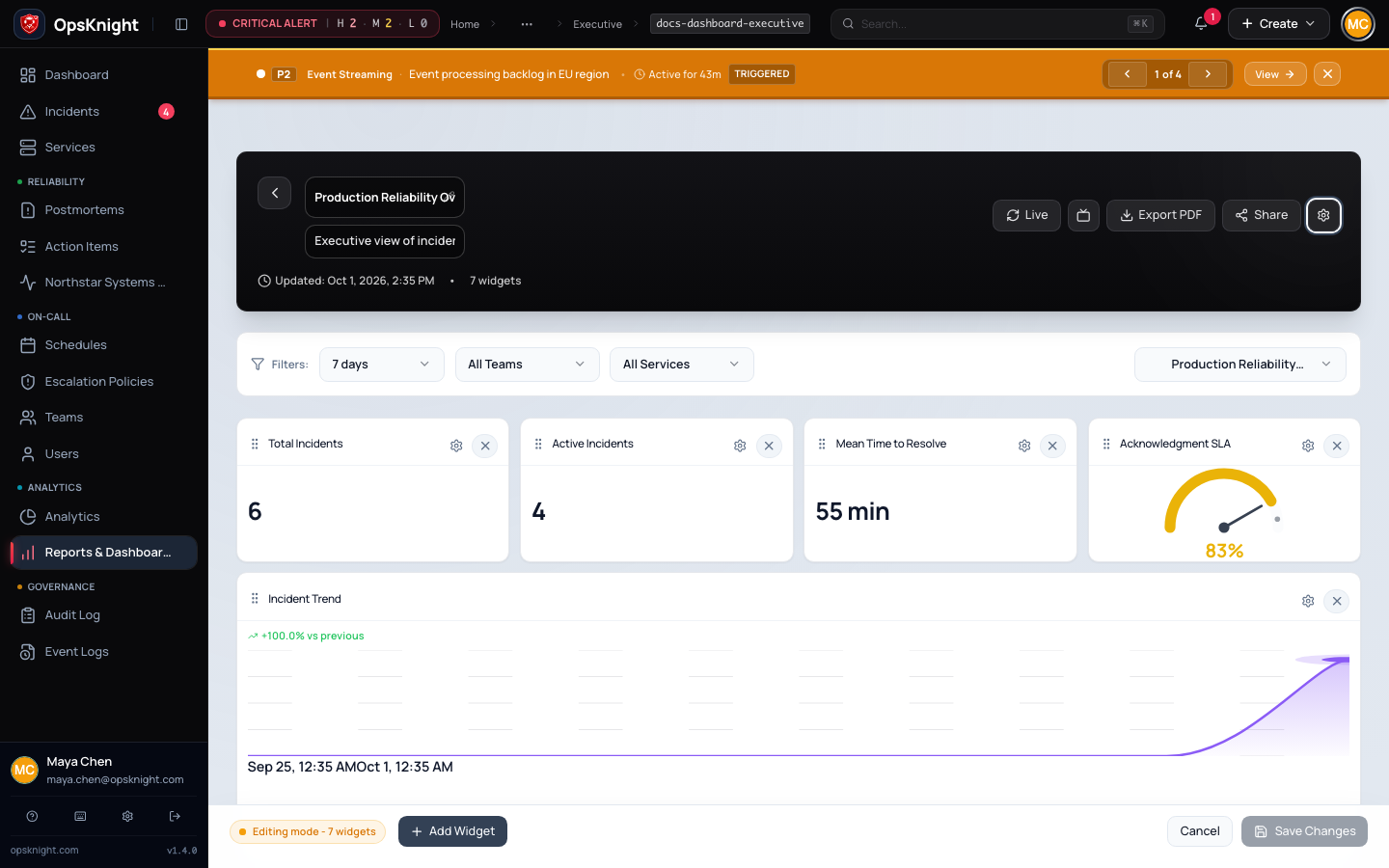
Open a dashboard you own, select the gear menu, then Edit Dashboard. Edit mode exposes the name, description, drag handles, widget removal controls, Add Widget, Cancel, and Save Changes.
Changes stay in the browser until saved. The Unsaved changes label indicates that the title, description, widget set, or order differs from the last saved baseline.
How saved state works
The editor compares local title, description, widget definitions, positions, and configuration with the last saved baseline. Filter query parameters are separate display scope and are not included in that saved definition.
Add and remove widgets
- Select Add Widget.
- Search by widget name/description/identifier or filter by category.
- Select a widget. OpsKnight records its stable widget-definition identity as well as its metric and visual type so similarly sourced widgets keep the correct semantics after reload.
- A checked, disabled tile is already on the dashboard. Each registered widget definition can appear once.
- Close the library with Done.
- To remove a widget, use its remove control while still in edit mode.
Configure a widget
In edit mode, open a widget's configuration control. Depending on the widget, you can:
- replace its displayed title;
- choose a width from one to four columns;
- choose compact, standard, or expanded row height;
- display a chart as line, bar, or pie; and
- set an optional SLA target for gauges and rate widgets.
Select Apply Changes, review the result, and then select Save Changes. Applying the modal does not persist the dashboard by itself. Use Reset to default beside the title when you want the registered widget name again.
Reorder and save
Drag a widget by its handle and drop it at the desired position. OpsKnight recalculates the grid order while retaining each widget's width and height. Keyboard dragging is supported by the grid interaction layer.
Select Save Changes only after reviewing the complete layout. A successful save displays confirmation and updates the saved baseline; reload the page and verify the order and definitions survived. Cancel restores the last saved title, description, widgets, and layout and exits edit mode.
For a template preview, Done exits editing but does not persist a new dashboard. Select Clone Dashboard first when you need a saved, editable copy.
Share a dashboard and set visibility
Select Share or open the gear menu and choose Share Dashboard. The dialog builds a link to the current dashboard and includes non-default time-window, team, and service filters. Select Copy and test the URL as a user with the intended access level.
For a saved dashboard, its owner can choose:
- Private — only the owner can view and modify it;
- Team — members of the owner's assigned team can view it; or
- Organization (Public) — signed-in users in the OpsKnight organization can discover and view it.
Team and public visibility grant read access, not edit or delete ownership. Templates can be linked directly, but do not expose visibility controls and remain previews until cloned.
Export a PDF
Set the required filters first, then select Export PDF. OpsKnight invokes the browser print dialog with the dashboard's print layout. Choose the browser's Save as PDF destination, verify page orientation and scaling in preview, and save. The export represents the currently rendered filters and data; it is not a scheduled report and does not update after saving.
Present on a NOC or TV display
Select the presentation control or choose Presentation Mode from the gear
menu. OpsKnight opens a fullscreen wallboard with a live clock. If auto-refresh
was off, presentation mode changes it to 60 seconds. Press Esc, use the exit
control, or leave browser fullscreen to return to the normal dashboard.
For an unattended display, use a restricted read-only account, confirm the device's session policy, and test browser sleep/fullscreen behavior. Do not use a shared administrator session as a wallboard identity.
Delete a dashboard
- Confirm you are on the saved dashboard, not a template preview.
- Select the gear menu, then Delete Dashboard.
- Read the confirmation and approve only after recording any configuration you need to reproduce.
- OpsKnight deletes the dashboard and its widgets, then returns to Reports & Dashboards.
Deletion cannot be undone in the UI.
Verify saved changes
After Save Changes confirms success, reload the same URL. Confirm the name, description, widget count, identities, and order remain. Return to Reports and confirm its card carries the expected name and count.
Troubleshooting
- Save Changes is disabled: make an actual title, description, widget, or ordering change.
- A widget is disabled in the library: that widget definition is already present.
- Changes disappear: verify this is a saved dashboard URL and that the save confirmation completed.
- Edit or delete fails: confirm the signed-in user owns the dashboard.
- A recipient gets Not Found: confirm visibility and that the recipient is signed in with the required team/organization access.
- PDF is clipped: change print orientation, paper size, margins, or scale in the browser print dialog.
- Presentation does not enter fullscreen: allow fullscreen for the site; the wallboard overlay can still open when the browser rejects native fullscreen.
Next steps
Last updated for v2.0.0
Edit this page on GitHub