
Create and manage a team
Create a team, manage members and service ownership, offboard responders, and delete safely.
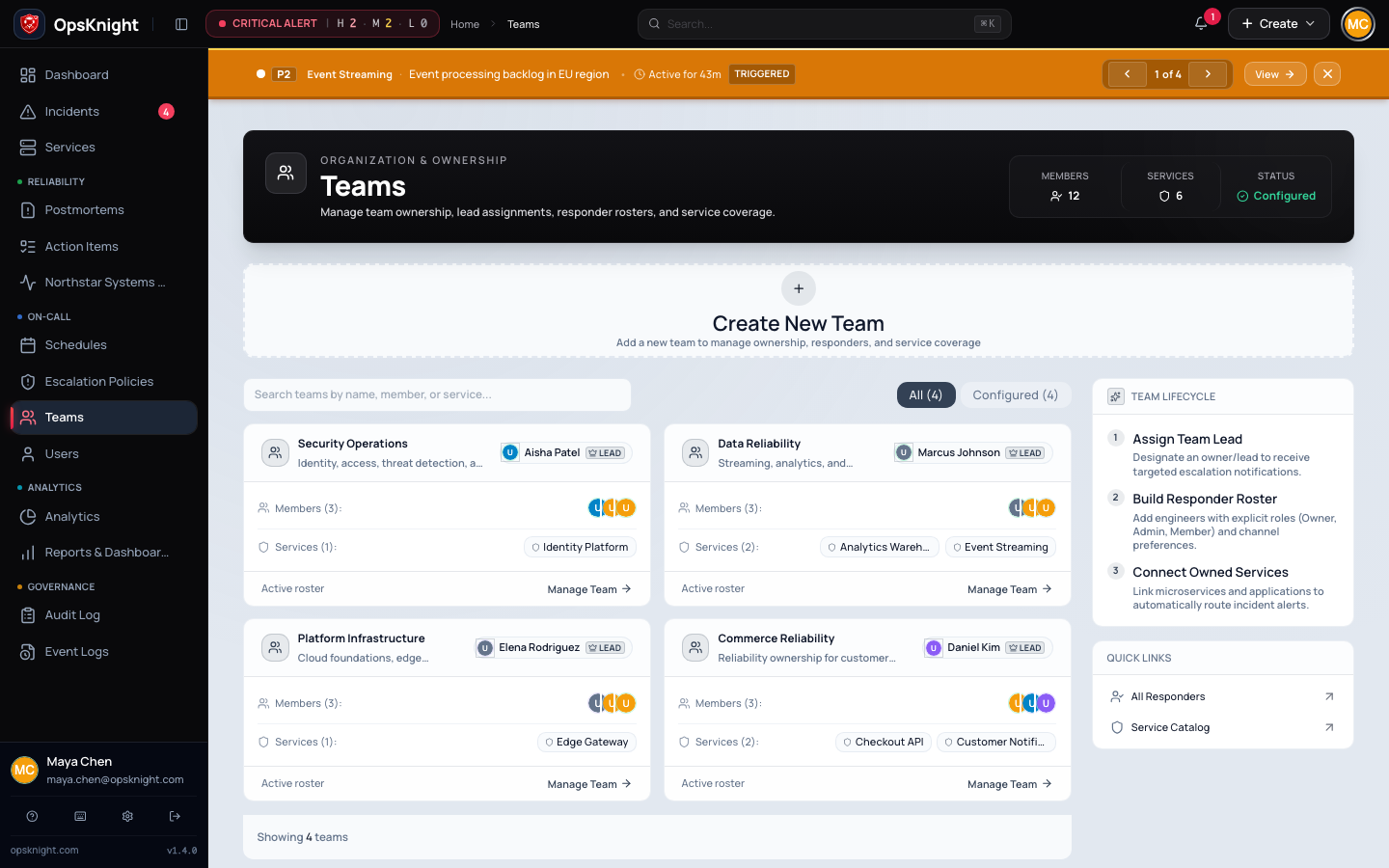
Before you begin
Identify the team owner/lead, responders, services, on-call participation, and whether SCIM or OpsKnight owns membership.
Open the feature
Open Teams, select a team, or choose the create action.
Configure the team
- Enter a unique team name and operational description.
- Add intended members and confirm each user is active.
- Set supported team leadership/ownership fields.
- Assign services and verify the team can read and operate them.
- Confirm members appear in on-call, notification, and collaboration selectors where their roles permit it.
- Save and reload the team detail.
How membership works
Team membership scopes service access and ownership but does not itself grant an administrator or responder system role. When SCIM Groups own membership, change the provider assignment and let provisioning reconcile it.
Verify the team
Sign in as a representative member and confirm intended services are visible, unowned services remain inaccessible, and notification/on-call participation is correct.
Remove members or delete the team
Before offboarding a member, transfer active incident assignments, schedules, action items, and ownership. Before deleting a team, reassign services, incidents, escalation targets, dashboards, and integrations. SCIM group DELETE can also delete the mapped team; review that policy first.
Troubleshooting
- Member cannot see a service: verify both team assignment and system role.
- Member returns after removal: SCIM is likely authoritative.
- Delete is unsafe or blocked: inventory and reassign dependent objects.
- On-call is wrong: membership alone does not place a user in a rotation.
Next steps
Last updated for v2.0.0
Edit this page on GitHub