
Manage users and account lifecycle
Invite, activate, update, disable, transfer, and safely delete OpsKnight users.
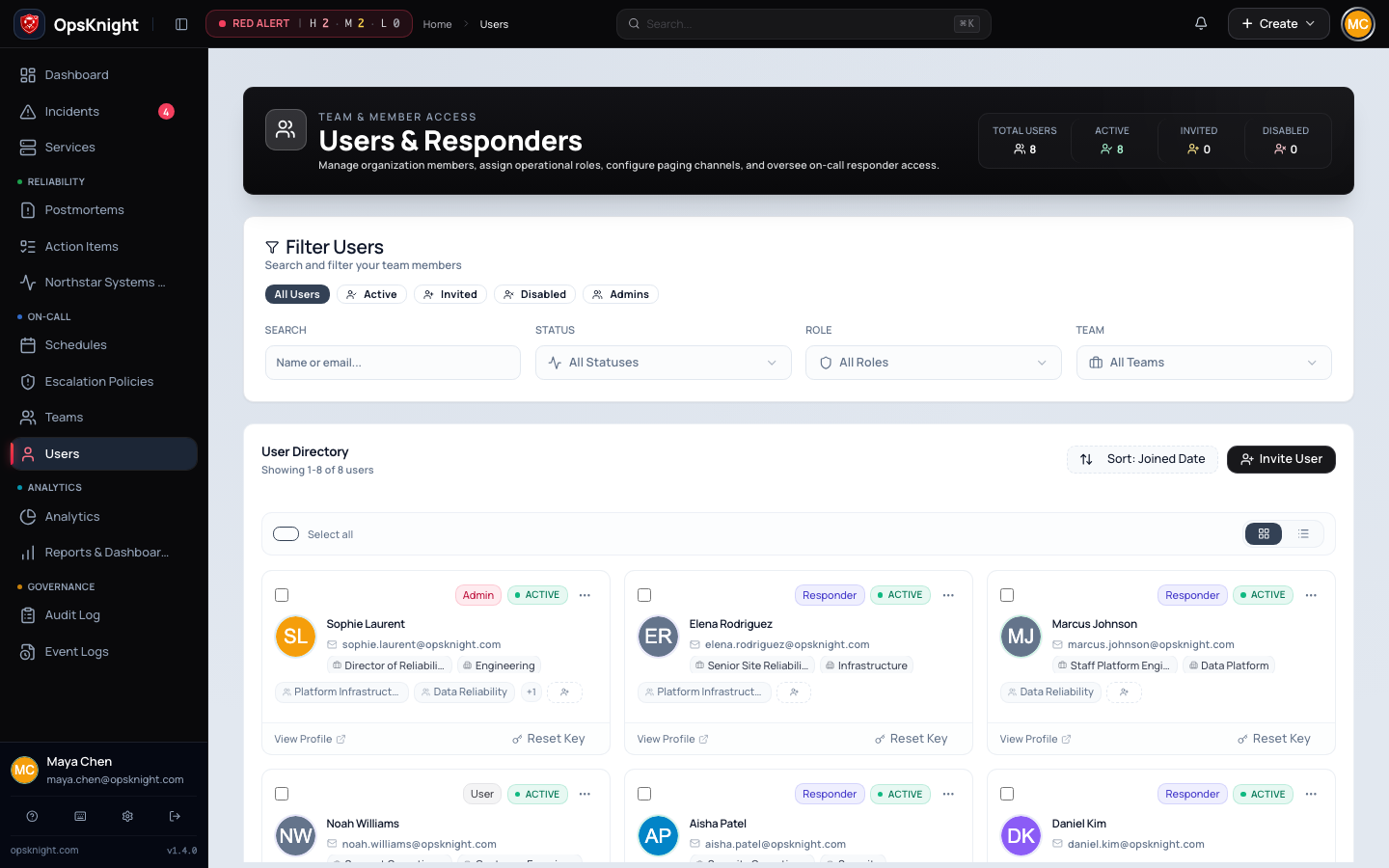
The Users area controls human accounts, application roles, team membership, contact data, notification preferences, invitations, and deactivation. Treat user changes as operational changes: responders can own live incidents, schedules, escalation targets, teams, and API credentials.
User status and role are separate:
| Status | Meaning |
|---|---|
INVITED |
Account exists but invitation onboarding is not complete |
ACTIVE |
Account can authenticate through its configured identity path |
DISABLED |
Account access is revoked; historical records remain |
| Application role | Intended use |
|---|---|
ADMIN |
Organization-wide administration and security-sensitive configuration |
RESPONDER |
Incident response and operational work within authorized scope |
AUDITOR |
Read-oriented audit and review workflows |
USER |
Standard member access without responder or administrator authority |
Team roles (OWNER, ADMIN, and MEMBER) are separate from application roles.
Adding someone as a team owner does not make them an OpsKnight administrator.
See roles and permissions before assigning elevated
access.
Before you begin
Sign in as an administrator for invitations, role changes, deactivation, and deletion. Confirm the person's identity, intended role, team ownership, on-call responsibilities, and authoritative identity source. Keep another tested active administrator available before changing any administrator account. For a production offboarding, coordinate with the identity-provider owner and the teams that own affected schedules and escalation policies.
Find and review an account
Open Users. The page shows Active, Invited, and Disabled counts and supports:
- search by name or email;
- filtering by status, application role, and team;
- sorting by joined date, name, email, status, or role;
- ascending or descending order; and
- pagination.
Open a user to review profile, team membership, teams led, schedule layers, escalation rules, visible assigned incidents, and recent audit activity. Use this detail view before changing or removing access; the list card is not a complete dependency report.
Invite a user
- Open Users and select Invite User.
- Enter the person's full name and normalized work email.
- Select the least-privileged initial application role.
- Submit the invitation.
- If an email provider is configured, confirm the UI reports that delivery was handed to the provider. If it is not configured, copy the returned invite link and transfer it through an approved secure channel.
- Ask the recipient to complete onboarding before the link expires.
- Confirm the account changes from Invited to Active and test only the intended access.
New invitations expire after seven days. The stored token is hashed; the plaintext capability appears only in the generated URL. Generating a new invite revokes unused invitation/password-reset tokens for that identity, so older links should no longer be treated as valid.
If the email already belongs to an active or invited account, update that account instead. If it belongs to a disabled account, reactivate it; OpsKnight does not create a second identity with the same email.
Resend an invitation
For an INVITED user, open the card action menu and select Get Invite Link.
OpsKnight issues a new rate-limited invitation and attempts configured email
delivery again. Active users must use password recovery, not invitation resend.
Disabled users must be reactivated first.
Invitation links are bearer capabilities. Do not put them in issue trackers, shared chat channels, screenshots, or documentation.
Add a user to a team
From the user card, select Assign team, choose a team, and add the member.
The quick action assigns MEMBER; team-specific owner/admin changes belong in
the team administration flow. Only active operational users can be newly added.
An OpsKnight administrator or the relevant team owner can add a member through the supported command. Removing team membership from the Users workflow is an administrator action and must preserve at least one team owner. After any change, open the team and verify ownership, service scope, schedules, and escalation targets still have the expected people.
Edit a profile
Open the user, select Edit, and update supported fields:
- full name and email;
- application role (administrator only);
- department and job title;
- IANA time zone;
- phone number; and
- email, SMS, voice, push, and WhatsApp preference toggles.
A user can edit their own ordinary profile, but only an administrator can change another user, change an email address, or change an application role. Users and administrators cannot change their own role through this workflow.
Email must remain unique. Changing it increments the session security version,
increments invitation generation, and revokes outstanding user tokens. Plan
the change with OIDC/SCIM identity ownership: changing an OpsKnight email does
not rewrite the stable OIDC (issuer, sub) or SCIM externalId.
Use a valid IANA time zone such as Europe/London or Asia/Kolkata; it affects
how local operational time is presented. Phone numbers used for voice must be
in E.164 form such as +14155550123. Enabling voice also requires Twilio Voice
to be configured; the UI rejects the preference otherwise.
The notification preference toggles express user preference, not end-to-end delivery readiness. Verify the provider, contact endpoint, routing rules, and a test notification separately.
Change an application role
- Read roles and permissions and identify the exact task requiring the change.
- Confirm whether the role source is manual, OIDC, or SCIM. A manual edit sets
the role source to
MANUALand can conflict with an intended external source of authority. - Apply the role to a low-risk account first.
- Reauthenticate and test both allowed and denied operations.
- Confirm
user.role.updatedappears in the audit log.
Role changes increment the user's session/token security version so stale authorization is not allowed to persist. OpsKnight serializes security changes and refuses to demote or disable the last active administrator. An administrator cannot change their own role; another active administrator must perform that change.
For multiple users, select rows and use the bulk role action. Bulk demotion also checks that at least one active administrator remains and refuses self-demotion.
Allow an existing account to link OIDC
Email equality alone never attaches a new OIDC subject to an existing account. For an active or invited account:
- Open the user.
- Select Allow OIDC linking.
- Confirm the expected person and email.
- Ask the user to complete a fresh sign-in before approval expiry.
- Verify the account reports an OIDC link.
The approval can be renewed or revoked before use and is scoped to the current provider configuration. Revoking an unused approval does not unlink an identity that has already completed linking. See configure OIDC for the full trust model.
Deactivate a user
Deactivation is the normal offboarding control. Before starting, transfer or cover the person's live operational responsibilities:
- team membership and teams they lead;
- escalation-policy user targets;
- schedule-layer assignments, future shifts, and current overrides;
- active incident assignments;
- incomplete incident action items; and
- user-owned dashboards.
Then:
- Open Users, locate the active account, and select Deactivate.
- Confirm the account shows Disabled.
- Verify current sessions fail on the next authenticated operation.
- Confirm outstanding invitation/reset tokens, API keys, OIDC linking approvals, and registered devices are revoked or removed.
- Test the on-call and escalation paths that previously involved this person.
- Review the
user.deactivatedaudit event.
OpsKnight prevents self-deactivation and refuses to deactivate the last active administrator. Deactivation increments both session security and invitation generation, preventing old sessions and invitation capabilities from restoring access.
Historical notes, incidents, audit records, notifications, postmortems, and provider configuration references remain. This retention is intentional: an offboarded user must not disappear from the operational record.
Bulk deactivation
Select the intended rows and choose the bulk deactivate action. Before confirming, recheck the filters and selection count. OpsKnight prevents the acting administrator from including themselves and atomically checks the last-active-admin invariant. After completion, inspect every failed item rather than assuming a partial result applied uniformly.
Reactivate a user
Only a disabled account can be reactivated. Select Activate from the user's actions.
- An account with a password returns to
ACTIVE. - An account without a password returns to
INVITEDand must complete an appropriate invitation or external-identity flow.
Reactivation does not recreate revoked API keys, device registrations, old tokens, or OIDC linking approvals. Re-establish only the access and endpoints the person still requires, and revalidate their role source and team/schedule assignments.
Permanently delete a user
Permanent deletion is narrower than deactivation and is available only for
DISABLED or INVITED users. You cannot delete yourself or the last active
administrator. OpsKnight also blocks deletion while any reported operational
dependency remains.
When you select Delete User, inspect the dependency report. Resolve or transfer every item:
- team memberships and team leadership;
- escalation-policy steps;
- schedule-layer assignments;
- current or future overrides and shifts;
- active incident assignments;
- incomplete action items; and
- owned dashboards.
After the dependency report is empty:
- Confirm the account is Disabled or Invited.
- Record why permanent deletion is required instead of retained deactivation.
- Select Delete Permanently and confirm the exact person/email.
- Review
user.deletedoruser.invitation.deletedin the audit log. - Recheck users, teams, schedules, policies, and incidents.
Deletion removes the user and cascades disposable identity/contact resources according to the reference policy. Incident notes and other historical objects that support null authors retain their content with the direct user reference cleared. This is not a general privacy-erasure workflow; use the documented privacy-request process when that is the reason for the request.
Bulk deletion evaluates each account through the same safeguards. It can partially succeed: the result reports how many deletions failed. Review the audit log and each remaining dependency before retrying.
Offboarding checklist
Use this order for a planned departure:
- Create or confirm at least two active administrators.
- Transfer team ownership and user-owned dashboards.
- Replace escalation targets and schedule-layer membership.
- Resolve future shifts and overrides.
- Reassign active incidents and incomplete action items.
- Deactivate the account.
- Verify sessions, keys, devices, and unused tokens are revoked.
- Remove assignment at OIDC/SCIM providers and verify provider-side deprovisioning results.
- Send test incidents through every affected escalation path.
- Retain the disabled account unless an approved requirement calls for permanent deletion.
For an emergency departure, deactivate first to revoke access, then repair the reported operational dependencies immediately. Deactivation reports dependencies but does not block on all of them; paging coverage therefore needs an explicit check.
Troubleshooting
The invitation email was not sent
The account and invite URL may still have been created. Check the result shown in the UI, notification-provider configuration, provider logs, recipient address, and spam controls. Generate a new link only when necessary because it invalidates the old unused capability.
OpsKnight says the user already exists
Search all statuses for the normalized email. Reactivate a disabled account or resend an invitation to an invited account. Do not create aliases to bypass the uniqueness rule.
A role or deactivation change is rejected
Check whether the target is the acting administrator or the last active admin. Create and verify another administrator before repeating the operation. For role-source conflicts, update the intended authority—manual, OIDC, or SCIM.
Permanent deletion is blocked
Open the dependency report and follow each link. Transfer or remove all team, policy, schedule, override, shift, incident, action-item, and dashboard dependencies. Disabling the account does not automatically clear operational ownership.
A disabled user still appears in history
Expected: deactivation preserves history. Verify that authentication, API keys, devices, and notification delivery are revoked instead of expecting the record to disappear.
Voice notifications cannot be enabled
Add a valid E.164 phone number and configure Twilio Voice at the system level. Then enable the user preference and send a controlled test notification.
Periodic access review
At least on the organization's review cadence:
- Filter Active users and confirm employment/contract status.
- Review all Admins, then Responders and team Owners.
- Resolve stale Invited accounts and expired onboarding.
- Review Disabled accounts against retention requirements.
- Compare OIDC/SCIM assignment and role source with OpsKnight state.
- Check team membership, schedules, escalation targets, API keys, and devices.
- Export or inspect audit activity and record review evidence outside the product according to the compliance process.
Do not treat a clean Users list alone as proof of least privilege: team scope, API keys, chat identity links, schedules, and external provider assignment all contribute to effective access.
Last updated for v2.0.0
Edit this page on GitHub