
Configure Microsoft Teams war rooms
Enable consented channel creation, lifecycle management, and membership sync.
Before you begin
Complete the base Teams installation and obtain permission to grant optional resource-specific consent in the target team.
War rooms require additional resource-specific consent beyond ordinary card delivery. Enable war-room permissions in the generated package, reinstall or update it in the target team, then select the war-room destination for the service.
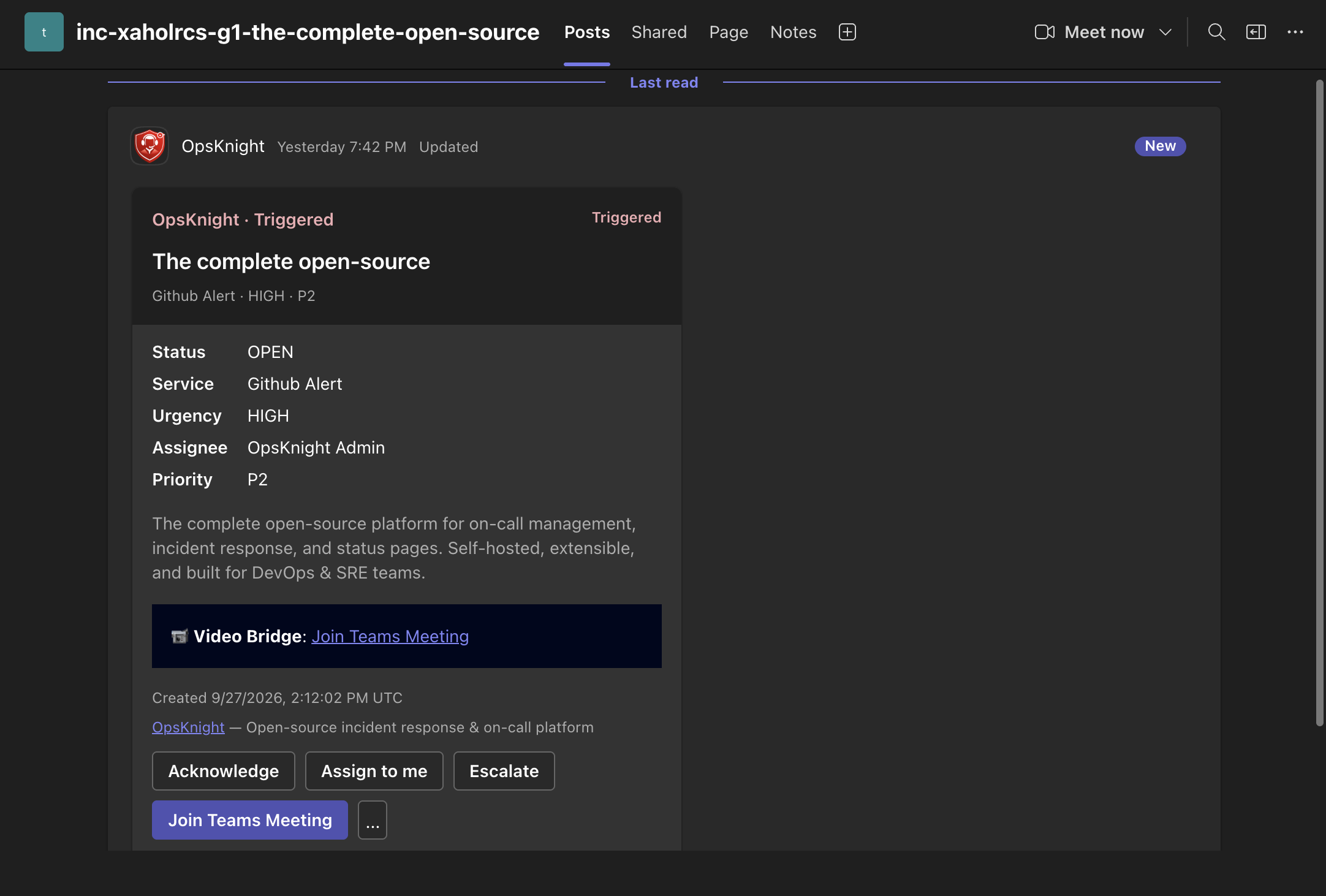
In a provisioned incident channel, the card can include the video bridge and the actions available to the signed-in responder.
Open the feature
As administrator, open Settings → Integrations → Microsoft Teams to generate/update the app package. Then open Services → select service → Notifications → Microsoft Teams to select the one destination that owns automatic war-room behavior. Responders create/manage the room from the incident collaboration controls.
Configure war-room consent
- Enable war-room permissions in the generated application package.
- Reinstall or update the package in the target team.
- Select the service destination that owns automatic war-room behavior.
- Create a test incident room and verify its lifecycle.
Channel creation needs Channel.Create.Group and
TeamsAppInstallation.Read.Group. Lifecycle and membership features add
ChannelSettings.ReadWrite.Group, TeamMember.Read.Group,
ChannelMember.Read.Group, and ChannelMember.ReadWrite.Group.
Verify creation, marker reconciliation, membership synchronization, message projection, and terminal cleanup before production use.
What OpsKnight does
OpsKnight creates/links an incident-scoped Teams channel, stores durable identifiers/markers, publishes incident context, reconciles membership and cards, and performs terminal cleanup. The incident remains authoritative. Only one destination per service owns automatic war-room behavior.
Verify it worked
Confirm the channel appears in the intended team, normal incident context and optional video bridge/actions are correct, expected members synchronize, card actions update OpsKnight, and closure performs documented cleanup.
Remove or change the war room
Close/reconcile it from OpsKnight rather than manually deleting the Teams channel. To change owner destination, finish/open-room coordination, select the new service destination, and test with a new incident; do not assume existing remote rooms migrate.
Troubleshooting
Channel creation forbidden: verify optional RSC permissions and team-level consent/package update.
Room exists but OpsKnight reports ambiguity: inspect collaboration operation/markers before retrying to avoid duplicate channels.
Membership fails: verify Team/Channel member read/write RSC and target user availability.
Next steps
Last updated for v2.0.0
Edit this page on GitHub