
Create your first team and service
Create service ownership, add a responder, and prepare a service for alert routing.
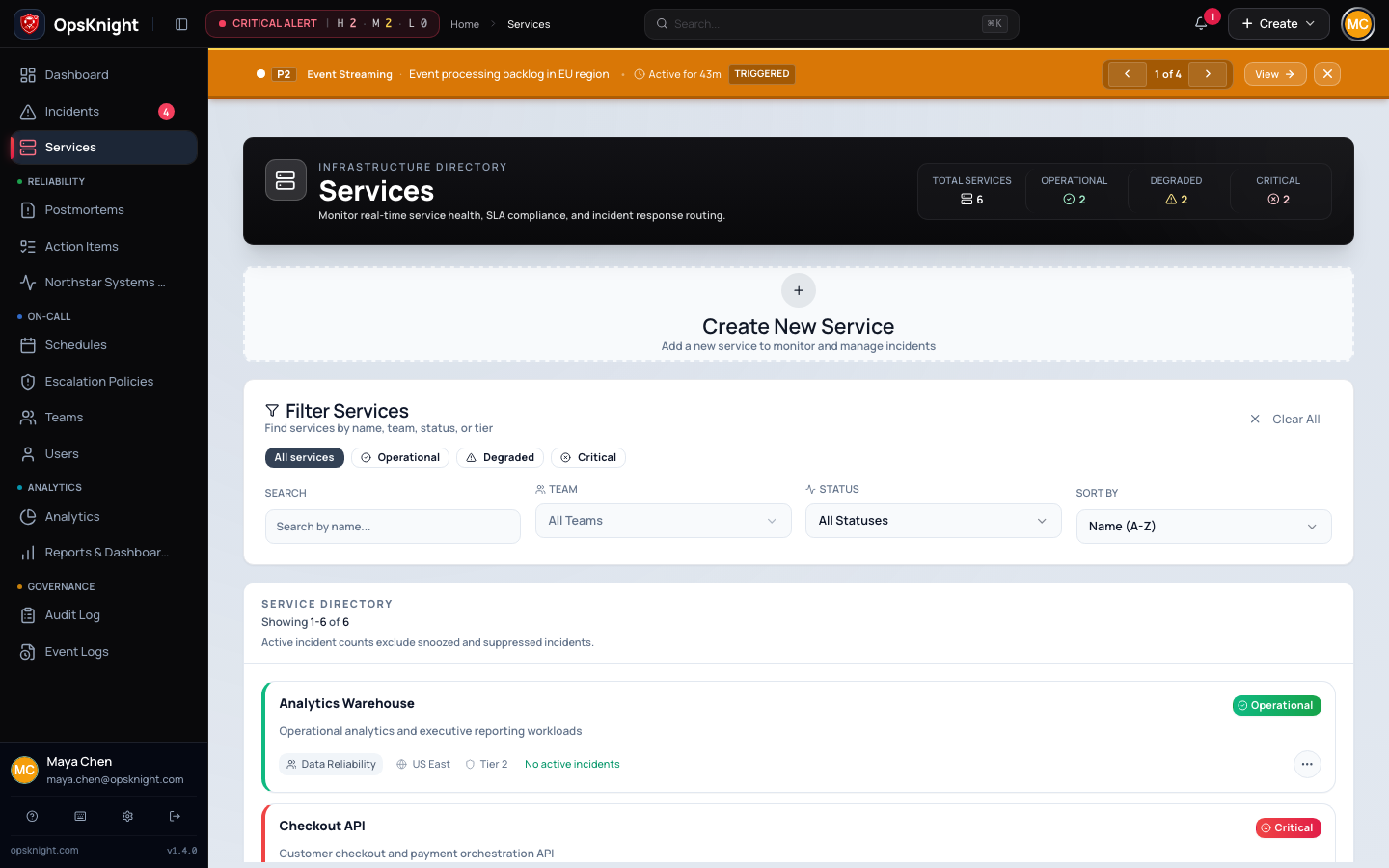
Teams establish operational ownership; services receive alerts and incidents. This tutorial creates both before configuring paging.
Before you begin
Sign in as an Admin. Create or invite at least one active Responder under Users. For a safe evaluation, use a test responder whose notification destinations you control.
1. Create the ownership team
- Open Teams.
- Select Create New Team.
- Enter a unique Team Name, such as
Payments Reliability. - Enter a Mission / Description explaining what the team owns.
- Select Create Team, then open it from the directory.
The name is required and must be unique. Admins and Responders can create teams, but the remaining steps require suitable team-management permission.
2. Add a responder
On the team detail page, add the active responder as a member. Use MEMBER for this first exercise. Team roles are separate from the user's system role:
- OWNER manages the team and protects it from being left without an owner.
- ADMIN manages team membership without becoming its protected owner.
- MEMBER participates in team ownership and team-targeted notification routing.
Only system Admins can assign the team OWNER or ADMIN roles. Choose a team lead only after that user is a member; the application rejects a non-member lead.
Expected result: the responder appears in the member roster as active. If a user is missing from the picker, verify that their account is active and operationally eligible.
3. Create the service
- Open Services.
- Select Create New Service.
- Enter a unique Service Name, such as
Checkout API. - Select the team under Owner Team.
- Add a useful Description and optional Region.
- Optionally choose a Service Tier. This is an informational availability classification; it does not set incident-response SLA timers.
- Leave Escalation Policy empty for now unless you already created one.
- Select Create Service.
4. Verify the result
Open the service and confirm its name, owner team, region, and tier. The service will initially show that it has no escalation policy and no inbound integration. Those are expected gaps that the next tutorials close.
Do not send production alerts yet. First configure on-call, then connect an alert source.
Troubleshooting
The team or service name is rejected: names are trimmed and must be unique. Choose a distinct operational name.
The owner team is not listed: confirm the team was created and refresh the service form. A non-Admin can only move a service into a team of which they are a member.
The responder cannot be added: confirm the user is active. Deactivated or otherwise ineligible users cannot participate in operational routing.
The service exists but nobody is paged: ownership alone does not page the team. Attach an escalation policy with a User, Team, or Schedule target.
For all service settings and deletion dependencies, see Services.
Last updated for v2.0.0
Edit this page on GitHub