
Configure single sign-on
Connect Microsoft Entra ID, Google Workspace, Okta, Auth0 or Keycloak to OpsKnight, test it with your own sign-in, and turn it on.
This guide takes you from nothing to working single sign-on. It usually takes 15–30 minutes, most of it in your identity provider's console. Nothing changes for your team until the very last step.
Before you begin
You need:
- an OpsKnight administrator account whose email is your real work email (the one your identity provider uses);
- OpsKnight reachable at a public HTTPS address, with
NEXTAUTH_URL,NEXT_PUBLIC_APP_URLand App URL (Settings → System) all set to that same address; - permission in your identity provider to create an application and a client secret.
If the console shows "Single sign-on settings need OpsKnight to run at an HTTPS address" or "OpsKnight is configured with more than one address", fix those settings first and reload.
Changing security settings needs a sign-in from the last two hours. The console warns you 30 minutes before that window closes, with a Sign in again link that brings you back.
Step 1 · Connect provider
Open Settings → System → SSO / Authentication → 1 · Connect provider and pick your provider. Each provider shows its own checklist next to the fields.
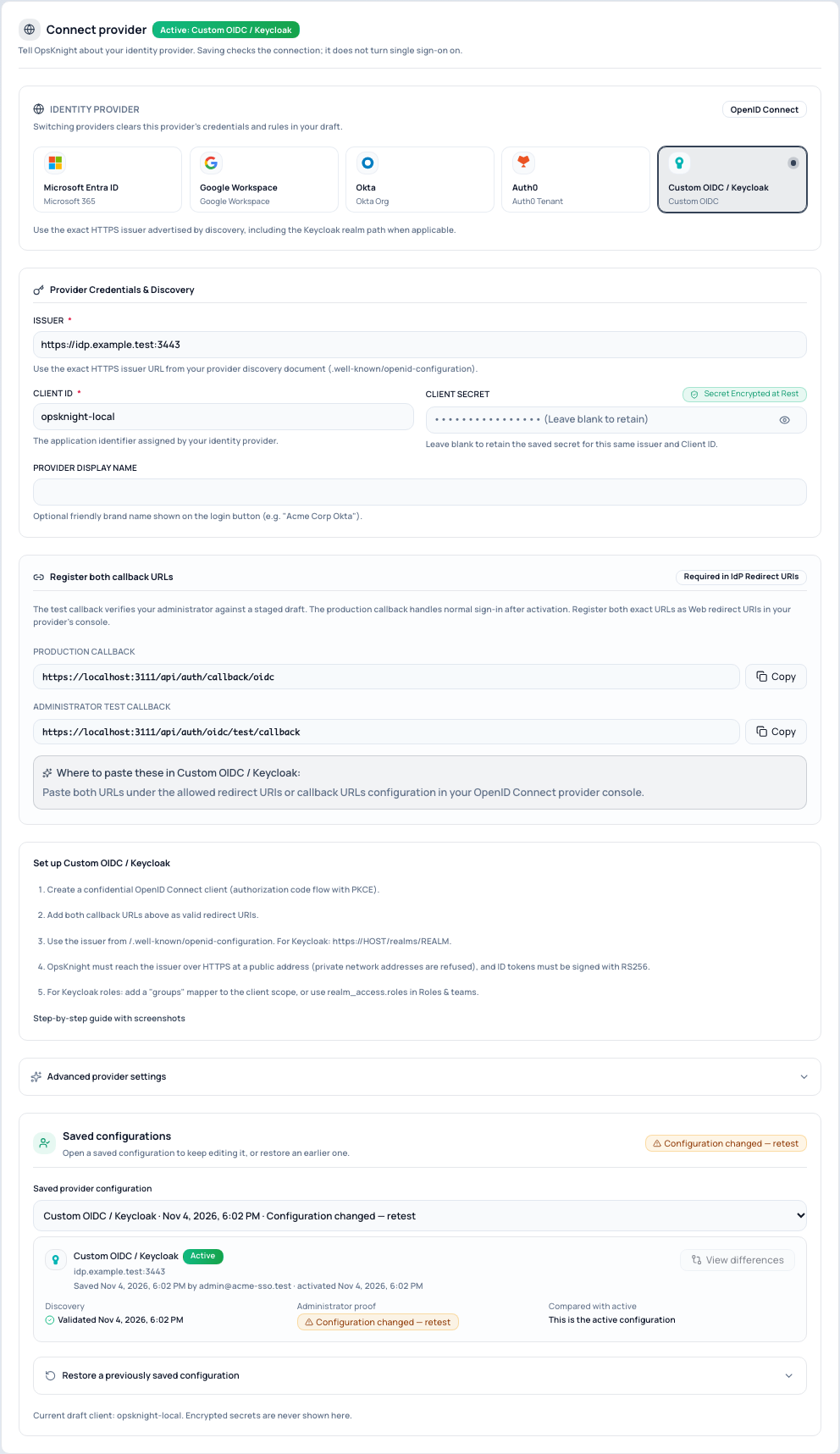
Copy both callback URLs into your provider as allowed redirect URIs:
| Callback | Used for |
|---|---|
https://<your-opsknight>/api/auth/callback/oidc |
Everyone's normal sign-in |
https://<your-opsknight>/api/auth/oidc/test/callback |
Your test sign-in before you turn SSO on |
Register them exactly: scheme, host, port and path all matter. Then fill in the fields for your provider and select Save changes. Saving checks that OpsKnight can reach your provider and that its discovery document is valid. It does not turn anything on.
Microsoft Entra ID
- Entra admin center → App registrations → New registration. Account type: accounts in this organizational directory only.
- Authentication → Add a platform → Web → paste both callback URLs.
- Certificates & secrets → New client secret → copy the Value (not the Secret ID).
- Token configuration → Add optional claim → ID → add
email. To let existing accounts connect automatically, also addxms_edov(see linking existing accounts). - In OpsKnight, enter the Directory (tenant) ID, Application (client) ID and secret.
OpsKnight builds the issuer https://login.microsoftonline.com/<tenant-id>/v2.0 for you and
refuses the shared common, organizations and consumers authorities. For US Government or
China clouds, open Advanced provider settings and edit the exact issuer
(login.microsoftonline.us or login.partner.microsoftonline.cn).
For roles, prefer App roles (the roles claim): create roles such as OpsKnight.Admin,
assign groups to them in Enterprise applications → Users and groups, and map roles in
Roles & teams. The groups claim stops working for people in more
than 200 groups.
Google Workspace
- Google Cloud Console → APIs & Services → OAuth consent screen → Internal.
- Credentials → Create credentials → OAuth client ID → Web application → paste both callback URLs under Authorized redirect URIs.
- In OpsKnight, enter the client ID and secret. The issuer is set for you.
- In 2 · Who can sign in, add your Workspace domain. OpsKnight checks it against Google's
signed
hdclaim, so only accounts in your Workspace can sign in.
Google does not include groups in the ID token. Manage roles by hand or with SCIM.
Okta
- Okta Admin Console → Applications → Create App Integration → OIDC → Web Application.
- Sign-in redirect URIs → paste both callback URLs. Assign the people or groups who should use OpsKnight.
- Security → API → Authorization Servers → default → copy the Issuer URI (it ends in
/oauth2/default) into OpsKnight, with the client ID and secret. - For roles: in that authorization server add a
groupsclaim (ID token, filter Matches regex.*, or a narrower filter) and addgroupsto Additional scopes in OpsKnight.
Auth0
- Auth0 Dashboard → Applications → Create Application → Regular Web Application.
- Allowed Callback URLs → both callback URLs, separated by a comma.
- Use your tenant domain as the issuer (
https://YOUR_TENANT.auth0.com/). - To restrict sign-in to one Auth0 Organization, enter its ID under Advanced provider settings.
- For roles, add a post-login Action that sets a namespaced claim such as
https://opsknight/rolesand use that claim in Roles & teams.
Keycloak and other providers
- Create a confidential OpenID Connect client using the authorization code flow with PKCE.
- Add both callback URLs as valid redirect URIs.
- Use the issuer from
/.well-known/openid-configuration, for Keycloakhttps://HOST/realms/REALM. - For roles, either add a
groupsmapper to the client scope, or maprealm_access.rolesin Roles & teams.
OpsKnight must reach the issuer at a public HTTPS address (private network addresses are refused to prevent server-side request forgery), and ID tokens must be signed with RS256.
Step 2 · Who can sign in
See link existing accounts. In short:
- Create an account on first sign-in gives new people an account automatically. Leave it off to allow only people you invite.
- Allowed email domains limits sign-in to your company domains (how it is checked depends on the provider; the console explains it for yours).
- People who already have an OpsKnight account connect on their first SSO sign-in once you approve them, in bulk or one at a time, or automatically for verified company emails.
Step 3 · Roles & teams (optional)
See map groups to roles and teams.
Step 4 · Test & activate
See test and turn on single sign-on. You sign in once yourself through the provider. If it fails, the result page says exactly why and links to the fix.
To confirm the setup works, check that the result page says Administrator sign-in verified before you turn on single sign-on. After you turn it on, people see Continue with … on the sign-in page.
What OpsKnight checks
When you save, OpsKnight checks the issuer is HTTPS and matches its discovery document, that the authorization, token and key endpoints are usable, that signing uses RS256, and that every endpoint resolves to a public address.
At every sign-in it also checks state, nonce and PKCE, the token's issuer, audience and
signature, a stable subject (sub), your organization or domain rules, and email verification.
An account is identified by issuer and subject, never by email alone, so a renamed or recycled
email can never take over someone else's account.
OpsKnight requests the openid email profile scopes. It does not use refresh tokens and refuses
offline_access. Do not add groups or roles as scopes for Entra or Google; they are claims,
not scopes.
Last updated for v2.2.0
Edit this page on GitHub