
Link existing accounts
Let people who already have an OpsKnight account sign in with single sign-on, by approving them in bulk, one at a time, or automatically for verified company emails.
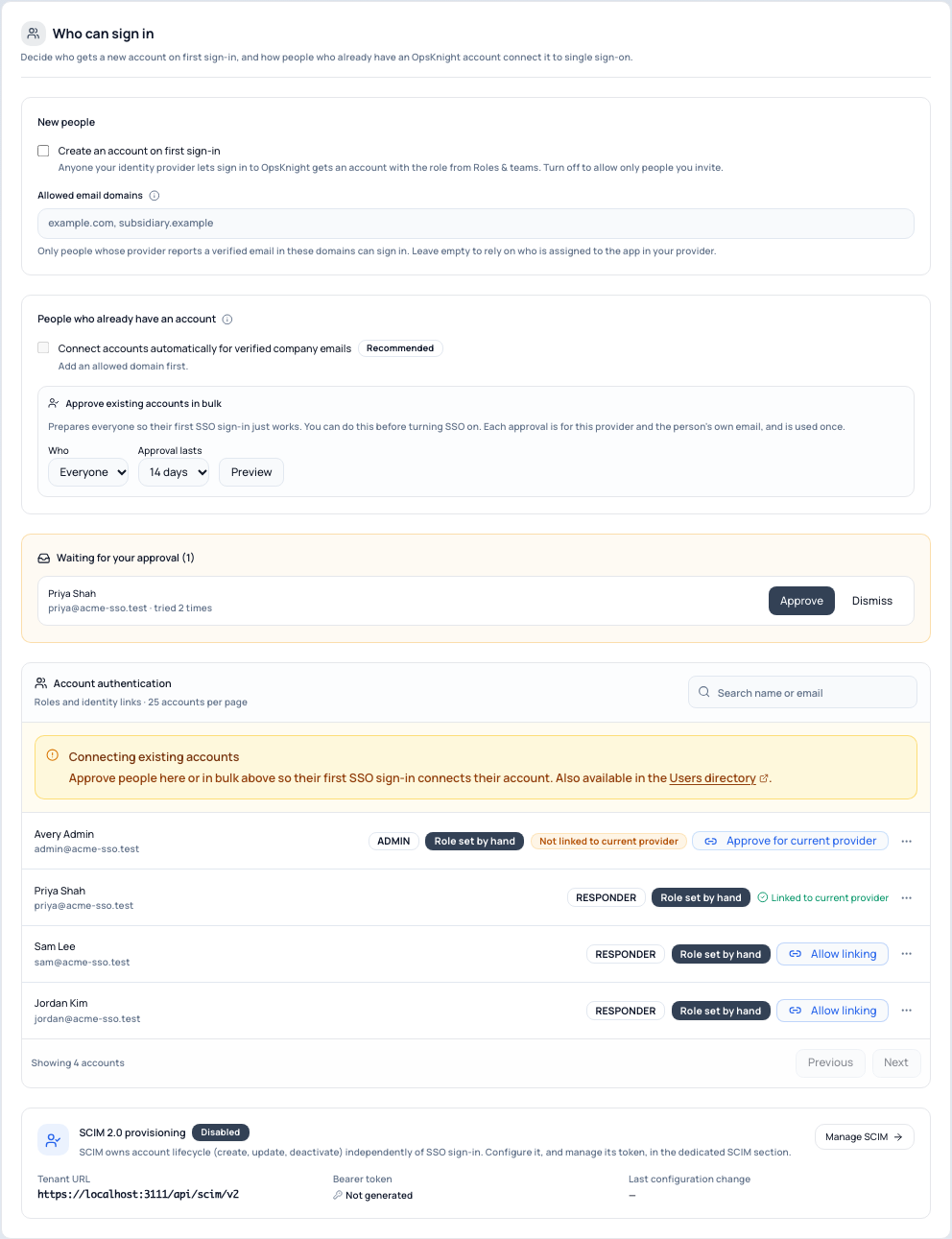
When someone who already has an OpsKnight account signs in with single sign-on for the first time, OpsKnight connects their SSO identity to that account. A matching email alone is never enough to do this, because whoever controls an email address at the identity provider would otherwise get the account. You choose how the connection is authorized, in 2 · Who can sign in.
Before you begin
- You need the OpsKnight Administrator role. Changing these settings needs an administrator sign-in from the last two hours (see authentication modes).
- Connect your identity provider first, in 1 · Connect provider. See configure single sign-on.
- To connect verified company emails automatically, or to approve Everyone in the allowed domains, set your Allowed email domains in 2 · Who can sign in.
Open Who can sign in
Open Settings → System → SSO / Authentication → 2 · Who can sign in. The options below, the account list and Waiting for your approval are all on this step.
Configure how existing accounts connect
Use one or more of these options.
Option 1 · Connect verified company emails automatically (recommended)
Turn on Connect accounts automatically for verified company emails. People whose verified email is in one of your Allowed email domains connect on their first SSO sign-in, with no approval.
- Administrators always need your approval.
- It needs proof from the provider that the email domain is really the person's:
- Google Workspace: the signed
hdclaim must equal the email domain. - Microsoft Entra ID: the token must include
xms_edov(email domain owner verified). Add it in App registration → Token configuration → Add optional claim → ID. Without it, people fall back to approval. Entra'semailclaim on its own can be edited and is not verified for guests. - Okta, Auth0 and other providers:
email_verifiedmust betrue.
- Google Workspace: the signed
- Turning it on confirms that every verified mailbox in those domains belongs to someone your company controls.
Option 2 · Approve in bulk
- Under Approve existing accounts in bulk, choose Everyone in the allowed domains or Everyone.
- Choose how long approvals last (7, 14 or 30 days).
- Select Preview, then Approve.
- You can do this before turning SSO on, so the first sign-in just works.
- Administrators are not included; approve them one at a time.
- Each approval is only for this provider and the person's own email, and works once.
- Up to 500 people are approved per run; run it again for more.
Option 3 · Approve one person
In the account list, select Allow linking for that person. You can also approve from /users.
Access requests
If someone tries to sign in before they are approved, they see "Your administrator needs to approve your first SSO sign-in" and administrators get a notification: "Priya Shah tried to sign in with SSO for the first time and needs your approval." The notification opens Waiting for your approval in Who can sign in, where you can Approve or Dismiss the request. Repeated attempts update the same request and notify again at most once a day.
How account linking works
What happens when you change providers
Approvals are tied to the provider's issuer and client ID.
- Turning on a new configuration for the same issuer and client keeps pending approvals valid.
- Switching to a different issuer or client cancels pending approvals, because they were given for the other provider. The preview in step 4 says how many approvals carry over and how many are cancelled.
Audit trail
Every connection is recorded in the audit log with how it was authorized: approval, verified company email, or directory (Microsoft Entra with SCIM trusted linking).
Verify
- In the account list in 2 · Who can sign in (or in /users), an approved person shows Linking approved, with the date the approval ends.
- After the person signs in with SSO, their account shows Linked to current provider.
- The audit log records the connection and how it was authorized.
Revoke an approval
Select Revoke next to Linking approved for that person, then Revoke approval. The person can no longer connect a new SSO identity. Their password access, role and account status are not affected, and an identity that is already connected stays connected.
To stop automatic connection, turn off Connect accounts automatically for verified company emails. People then need approval again.
Troubleshooting
- The person sees "Your administrator needs to approve your first SSO sign-in". Approve them, or turn on automatic connection. See sign-in problems with single sign-on.
- The approval expired before they signed in. Approve them again. See Your SSO approval has expired.
- The account shows Approval for previous provider. The approval was given for an earlier issuer or client. Select Renew.
- The account shows Not linked to current provider. Its SSO identity is from an earlier issuer or app registration. Select Approve for current provider.
- Microsoft Entra users still need approval with automatic connection on. The token does
not include
xms_edov. Add the optional claim as described in Option 1.
Next steps
- Map groups to roles and teams
- Test and turn on single sign-on
- Sign-in problems with single sign-on
Last updated for v2.2.0
Edit this page on GitHub