
Test and turn on single sign-on
Prove the setup with your own sign-in, preview exactly what will change, turn on SSO Optional, and later require SSO.
Before you begin
- You need the OpsKnight Administrator role. Changing these settings needs an administrator sign-in from the last two hours (see authentication modes).
- Connect your provider in 1 · Connect provider and set up 2 · Who can sign in. See configure single sign-on and link existing accounts.
- Your own OpsKnight administrator account must use the same verified email as your account at the identity provider.
Open Test & activate
Open Settings → System → SSO / Authentication → 4 · Test & activate.
Configure and turn on single sign-on
Step 1 · Test your own sign-in
You sign in once through your identity provider. This proves the whole setup works, and that you will still be an administrator afterwards, before anyone else is affected.
- Tick Allow this SSO identity to link to … the first time. It links your SSO identity to your administrator account only if the verified email matches exactly.
- Read Before you test: it lists anything that would make the test fail, such as your email domain not being allowed or Microsoft Entra not sending the email claim.
- Select Test my sign-in. If you have unsaved changes, the button says Save and test sign-in and saves them first.
- Sign in at your provider as yourself. Use a private window if you are signed in to the provider as someone else.
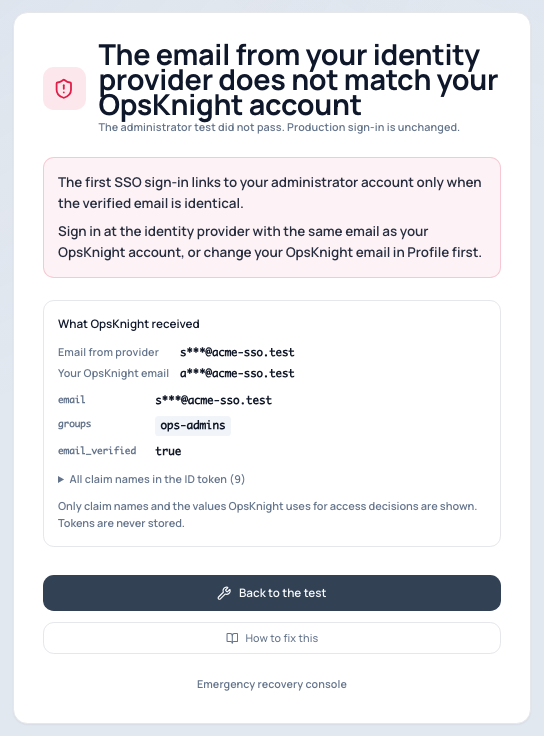
The result page says Administrator sign-in verified, or names exactly what failed, shows the claims OpsKnight received (names and the values your rules use, never the token), and links to the step where you fix it. See administrator test failures.
Step 2 · Preview and turn it on
- Choose How people sign in: SSO Optional to start.
- Select Preview what will change. It shows:
- password sessions that end (only for SSO Required);
- how many existing accounts are approved or still need approval, with a link to approve them. With automatic connection for verified company emails, it also shows how many may connect automatically. They still count as needing approval, because whether they connect depends on proof your provider sends at sign-in;
- approvals that carry over or are cancelled;
- whose role changes and which team memberships change at their next sign-in;
- anything still blocking the mode you chose.
- Tick the confirmation and select Turn on single sign-on.
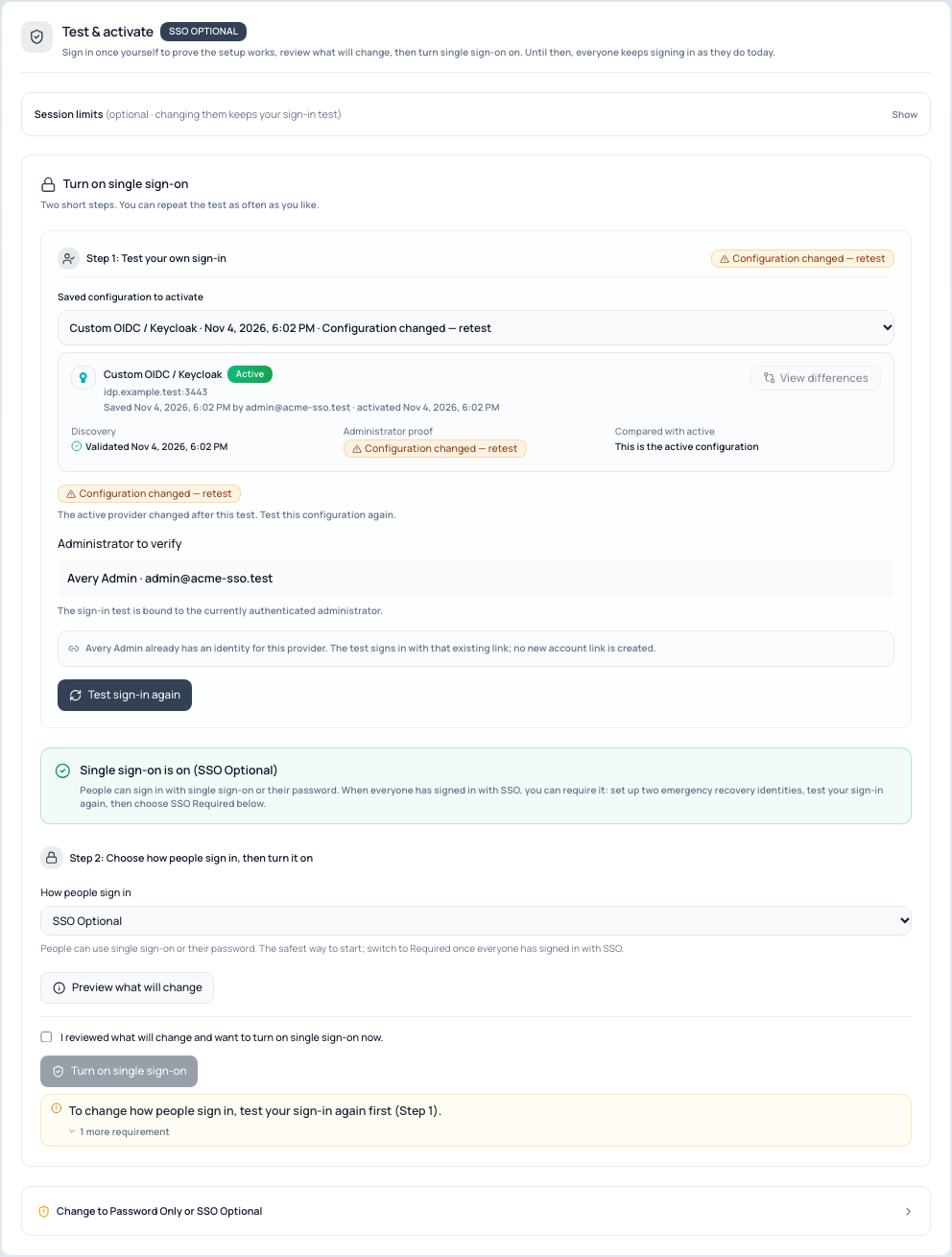
People now see Continue with … on the sign-in page. Nothing else changes for people who keep using their password under SSO Optional.
Requiring single sign-on
When everyone has signed in with SSO:
- Set up two emergency recovery identities and sign in with each once.
- Test your sign-in again.
- Choose SSO Required, preview, confirm and turn it on.
Password sessions end and people sign in again with SSO. The preview lists anything still missing.
Session limits
Session limits (optional) set how long an SSO session lasts and how long it can be idle. Defaults: 12 hours, 4 hours idle. People are asked to sign in again with the provider when their session reaches its limit, and see why on the sign-in page.
How the administrator test works
The test is one real sign-in, as yourself, through your provider. It checks that sign-in works and that you stay an Administrator afterwards. The result page shows the claims OpsKnight received, never the token.
A passing test stays valid for seven days. It stays valid if you only change session limits, the button label, profile details or team rules. Changing the provider, client, secret, scopes, allowed domains, linking policy or role rules needs a new test.
Verify
- After Test my sign-in, the result page says Administrator sign-in verified.
- After you turn on single sign-on, the sign-in page shows Continue with ….
- Every change of sign-in mode is audited and alerts administrators.
Change or undo
To go back from SSO Required, or to stop using single sign-on, open 4 · Test & activate → Change to Password Only or SSO Optional. Choosing Password Only needs your current password. See authentication modes for what changes when you switch.
Troubleshooting
- The administrator test fails. The result page names the cause and links to the step where you fix it. See administrator test failures.
- People cannot sign in after you turn it on. See sign-in problems with single sign-on.
- Nobody can sign in under SSO Required. Use an emergency recovery identity. See recover from SSO lockout.
Next steps
- Configure emergency access
- Map groups to roles and teams
- Authentication modes
Last updated for v2.2.0
Edit this page on GitHub