
Map groups to roles and teams
Give people an OpsKnight role and team membership from their identity provider groups or roles, and understand exactly when roles change.
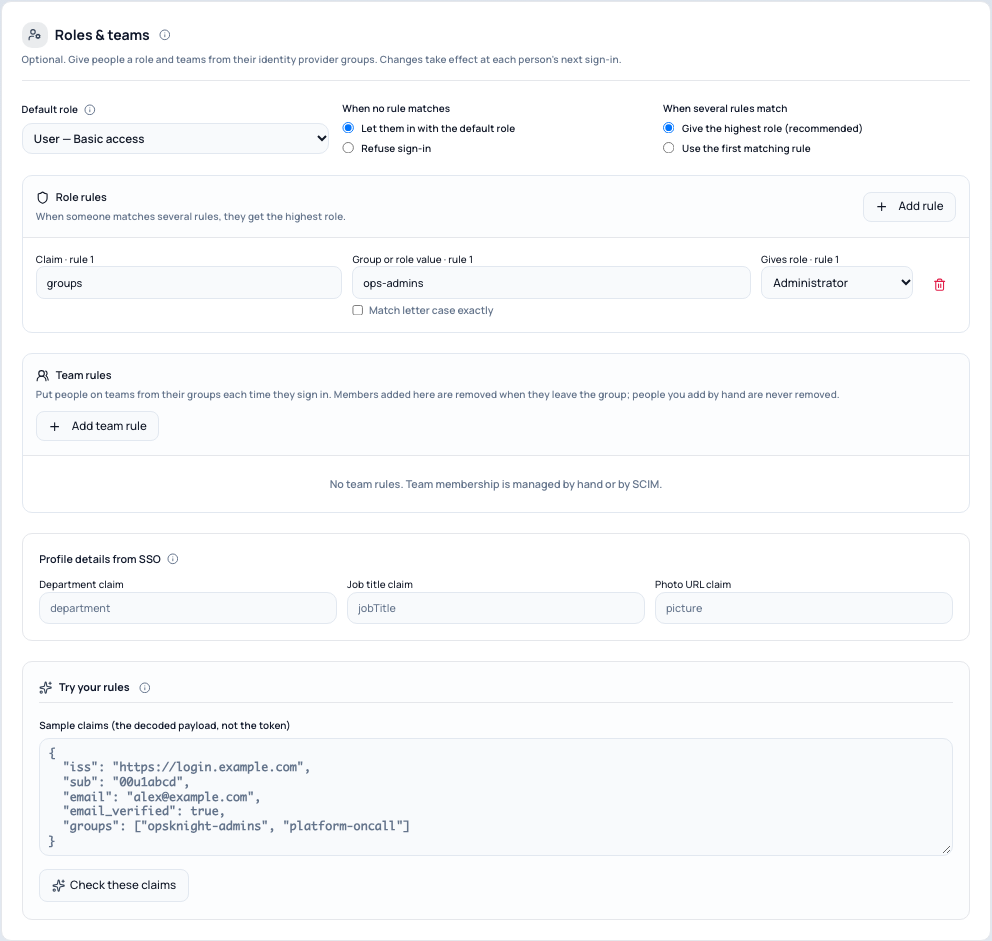
In Settings → System → SSO / Authentication → 3 · Roles & teams, you can give people a role and put them on teams based on the groups or roles your identity provider sends. OIDC rules are applied every time someone signs in with single sign-on. For roles updated without a sign-in, configure SCIM group role mappings.
This step is optional. Without rules, everyone gets the default role, and you manage roles and teams by hand.
Before you begin
- You need the OpsKnight Administrator role.
- Connect your identity provider first, in 1 · Connect provider. See configure single sign-on.
- Make sure your provider sends the groups or roles you want to use. For
Microsoft Entra, App roles (
roles) avoid the 200-group limit. - Create the teams you want to fill in Teams before you add team rules.
Open Roles & teams
Open Settings → System → SSO / Authentication → 3 · Roles & teams.
Configure role rules
| Role | What it allows |
|---|---|
| Administrator | Everything, including settings and single sign-on |
| Responder | Handle incidents and be on call |
| Auditor | Read-only access to everything |
| User | Basic access |
Add a role rule
- Select Add rule.
- Claim: the claim that holds groups or roles, usually
groupsorroles. Nested claims use dots, for examplerealm_access.roles(Keycloak) orresource_access.opsknight.roles. Namespaced claims such ashttps://opsknight/roleswork as written. - Group or role value: the exact value your provider sends. Once people have signed in, the field suggests the values OpsKnight has seen, with how many people have each one. A warning appears if nobody has signed in with the value yet.
- Gives role: the role for people with that value.
Matching ignores letter case and surrounding spaces. Tick Match letter case exactly only if your provider has two groups that differ only by case.
Microsoft Entra: with the
groupsclaim, enter the group's Object ID (a GUID), not its name, unless you configured Entra to emit names. App roles (roles) avoid this and the 200-group limit.
When several rules match
- Give the highest role (recommended): someone in both
ops-respondersandops-adminsbecomes an Administrator. Rule order does not matter. - Use the first matching rule: rules are checked top to bottom; reorder them with the arrows. Installations upgraded from v2.1 start here, because that is how they behaved before.
When no rule matches
- Default role — the role for people whose groups match no rule, and the role new accounts start with. Most teams choose User or Responder. Administrator cannot be the default; give it with a rule.
- When no rule matches — Let them in with the default role, or Refuse sign-in. Refusing shows the person "Your account is not assigned to OpsKnight". People whose role an administrator set by hand are never refused this way.
Configure team rules
Team rules put people on teams from their groups at each sign-in.
- Create the team first in Teams.
- In Team rules, select Add team rule, choose the claim and group value, and pick the team.
What happens at each sign-in:
- People matching a rule are added to the team as members.
- People who no longer match are removed, but only from memberships a team rule created. Members you added by hand, members SCIM added, and anyone whose team role you changed (for example to owner) are never removed.
- If the provider reports an incomplete group list, nobody is removed.
- Deleting every team rule removes the memberships those rules created, at each person's next sign-in.
The team roster labels these members SSO group (or Directory for SCIM).
Understand role ownership and safety rules
Who owns a role
Every account's role is set by an administrator, from SSO, or from SCIM. The people directory and the console show which.
- A role you set by hand stays as you set it. Single sign-on never changes it.
- New accounts created by single sign-on get their role from the rules.
- An existing account moves under SSO control on its first SSO sign-in if a rule matches.
- A role explicitly adopted by a SCIM group role mapping stays under SCIM control; OIDC rules never overwrite it, even on first SSO link. Legacy SCIM roles retain their previous matching-rule takeover behavior until a group role mapping adopts the account. Use SCIM group role mappings to manage roles at provisioning time without a sign-in.
- To hand a role back to the rules, open the account's menu in 2 · Who can sign in and choose Let role rules manage this role. It applies at their next SSO sign-in.
Safety rules
- Incomplete group lists. Microsoft Entra replaces the
groupsclaim with a "too many groups" marker for people in more than 200 groups. OpsKnight then cannot tell which groups they are in, so it fails safe: no rule can raise their role, and a role from SSO above the default role is lowered to the default. Otherwise, removing someone from an admin group would never take effect. Roles set by an administrator or by SCIM do not change, team memberships are kept, and administrators get one alert per person per day. If you refuse people no rule matches, a new person with an incomplete list is refused too ("OpsKnight could not read your groups"), because they cannot be evaluated. Switch to App roles to fix it. - The last administrator. If a rule would take Administrator away from the only active administrator, OpsKnight keeps their role, lets them sign in and alerts you, rather than locking everyone out.
- Broad administrator rules. A rule that gives Administrator to everyone (for example
groups = everyone) needs an explicit confirmation. - Your own test. The administrator test in step 4 fails if your rules would remove your own Administrator role.
Verify
Try your rules
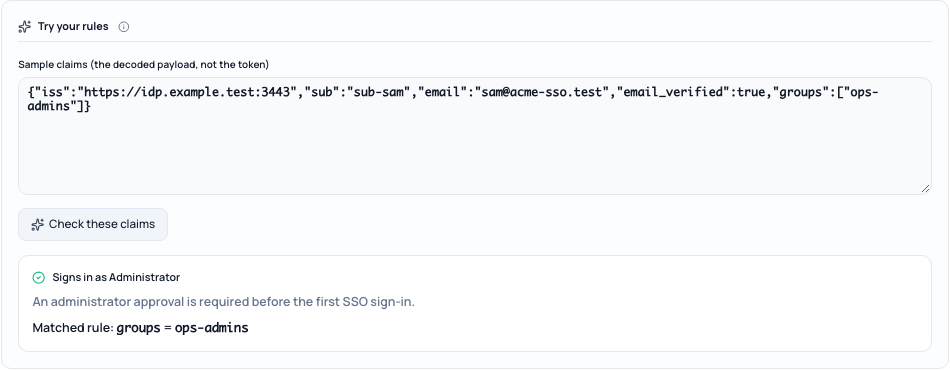
Try your rules checks sample claims against your current rules, including changes you have not saved yet. Paste the decoded ID token payload (not the token itself), for example:
{
  "iss": "https://login.example.com",
  "sub": "00u1abcd",
  "email": "[email protected]",
  "email_verified": true,
  "groups": ["opsknight-admins", "platform-oncall"]
}
The result shows whether the person can sign in, their role, which rule matched, their teams, and any warning such as a missing claim.
See the impact before you turn it on
Preview what will change in step 4 uses the values people sent at their last SSO sign-in to show how many people would get a different role, who would be refused, and how many team memberships would be added or removed.
OpsKnight stores only the values of the claims your rules use, never the token. They are included in privacy exports and erased with the account.
After people sign in, the account list in 2 · Who can sign in shows each person's role and whether it is Role set by hand or Role from SSO. Team rosters label rule-created members SSO group.
Remove or change rules
- Remove a role rule or team rule with the remove button next to it.
- Removing every team rule removes the memberships those rules created, at each person's next sign-in. Members you added by hand or through SCIM stay.
- To keep a person's role whatever the rules say, set their role by hand. Single sign-on never changes a role set by an administrator.
- Changing role rules needs a new administrator test before you turn the change on. Changing only team rules does not. See test and turn on single sign-on.
Troubleshooting
- A person sees "Your account is not assigned to OpsKnight". No rule matched and When no rule matches is set to refuse sign-in. Add them to a group a rule matches, or change the setting. See sign-in problems with single sign-on.
- A person sees "OpsKnight could not read your groups", or a role was lowered to the default. The provider sent an incomplete group list. Switch Microsoft Entra to App roles.
- A rule never matches. Check the claim name and value with Try your rules. For
Microsoft Entra
groups, use the group's Object ID. - Your administrator test fails because of role rules. Your rules would remove your own Administrator role. See administrator test failures.
Next steps
- Link existing accounts
- Test and turn on single sign-on
- Roles, permissions and access requests
Last updated for v2.2.0
Edit this page on GitHub