
Create an on-call schedule
Create a timezone-aware schedule, add initial coverage, and verify the current and next responder.
Before you begin
Activate intended responders and choose the authoritative IANA time zone, coverage window, handoff time, and responder order. The schedule time zone controls local entry and daylight-saving behavior.
Open the feature
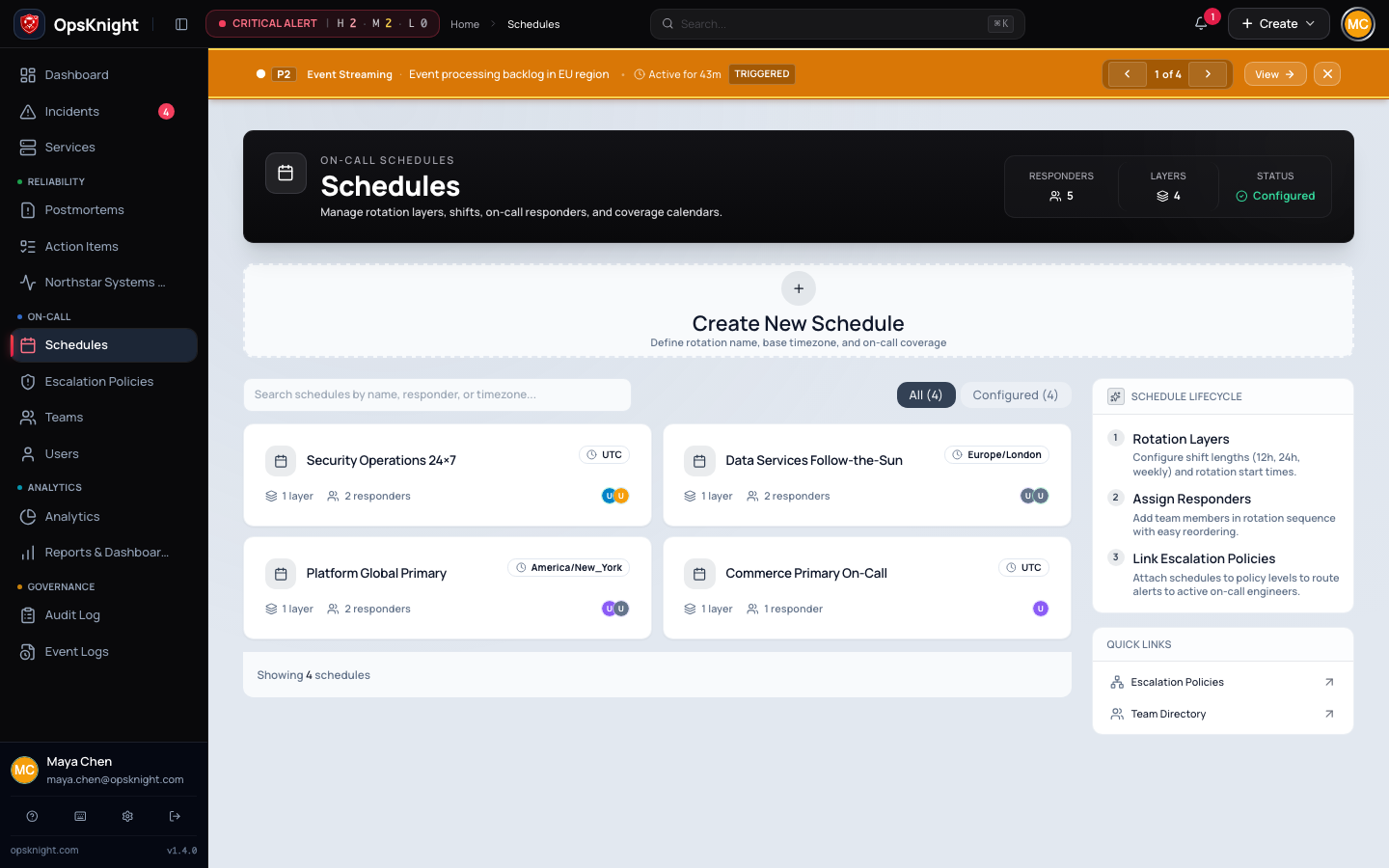
Open Schedules and expand Create Schedule.
Configure the schedule
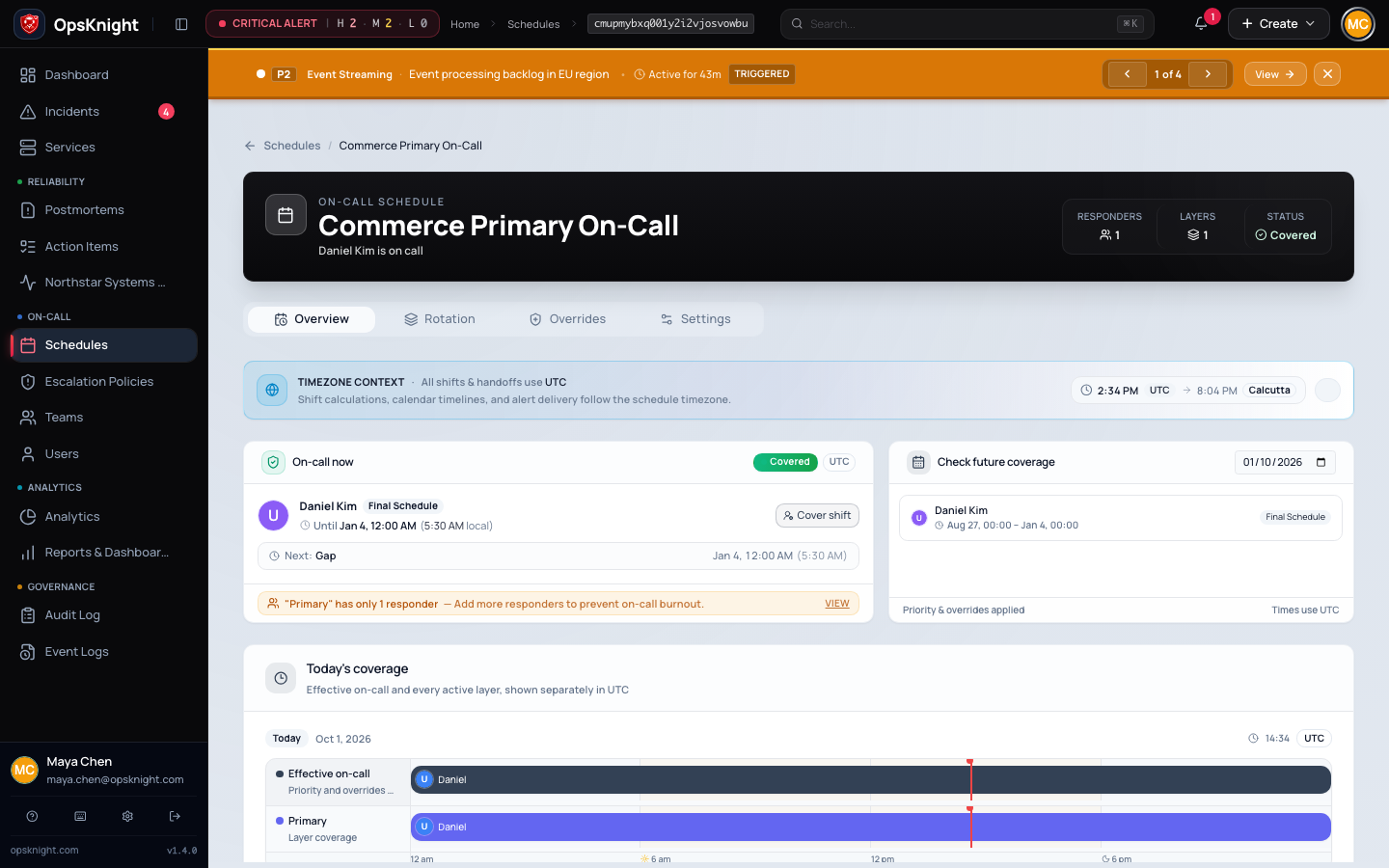
- Enter a unique operational name such as
Payments Primary. - Select the schedule time zone.
- Create the schedule and open it from the directory.
- Add the first rotation layer and active responders.
- Save the layer.
What OpsKnight does
A schedule resolves effective on-call ownership from active rotation layers and temporary overrides. A newly created schedule has no coverage until an active layer contains eligible responders.
Verify it worked
Inspect the schedule at the current time, immediately before/after a handoff, and during required coverage hours. Confirm the expected current/next responder and no unintended gap. Then test on-call routing.
Change or undo it
Use an override for a bounded exception; change a layer only when recurring rotation is wrong. Before deleting or replacing a schedule, detach or update escalation policies and verify services retain a valid route.
Troubleshooting
No one is on call: add/activate a layer and eligible responders; inspect restrictions and time zone.
Handoff occurs at wrong local time: verify IANA time zone, layer start, interval, and DST transition preview.
Next steps
Last updated for v2.0.0
Edit this page on GitHub