
Build an on-call schedule
Create a schedule, define rotation layers, add responders, and verify coverage.
A schedule answers who is on call at a given time. Admins and Responders can manage rotations. Build and verify coverage before using a schedule in an escalation policy.
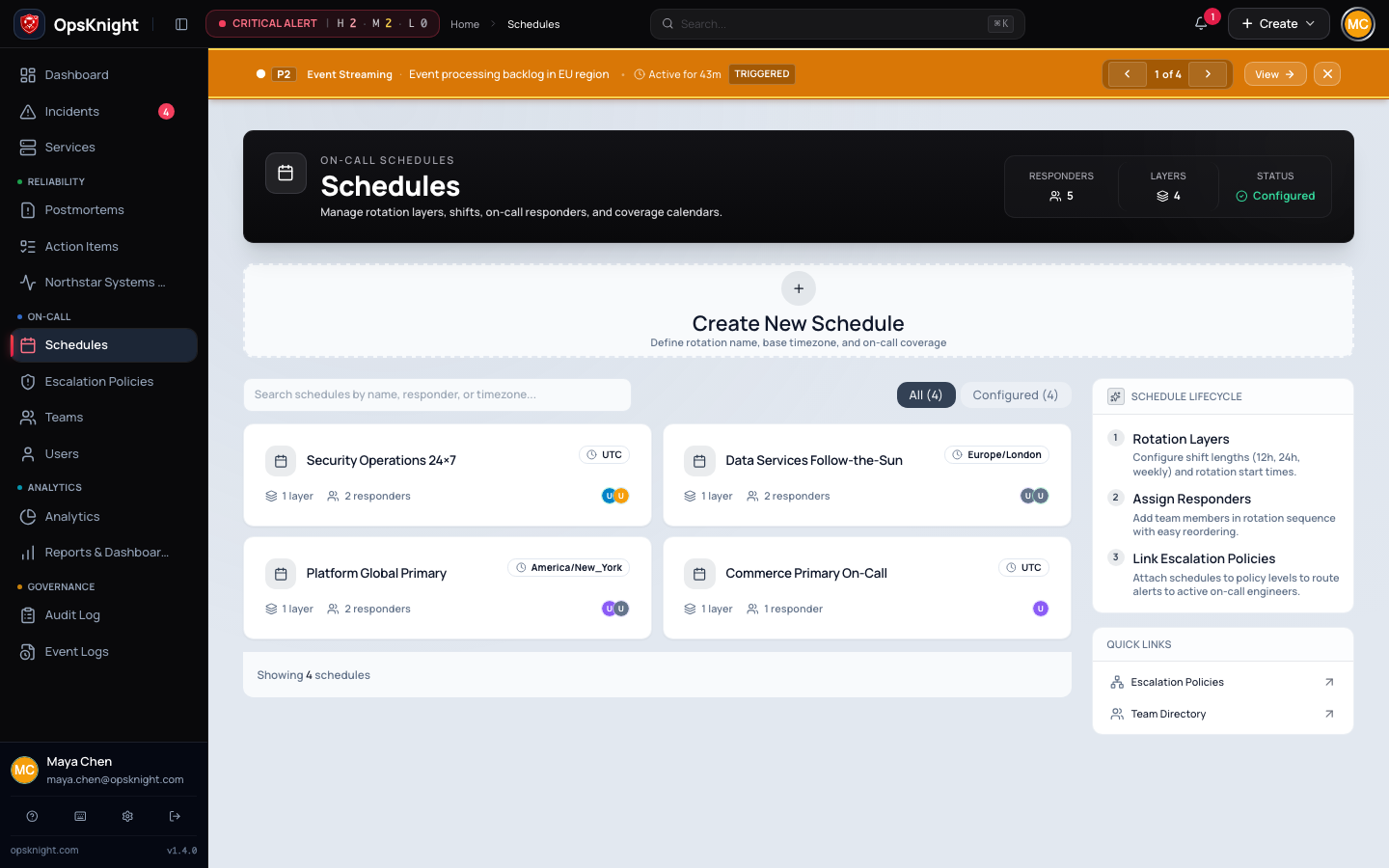
Before you begin
Activate every responder, choose the authoritative IANA time zone, and write down the responder order, handoff interval, first handoff time, and required coverage hours. The schedule time zone controls entered local times and daylight-saving transitions.
1. Create the schedule
- Open Schedules and expand Create Schedule.
- Enter a unique name such as
Payments Primary. - Select the schedule time zone and create it.
- Open it from the directory.
The new schedule has no coverage until it has an active layer and responder.
2. Add a rotation layer
Under Rotation layers, choose Add Layer and configure:
- Name: the layer's purpose.
- Each responder is on call for: the handoff interval; 168 hours is weekly.
- This layer is active for: optional coverage within each handoff. Leave blank for coverage until the next handoff. It cannot exceed the handoff interval.
- First responder starts: the first handoff in the schedule time zone.
- Rotation ends: optional final date and time.
- Repeating coverage hours: optional days and whole-hour boundaries; leave empty for 24×7.
- Responders: active users in rotation order.
Save the layer. A responder can belong to only one layer in the same schedule; remove them from the existing layer before moving them.
3. Cover gaps deliberately
Add another layer only for a genuinely different rotation, such as weekends. New layers are appended as fallback coverage, and priority determines which assignment wins during overlap. If a 24-hour handoff is active for only 12 hours, another layer must cover the other 12.
4. Verify effective coverage
- Check Current coverage and the next change.
- Use Check future coverage across a complete rotation.
- Inspect the timeline and explorer for gaps and overlaps.
- Check handoff boundaries and the next daylight-saving change where relevant.
The preview applies layer priority and overrides. Every time requiring paging should show the intended effective responder.
5. Connect and test paging
Add the schedule as a Schedule (On-Call) target in an escalation-policy step, then attach that policy to the service. See Configure an escalation policy.
Create a test incident. Confirm the schedule resolves to the responder shown in Current coverage and that a selected channel is usable. A schedule with no linked policy never receives incident alerts.
Troubleshooting
No coverage: confirm the layer has started, has not ended, matches its day/hour restrictions, and contains an active responder.
Wrong responder at a boundary: verify the schedule time zone, first start, rotation length, and responder order.
Cannot add a responder: the user must be active and not assigned to another layer in this schedule.
Cannot delete the schedule: remove it from every escalation-policy step first.
Coverage is correct but no alert arrives: verify the policy link, service link, matching policy step, selected channel, and responder endpoint.
Last updated for v2.0.0
Edit this page on GitHub