
Review audit logs
Search administrative changes, inspect record details, and export the current result page as CSV.
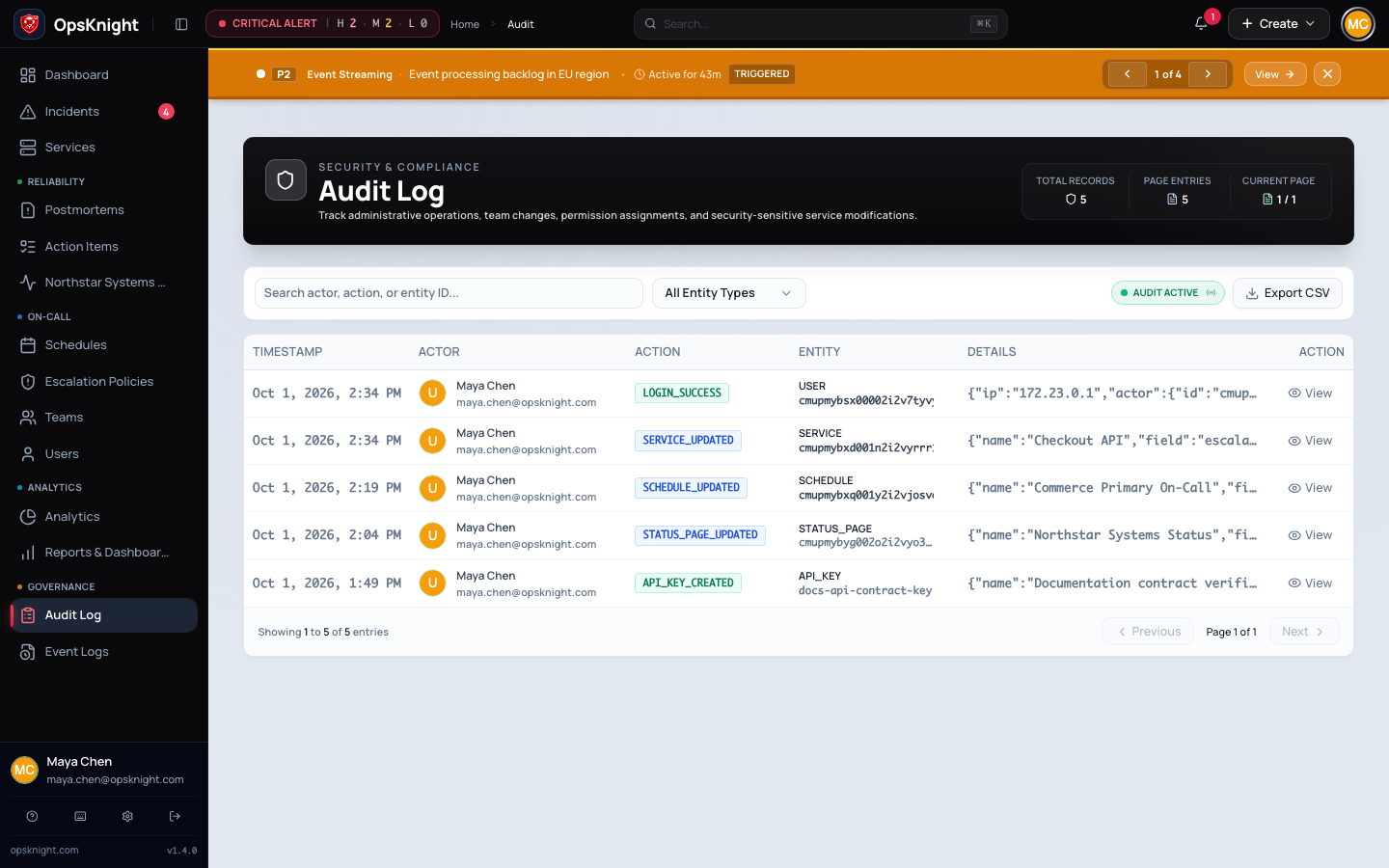
The Audit Log records security-sensitive and administrative actions. Use it to identify the recorded actor, action, entity, timestamp, source, and before/after details. It is distinct from application System Logs, notification delivery history, and an incident timeline.
Before you begin
Sign in as an ADMIN or AUDITOR. Collect the action name, entity identifier, actor name/email/identifier, or a phrase likely to appear in the visible record. The current page has no time-range, outcome, or correlation-ID filter.
Search and filter in the UI
- Open Audit Log (
/audit). - Use Search to match action, entity ID, stored actor name/email, or the current actor relation's name/email.
- Select an Entity type to limit results to that resource category.
- Select an Action when the filter offers the relevant action.
- Open a row to inspect its full details and old/new values.
- Move through results with Previous and Next. The page loads 50 newest-first records at a time.
The route also accepts exact entityId, actorId, and action query parameters. For example:
/audit?entityType=USER&actorId=<user-id>&action=user.role.updated
/audit?entityId=<resource-id>
Preserve other active parameters when sharing an investigation link. Invalid entity types are ignored rather than becoming arbitrary database filters.
Export CSV
Use Export CSV in the filter toolbar to export the records supplied to the current page. Treat the export as a page/result export, not proof that every matching record across all pages was included. Record the active filters and page with the evidence package.
Understand a record
An entry can include the action, entity type and identifier, actor relation plus captured actor name/email, source, timestamp, structured details, and old/new values when the emitter supplied them. Not every action has an “outcome” field, and the UI does not expose success/failure filtering.
- Use Audit Log for recorded administrative/security mutations.
- Use System Logs for process errors, request IDs, components, and stack traces.
- Use an Incident timeline for incident lifecycle events and responder activity.
- Use Notification History for provider attempts, responses, and retries.
What a missing event means
A missing row does not prove the action never occurred. Confirm the entity/action spelling, clear filters, search adjacent pages, and inspect the relevant application and delivery logs. Some read operations and failed requests may not emit the mutation event you expected. Preserve application logs before restarts when investigating an apparent gap.
Security and retention
Audit data can contain user and resource identifiers plus operational metadata. Restrict access, store CSV exports in an approved evidence location, and apply the organization's retention and legal-hold policy. Never paste credentials into investigation notes or enrich audit records with secrets.
Troubleshooting
- No results after filtering: clear filters, then add one exact entity/action/actor criterion at a time.
- An actor is blank: historical/system activity may retain captured actor fields without a current user relation; inspect the row details.
- CSV contains fewer records than expected: paginate and export the required result pages or use the approved evidence-export workflow for the broader case.
- Audit and System Logs disagree: compare timestamps and resource IDs; they serve different purposes and have different persistence boundaries.
Last updated for v2.0.0
Edit this page on GitHub