
Acknowledge an incident
Take response ownership, verify escalation stops, and handle acknowledgement conflicts safely.
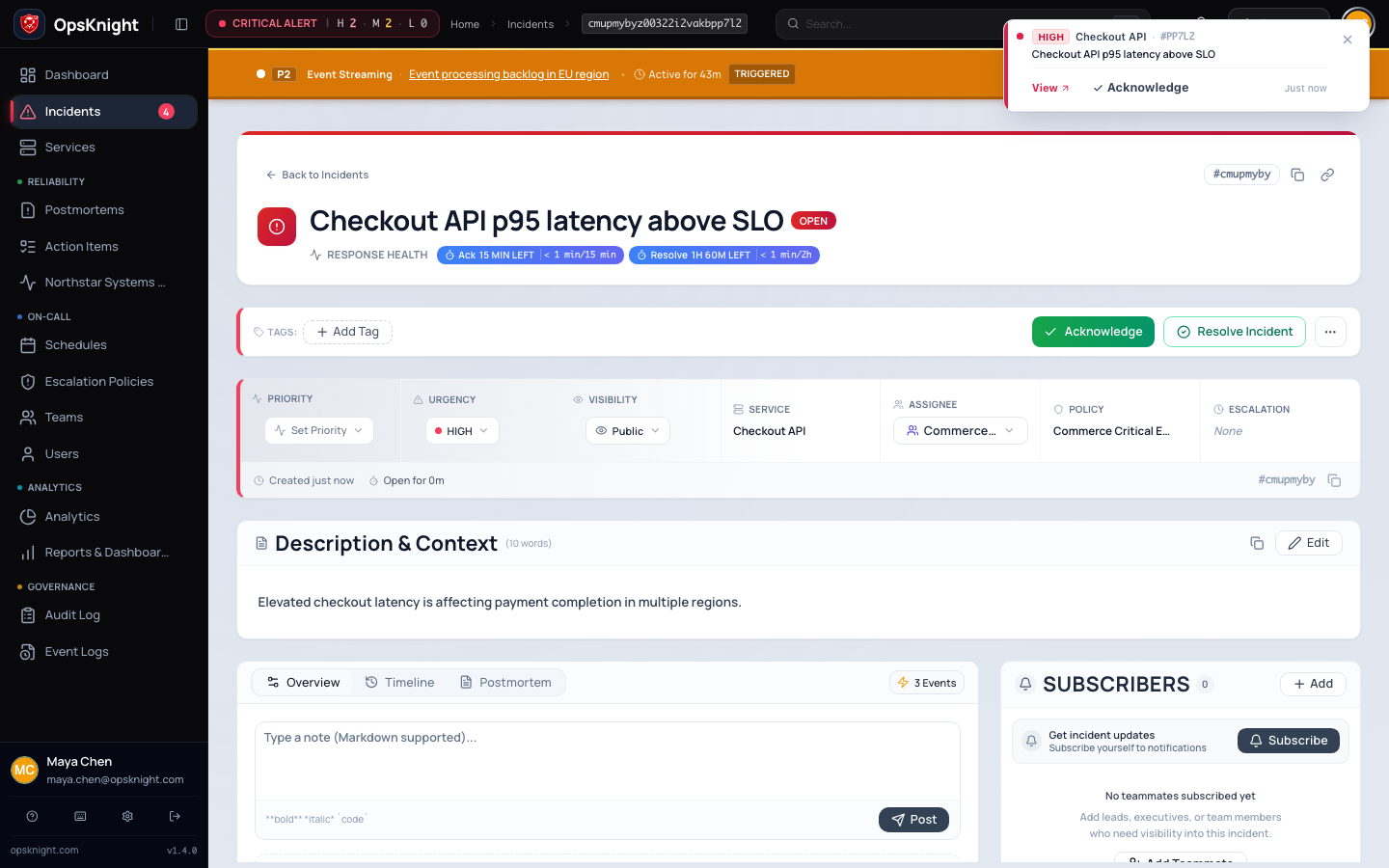
Acknowledgement tells OpsKnight that a responder has accepted the active response. It records response timing and completes the current escalation generation. It does not assign the incident, resolve the underlying problem, or make a private incident public.
Prerequisites
You must be signed in, able to view the incident, and have incident.acknowledge.scoped or broader incident-management access for it.
Before selecting the action:
- Confirm the incident title and service so you do not acknowledge a similarly named event.
- Read the latest timeline entries and current status.
- Check the assignee. Assignment and acknowledgement are independent, so decide whether you also need to assign yourself or a response team.
- Check for a banner or recent activity indicating another responder is changing the incident.
Open the feature
Open Incidents → select the incident and locate the response controls on the incident detail page.
Configure and acknowledge from the incident page
- Open Incidents and select the incident.
- Review the service, urgency, priority, current assignee, and response timer.
- Select Acknowledge once.
- Wait for the status update before taking the same action from another channel.
OpsKnight applies lifecycle commands against the status you loaded. If another responder changed it first, the request can be rejected as a conflict rather than overwriting newer state.
Verify acknowledgement
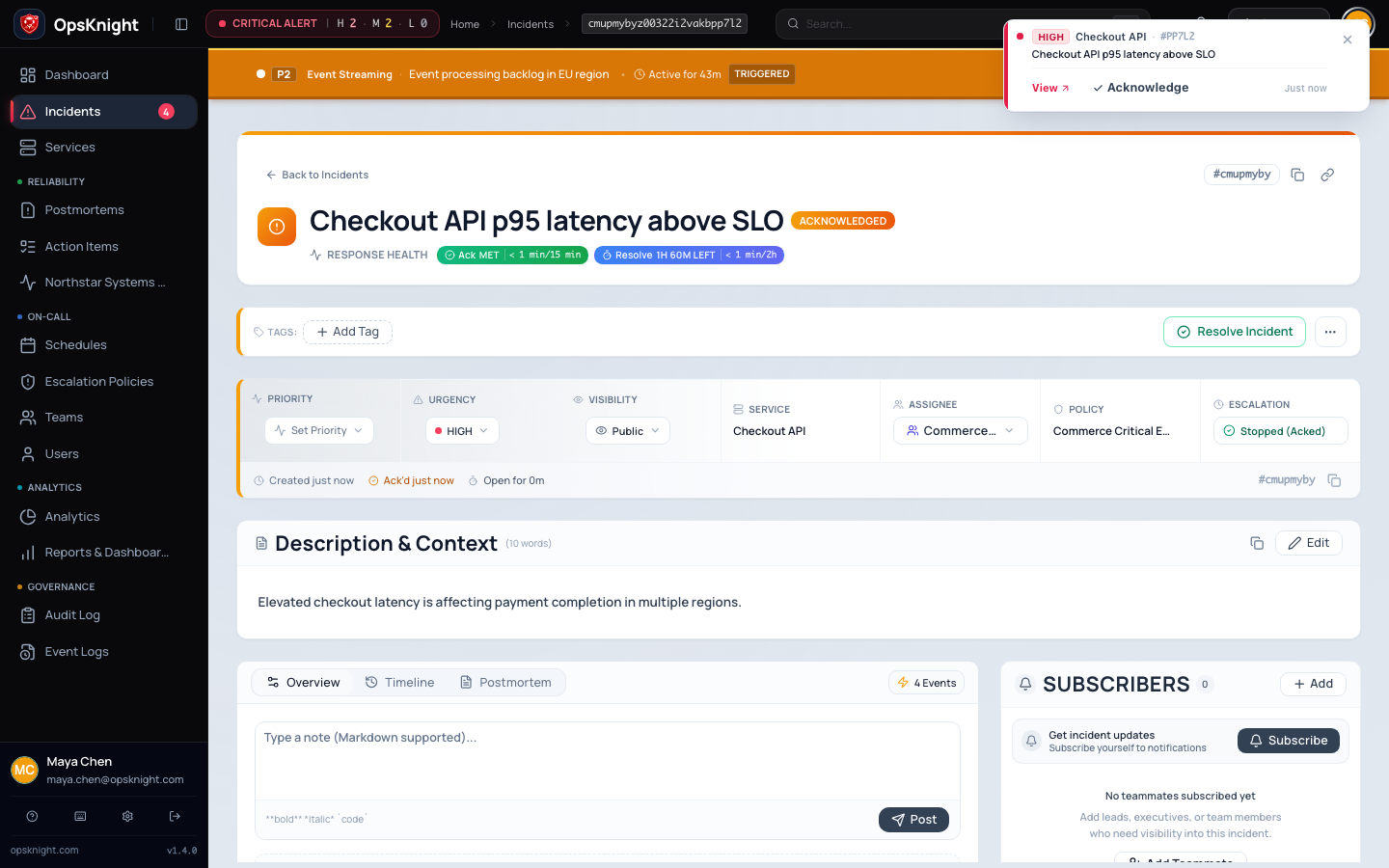
Confirm all of the following:
- The header shows Acknowledged.
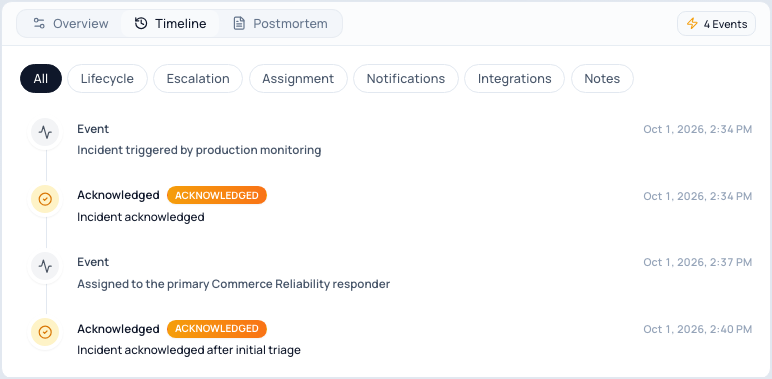
- The timeline records the acknowledgement and actor.
- The first acknowledgement timestamp and response measurement are present. Later status changes do not replace the original first-acknowledgement measurement.
- The active escalation generation is complete, with no new step scheduled from that generation.
- Any acknowledgement-dependent delivery or ChatOps projection eventually reflects the change.
Refresh the page once if the header and timeline disagree. If the source page is correct but a Slack or Teams card is stale, treat that as a projection/delivery issue; do not acknowledge repeatedly.
Acknowledge from another response channel
Mobile, supported ChatOps actions, voice workflows, and authenticated API clients can acknowledge an incident when the actor and integration have the required access. Regardless of channel, verify the canonical incident page when the action is operationally important. Provider cards and push notifications are views of incident state, not a separate source of truth.
Never share an interactive action URL or authentication credential to let another person acknowledge as you.
Understand realtime incident alerts
The global banner includes active P1, P2, or high-urgency incidents created
within the last four hours. It automatically dismisses after 12 seconds; hover
over it to pause the countdown. Manual or automatic dismissal persists while
navigating in the same browser session. A genuinely new or newly escalated
P1/high-urgency incident can reopen it.
Realtime toast cards are for new, unacknowledged arrivals. Initial stream sync only toasts incidents created within roughly one minute; subsequent unseen arrivals must be no more than three minutes old. OpsKnight avoids duplicating a toast in the same browser session and suppresses the alert while you are already viewing that incident. Use View to open the incident or Acknowledge to claim it directly. A dismissed banner or toast is only a presentation choice; it does not acknowledge, suppress, or resolve the incident.
How acknowledgement works with other states
- Open: acknowledgement changes the incident to Acknowledged and completes active escalation work.
- Snoozed: acknowledgement accepts the response and leaves the incident acknowledged rather than waiting for the snooze to expire.
- Suppressed: the normal UI does not offer acknowledgement while suppressed. Unsuppress it first if it requires an active response.
- Resolved: a resolved incident must be reopened before it can enter the response lifecycle again.
- Already acknowledged: refresh before retrying. Repeating an already-applied command is unnecessary even where the lifecycle treats an identical transition safely.
Undo acknowledgement
Use Unacknowledge only when the incident genuinely needs to return to the open response path—for example, ownership was accepted by mistake and no responder is now handling it.
- Open the acknowledged incident.
- Confirm there is no active owner continuing the response.
- Select Unacknowledge.
- Verify the status returns to Open, a timeline event is added, and escalation resumes from the applicable current step rather than silently inventing a new policy history.
Unacknowledging does not erase the original acknowledgement or its SLA measurement. Add a timeline note if the handoff context would otherwise be unclear.
Troubleshooting
The action is unavailable
Check the incident status, your effective permission, and service scope. The UI hides actions that are invalid for the current state. A suppressed or resolved incident needs its corresponding lifecycle action first.
OpsKnight says the incident changed elsewhere
Another actor won the concurrent update. Refresh, read the new status and latest timeline entry, then decide whether any action remains necessary. Do not work around the conflict by firing multiple requests.
Your session expired or access was denied
Sign in again for an expired session. For an authorization failure, confirm incident visibility, service scope, and role policy with an administrator; reloading cannot grant missing access.
The request failed or timed out
Refresh the incident before retrying. If acknowledgement is already recorded, continue the response. If the state is unchanged, retry once; recurring failures should be investigated in system and application logs.
Escalation or a provider card still appears active
First confirm the canonical status and escalation generation on the incident. Then inspect queued jobs and provider delivery status. A delayed projection does not mean the acknowledgement should be repeated.
Next steps
Acknowledgement is the start of owned response work. Confirm assignment, communicate impact, add investigation notes, create action items where useful, and resolve only after service health is restored.
See Assign an incident, Escalate an incident, and the incident lifecycle.
Last updated for v2.0.0
Edit this page on GitHub