
Track incident action items
Create, own, prioritize, review, export, and optionally link remediation work to Jira.
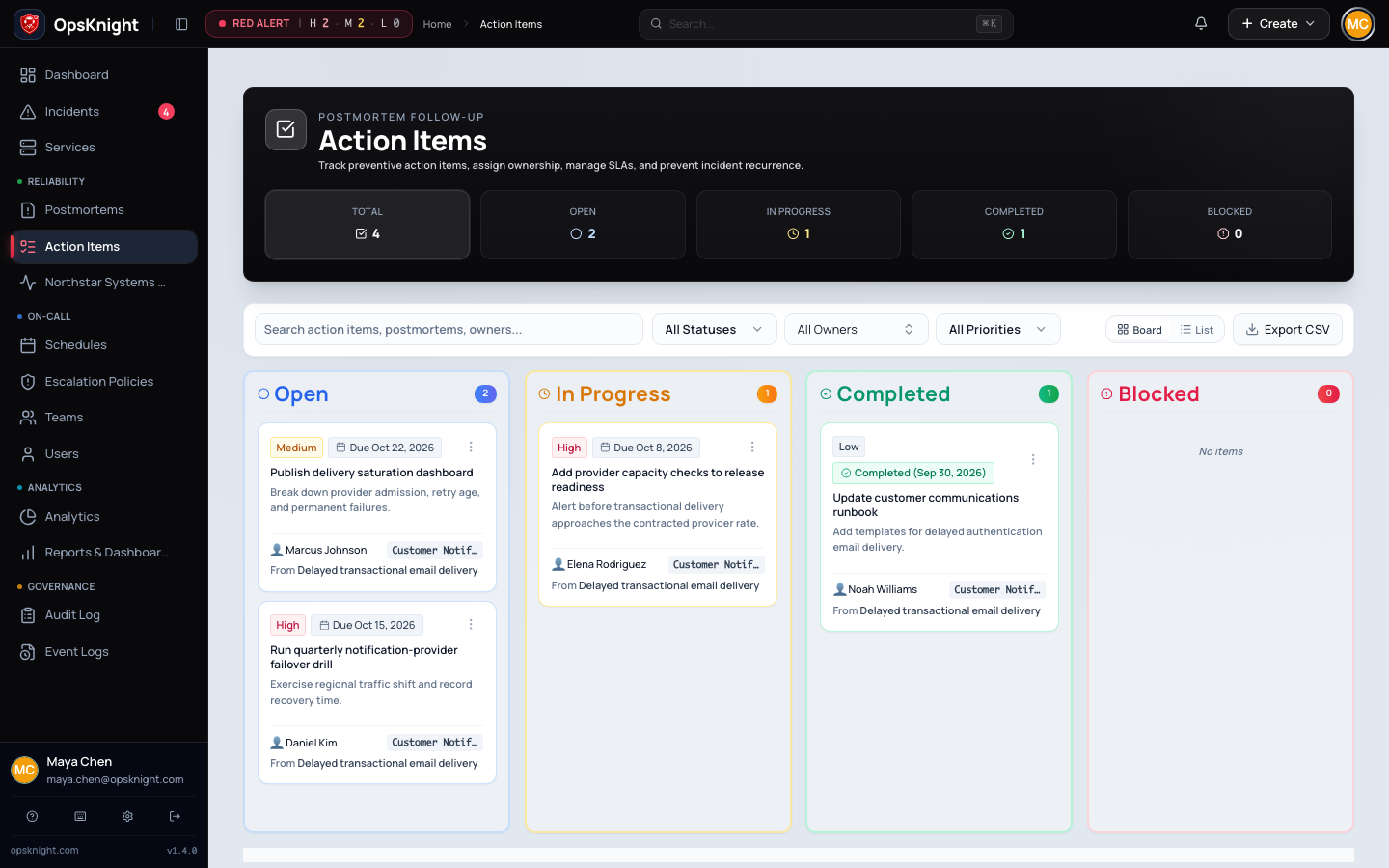
Action items turn incident and postmortem findings into accountable work. Use them for a measurable change that remains after live response—such as adding an alert, removing a failure mode, testing restore procedures, or revising an escalation policy. Do not use them as live lifecycle commands or as a replacement for timeline notes.
Prerequisites
Identify the parent incident or postmortem, the expected outcome, a responsible owner, and a realistic due date. Responder-level access or broader authorization is required to change action-item status; management options can be further limited by the user's effective permissions and scope.
If the item will use Jira, the workspace Jira connection must be healthy and the parent service must have an enabled Jira project/mapping that permits action-item operations.
Open the feature
Open the parent incident or postmortem and its Action items section. Use Action Items in the main navigation to work across incidents.
Configure an effective action item
Action items are authored in postmortem action-item surfaces and then appear on the global Action Items board.
- Open the related incident postmortem or postmortem editor.
- Add an action item with a concise, outcome-oriented title.
- Describe the failure being prevented, the required change, and how completion will be verified.
- Set priority to High, Medium, or Low based on risk and urgency of remediation.
- Set an initial status, normally Open.
- Assign an owner. Use unassigned only while ownership is actively being decided.
- Set a due date when the work is time-bound.
- Save the postmortem or action-item change.
A strong item is verifiable: Add a restore test that proves the latest production backup reaches application health checks in staging. A weak item is vague: Improve backups.
What OpsKnight does
OpsKnight keeps the action item attached to its incident/postmortem while also projecting it onto the global board for ownership, due-date, priority, and status review.
Use the global board
Open Action Items to review work across postmortems. The summary separates total, open, in-progress, completed, blocked, overdue, and high-priority work.
Use the controls to:
- Search titles, postmortems, and owners.
- Filter by
OPEN,IN_PROGRESS,COMPLETED, orBLOCKED. - Filter by owner and
HIGH,MEDIUM, orLOWpriority. - Switch between board and list views.
- Export the current filtered result to CSV.
Filters are reflected in the URL, so reviewers can share a focused view. Reset filters before concluding that an item is missing.
Maintain status
Use the statuses consistently:
- Open — accepted work that has not started.
- In progress — an owner is actively working on it.
- Blocked — progress cannot continue; record the blocker in the linked work or postmortem context.
- Completed — the expected outcome has been verified, not merely implemented.
Selecting Completed records a completion time. Moving the item back to another state clears that completion time. The application keeps normalized action-item records and compatible postmortem data aligned during the migration boundary.
Review unassigned, overdue, blocked, and high-priority items on a regular operational cadence. Closing or deleting a parent incident does not make remediation unnecessary.
Link Jira work
Where Jira capability is enabled for the service, an action item can create its own Jira issue or link an existing issue. Incident-owned Jira issues may also appear as inherited, read-only context; they are not the action item's own link.
To use an action-item link:
- Open the item from its postmortem or global board.
- Choose to create a Jira issue or link an existing issue key.
- Verify the displayed key, URL, external status, and assignee.
- Use Sync to refresh supported Jira metadata when needed.
- Unlink only when separating the records is intentional; unlinking does not delete the Jira issue.
Only one winning Jira link is retained for an action item. Concurrent attempts are fenced; if another request wins, refresh and use the current link rather than trying to overwrite it.
Verify completion
Before marking an item completed:
- Test the acceptance condition named in its description.
- Capture durable evidence in the appropriate repository, change record, runbook, or ticket.
- Confirm the parent postmortem and global board show the same status.
- If linked to Jira, sync and reconcile meaningful status differences according to your team's source-of-truth policy.
- Mark the item Completed and confirm its completion time appears.
Undo or change an action item update
Correct the supported owner, due date, priority, Jira link, or status from the action-item controls and record why a completed item was reopened. Do not delete or mark work complete merely to remove it from an active view; preserve the audit trail and create a replacement item when the required outcome changed materially.
Troubleshooting
An item is missing from the board
Clear search and status, owner, and priority filters. Confirm the postmortem was saved and that the item has a normalized record. During migration, once normalized records exist for a postmortem they are the read source, avoiding duplicate legacy and normalized entries.
A status change fails
Refresh, verify the item still exists, and confirm responder access. If the parent or item changed concurrently, use its current state before retrying.
Jira controls are unavailable
Check workspace Jira configuration, the service's Jira project, whether metadata sync is enabled, and your management capability. The UI deliberately hides or rejects operations that the resolved service capability does not allow.
Jira create or link reports an existing link
Refresh the page. Another operation already established the action item's Jira link. Use that issue or intentionally unlink it before choosing a replacement.
Jira sync fails
Check integration health in Settings, credentials, project permissions, and the linked issue's availability. Preserve the OpsKnight item while repairing Jira; a provider failure should not erase remediation ownership.
Related pages
Last updated for v2.0.0
Edit this page on GitHub