
Create an incident
Create a manual incident with the right service, response settings, ownership, and deduplication behavior.
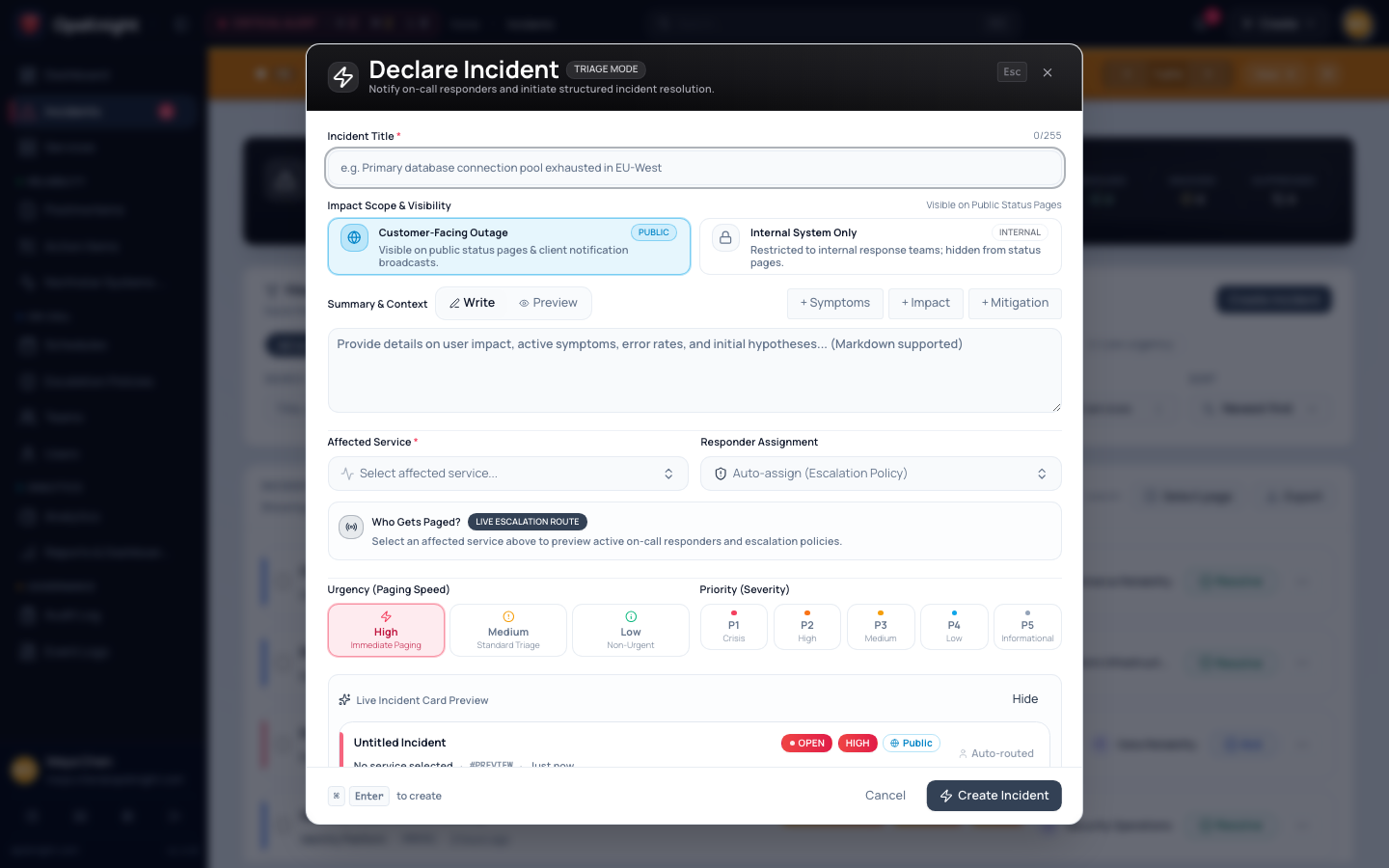
Create an incident manually when a person identifies an operational problem before an integration does, or when you need a controlled exercise. For monitoring alerts, prefer the service integration so OpsKnight can deduplicate, reopen, and resolve incidents from the source automatically.
Before you begin
You need incident.create.all or incident.create.scoped. Scoped access only permits services in your effective scope.
Check the target service before a production test:
- It has the intended escalation policy and responder ownership.
- Its notification providers are enabled and healthy.
- Its visibility default is appropriate for the event.
- Its response targets and support hours are correct. These settings are frozen onto the new incident; changing the service later does not rewrite the incident's SLA contract.
- Any required custom fields have values available.
If no service is available in the form, ask an administrator to grant service access or create/configure the service first. See Manage services.
Open the feature
Open Incidents and select Create incident.
Configure and create the incident
- Open Incidents.
- Select Create incident.
- Optionally choose an incident template. Review every value it supplies; a template is a starting point, not proof that the current service, urgency, or owner is correct.
- Enter a title between 5 and 255 characters. Use a short symptom and affected component, such as
Checkout API returning elevated 5xx responses. - Select the affected Service.
- Add a description with observed impact, when it started, evidence already collected, and the safest next diagnostic step. Do not paste secrets, access tokens, or unnecessary customer data.
- Choose Urgency:
- High starts the service's urgent response path.
- Medium starts the configured medium-urgency path.
- Low may be deferred outside configured support hours.
- Optionally choose priority
P1throughP5. Priority communicates business severity; urgency controls response timing. They are separate fields, so settingP1does not silently change urgency. - Choose Public or Private visibility. The form begins with the service default unless you override it. Private incidents remain subject to explicit incident access and service scope.
- Optionally assign one active user or one existing team. User and team assignment are mutually exclusive. Leave both empty if triage has not established an owner.
- Complete the displayed custom fields. OpsKnight validates and normalizes text, number, date, select, boolean, URL, and email values before creation and applies configured defaults where applicable.
- Leave the deduplication key empty for an ordinary manual incident. If an exercise or external workflow requires one, use a stable value no longer than 200 characters and unique to that event stream.
- Review the form, then submit it once. Wait for the result instead of clicking repeatedly.
Understand the creation result
The create operation can return one of three valid outcomes:
- Created — OpsKnight made a new incident.
- Merged — an active incident already owned the same service and deduplication key, so the event was attached to it.
- Reopened — the same deduplication identity matched a recently resolved incident inside the reopen window (30 minutes).
For this reason, do not reuse a convenient deduplication key across unrelated tests. A merge or reopen is not a failed submission; open the returned incident and confirm that it represents the event you intended.
Verify the initial response state
On the incident detail page, confirm:
- The title, service, urgency, priority, visibility, custom fields, and optional owner match the form.
- The timeline contains the creation event and identifies the actor or source.
- The response timer reflects the frozen service target and support-hours rules.
- The escalation section shows the expected policy generation or clearly explains why escalation is deferred.
- Expected notification deliveries appear. A missing delivery is different from a failed delivery; inspect the service routing and provider state before retrying.
- Refresh the page and confirm the same incident and state remain visible.
For a drill, tell responders that the incident is synthetic before submitting it. Exercise the intended acknowledgement and resolution path, then resolve the incident with a clear test note so it does not remain in active queues or reports.
Change or undo creation
Creating an incident is auditable and cannot be made as though it never happened. Correct supported incident fields if they were entered incorrectly. For an accidental exercise, add a clear timeline note and resolve it with an accurate summary; do not use deletion to hide the event.
Troubleshooting
The service is missing
Confirm that the service is active and that your role grants create access to it. Administrators with broader access can distinguish a missing service from a scope restriction.
The form rejects a custom field
Read the field-level error and provide a value of the configured type. Select fields must use a configured option; URL and email fields must be syntactically valid; number and date fields are normalized during submission.
The incident merged or reopened unexpectedly
Compare its service and deduplication key with the event you submitted. Use a new key for an unrelated event. Do not change the key merely to bypass legitimate deduplication from the same monitoring source.
The incident exists but nobody was paged
Creation and delivery are separate stages. Check urgency, support hours, escalation policy assignment, eligible targets, and the notification delivery log. Assignment alone also does not send an acknowledgement or guarantee a page.
The page timed out after submission
Search active incidents for the exact title, service, and creation time before submitting again. If a deduplication key was used, search for the returned identity or retry with the same key so the request remains idempotent.
Next steps
- Acknowledge the incident when a responder takes ownership.
- Assign the incident when the responsible user or team is known.
- Review the complete incident lifecycle.
Last updated for v2.0.0
Edit this page on GitHub