
Resolve and reopen an incident
Close active response with an auditable resolution record, or safely reopen work that returns.
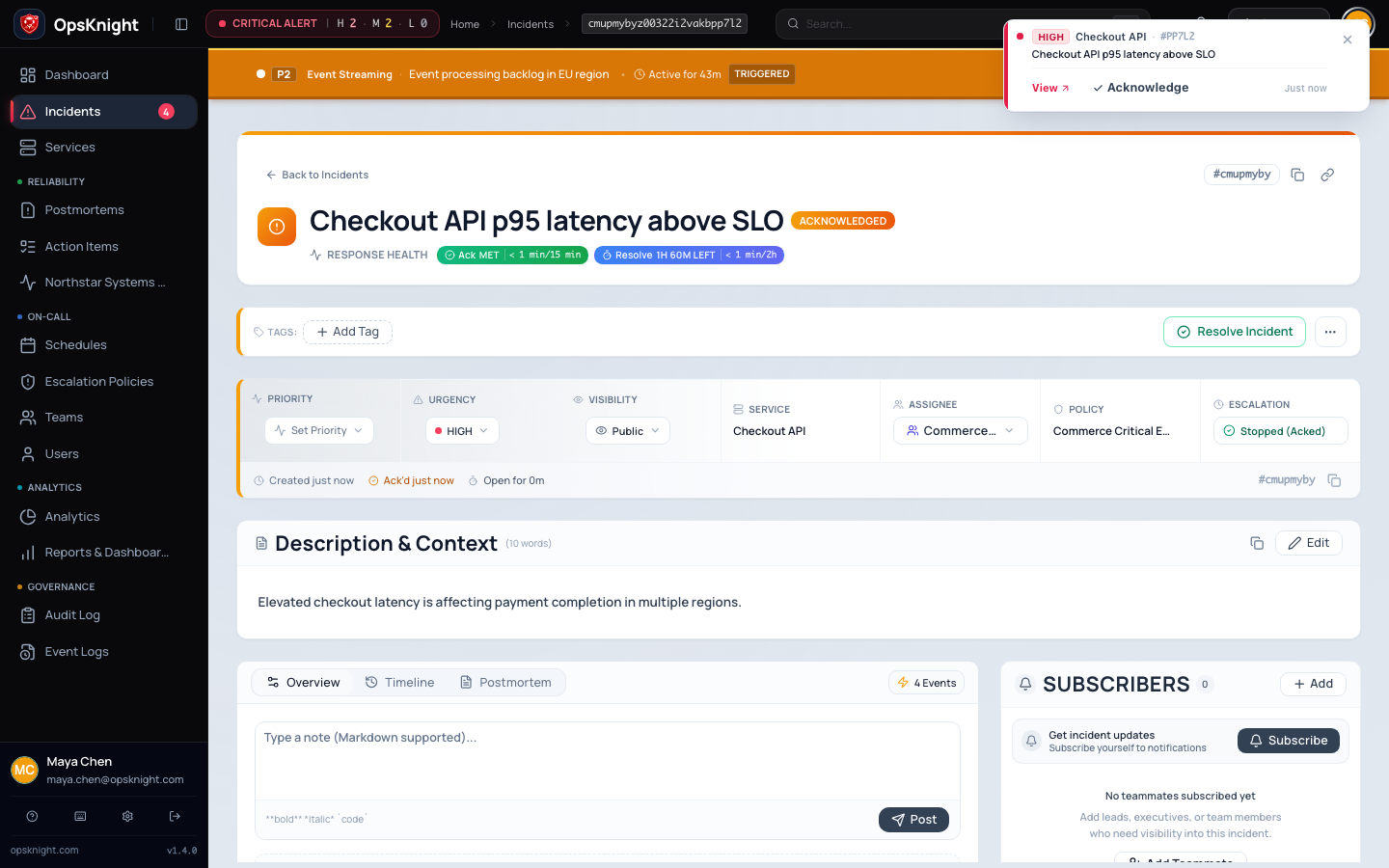
Resolve an incident only after service health is restored or the triggering condition is conclusively no longer actionable. Resolution ends active response and escalation, but preserves the timeline, first-response measurements, and prior lifecycle history.
Prerequisites
Before resolving, confirm:
- The mitigation or permanent fix has been verified using service-level evidence.
- Monitoring has remained healthy for the observation period your team requires.
- The current owner and relevant responders agree that active response can end.
- Required incident custom fields are complete. Human/operator resolution is blocked when required values are missing.
- Important decisions, customer impact, and remaining risks are in the timeline.
- Follow-up work has an owner, preferably as an action item rather than hidden in the resolution note.
You need responder-level incident management access or broader authorization.
Open the feature
Open Incidents → select the incident and locate Resolve in the response controls.
Configure and resolve the incident
- Open the incident and review its latest timeline entries, status, assignee, and response health.
- Select Resolve.
- Enter a resolution note from 10 to 1,000 characters.
- State what recovered, what action caused or confirmed recovery, and any known remaining risk. Avoid unsupported root-cause conclusions; a postmortem can refine them later.
- Confirm the action once and wait for the page to update.
A useful note is specific: Rolled back checkout-api release 2026.09.29.2; 5xx rate returned below 0.2% for 20 minutes. Follow-up tracks the invalid cache configuration.
Verify resolution
Confirm:
- Status is Resolved and the resolution timestamp is present.
- The resolution summary shows the note and actor.
- The timeline contains the terminal event.
- Escalation is Completed and no next escalation is scheduled for the old generation.
- First acknowledgement and other SLA history remain visible; resolution does not rewrite them.
- Connected ChatOps, Jira, notification, postmortem, and status projections update as configured.
Do not repeatedly resolve because a provider card is stale. Verify canonical state, then diagnose the projection.
Undo resolution by reopening
Reopen when the same operational event returns and the existing context remains the right response record. Create a new incident when the event is unrelated, requires separate reporting, or should not share the original deduplication identity.
- Open the resolved incident.
- Review the previous resolution note and confirm the condition has genuinely returned.
- Select Reopen.
- Add context to the timeline describing the new symptom and evidence.
- Verify status returns to Open.
- Verify a new escalation generation starts at the applicable first step and receives a new next-escalation time.
- Confirm the prior resolution and SLA history are still present.
Reopening clears the terminal resolution state for active response but does not erase the historical resolution event. Automated ingestion may also reopen a recently resolved incident when the same service and deduplication key recur inside the 30-minute reopen window.
Troubleshooting
Resolve is disabled
Make the resolution note at least 10 characters and no more than 1,000. If the note is valid, complete every required custom field and verify your permission and incident scope.
Resolution conflicts with another update
Refresh and read the new state. Another responder may already have resolved, snoozed, suppressed, or otherwise changed the incident. Do not overwrite newer operational context without coordination.
Notifications continue after resolution
Confirm the incident is resolved and its escalation generation completed. Then inspect queued jobs and delivery operations for stale or already-dispatched work. A notification that was handed to a provider before resolution cannot always be recalled.
Reopen is unavailable
Only a resolved incident can be reopened. Confirm access and refresh the page. For a different operational event, create a new incident instead.
The incident reopened automatically
Compare the service, deduplication key, resolution time, and inbound event. The same identity inside the reopen window is expected to reuse recent context. Fix an overly broad upstream key rather than repeatedly closing the incident.
Next steps
Communicate final status, reconcile any public status incident, review delivery failures, and decide whether a postmortem is required. Track remediation through owned action items with due dates.
See Track incident action items, Postmortem workflow, and the incident lifecycle.
What OpsKnight does
OpsKnight validates required custom fields and current state, records the resolution actor/summary/timing, ends active escalation, and reconciles notifications/ChatOps/status projections while preserving history.
Last updated for v2.0.0
Edit this page on GitHub