
Assign an incident
Assign, reassign, or unassign an incident without confusing ownership with acknowledgement.
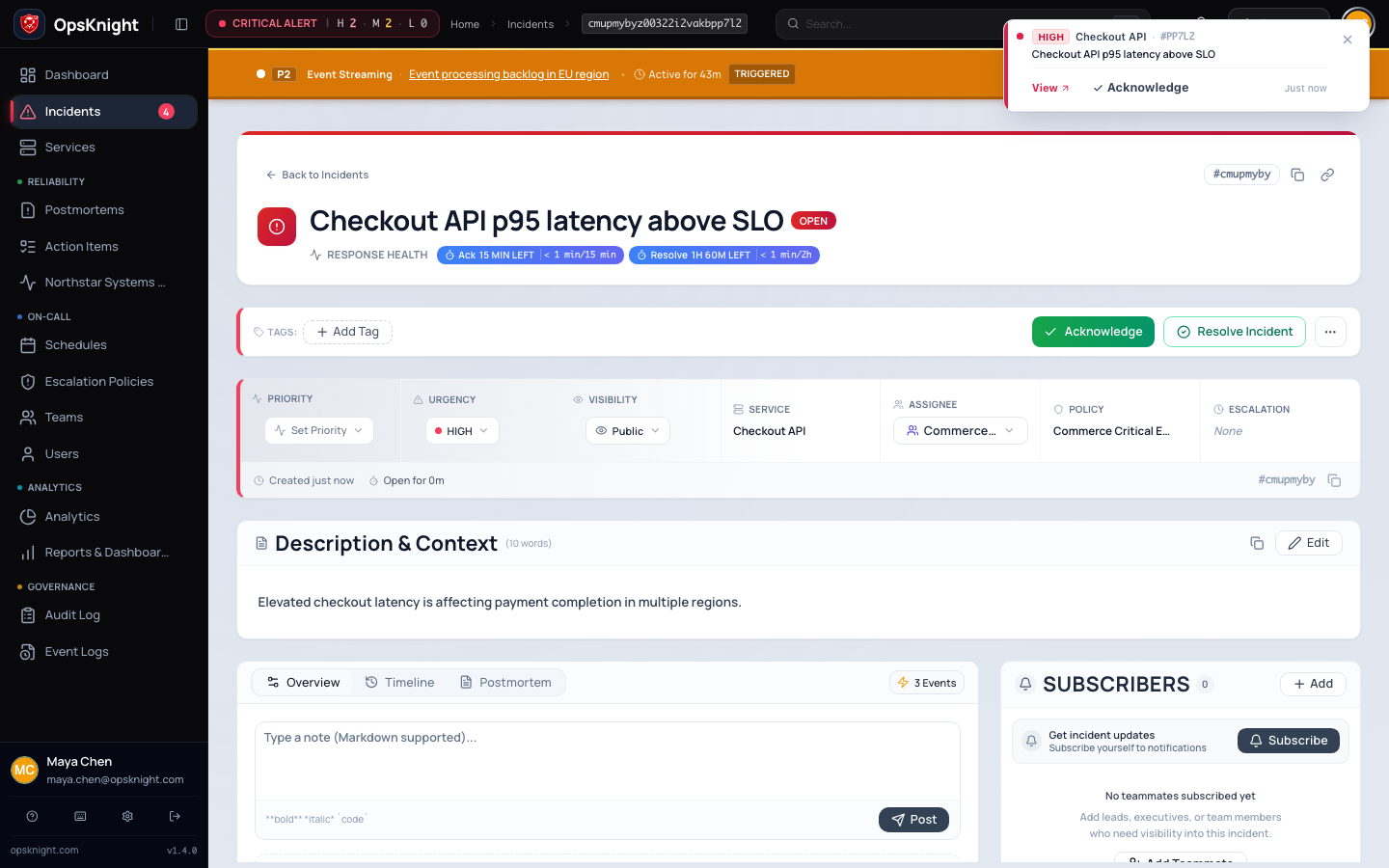
Assignment records who is responsible for coordinating the incident. An incident can be assigned to one active user, one existing team, or nobody. User and team assignments are mutually exclusive.
Assignment does not acknowledge the incident, stop escalation, or prove that the assignee has seen it. Use acknowledgement separately when a responder accepts the response.
Before you begin
You need responder-level incident management access or broader authorization for the incident. Confirm that you can view the incident and that the intended assignee is operationally responsible for its service or current workstream.
Choose the assignment type deliberately:
- Assign a user when one named responder owns coordination.
- Assign a team when the queue or functional group owns coordination and an individual has not yet accepted it.
- Leave it unassigned only while it is genuinely awaiting triage. Active, urgent incidents should not remain unassigned merely because escalation is also running.
Only active users are eligible. A team must still exist. Assignment does not bypass private-incident visibility or service-scope rules, so verify the chosen owner can open the incident.
Open the feature
Open Incidents → select the incident and locate the Assignee control in incident details.
Configure and assign a user or team
- Open the incident detail page.
- Locate Assignee.
- Open the assignee picker.
- Search for and select one active user or one team.
- Apply the change once.
- Wait for the saved owner to appear before closing the page.
Selecting a user clears any previous team assignment. Selecting a team clears any previous user assignment.
Verify the assignment
Confirm:
- The incident header or assignee section shows the intended owner.
- The timeline records the assignment change and actor.
- The assignee can open the incident, including when it is private.
- The response status remains correct. If ownership was accepted, acknowledge separately.
- Any active war room or supported ChatOps representation eventually shows the new owner.
Use the incident page as the source of truth. Provider cards may update asynchronously.
Reassign during an active response
Reassignment changes the recorded owner immediately, so coordinate the handoff before saving it:
- Tell the incoming responder or team why ownership is moving.
- Add a concise timeline note covering current impact, actions completed, remaining risk, and the next decision.
- Change the assignee.
- Confirm the new owner can access the incident and accepts the handoff.
- Leave acknowledgement unchanged unless the lifecycle itself needs to return to open.
Do not unacknowledge solely to change the owner. Acknowledgement records that response began; assignment records who owns it now.
Remove the assignment
Unassign only when removing an incorrect owner or returning the incident to explicit triage:
- Open the assignee picker.
- Choose the option to clear the assignment.
- Apply the change.
- Confirm both user and team assignment are empty and the timeline records the change.
Unassignment can also update connected war-room projections. It does not stop escalation, resolve the incident, or notify a replacement automatically. For an active incident, identify the next owner as part of the same operational handoff.
Troubleshooting
A user does not appear
Confirm the account is active. Deactivated users cannot receive a new assignment. Also verify your search text and whether policy or scope prevents the intended workflow.
A team does not appear
Confirm the team still exists and reload the incident. If the team was recently created or renamed, verify it in team administration before retrying.
The change is rejected
Refresh the incident and check whether another responder changed its state or owner. Confirm your effective permission and incident scope. Do not use repeated submissions to overwrite a legitimate concurrent handoff.
The new owner cannot open the incident
Assignment is not an access grant. Check private visibility, service scope, team membership, and role permissions. Reassign to an eligible responder if access cannot be corrected promptly.
The incident is assigned but still escalating
That is expected until someone acknowledges it or another lifecycle action completes the escalation generation. Assignment alone does not signal response acceptance.
Slack or Teams shows the old assignee
Refresh the canonical incident page first. If it is correct, inspect provider delivery or projection health and wait for the card update; do not churn the assignment to force a visual refresh.
Related guides
What OpsKnight does
OpsKnight stores either one user assignment, one team assignment, or no assignment and records the change in incident state/timeline. Assignment does not acknowledge the incident or stop escalation.
Last updated for v2.0.0
Edit this page on GitHub