
Escalation Policies
Define who gets notified, when, and how incidents escalate
Escalation Policies
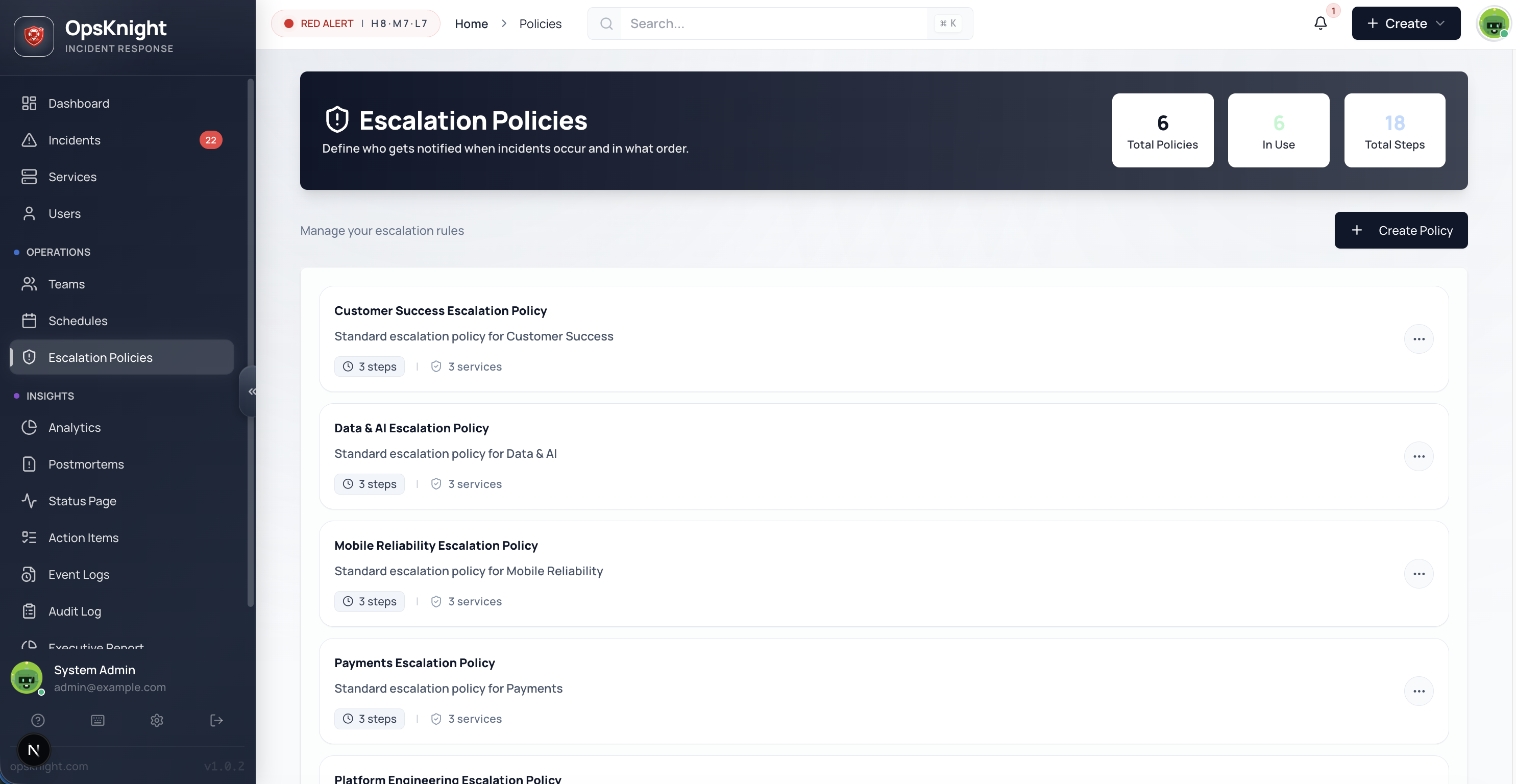
Escalation policies are the rules that determine who gets notified when an incident occurs and how alerts escalate if no one responds. They're the backbone of reliable incident response.
Why Escalation Policies Matter
| Without Policies | With Policies |
|---|---|
| Alerts go to fixed users | Dynamic routing to on-call |
| No escalation if ignored | Automatic escalation after timeout |
| Single point of failure | Multi-tier redundancy |
| Manual notification | Automated multi-channel delivery |
Policy Structure
An escalation policy consists of:
- Name: Unique identifier for the policy
- Description: What this policy is for
- Steps: Ordered list of escalation rules
- Services: Which services use this policy
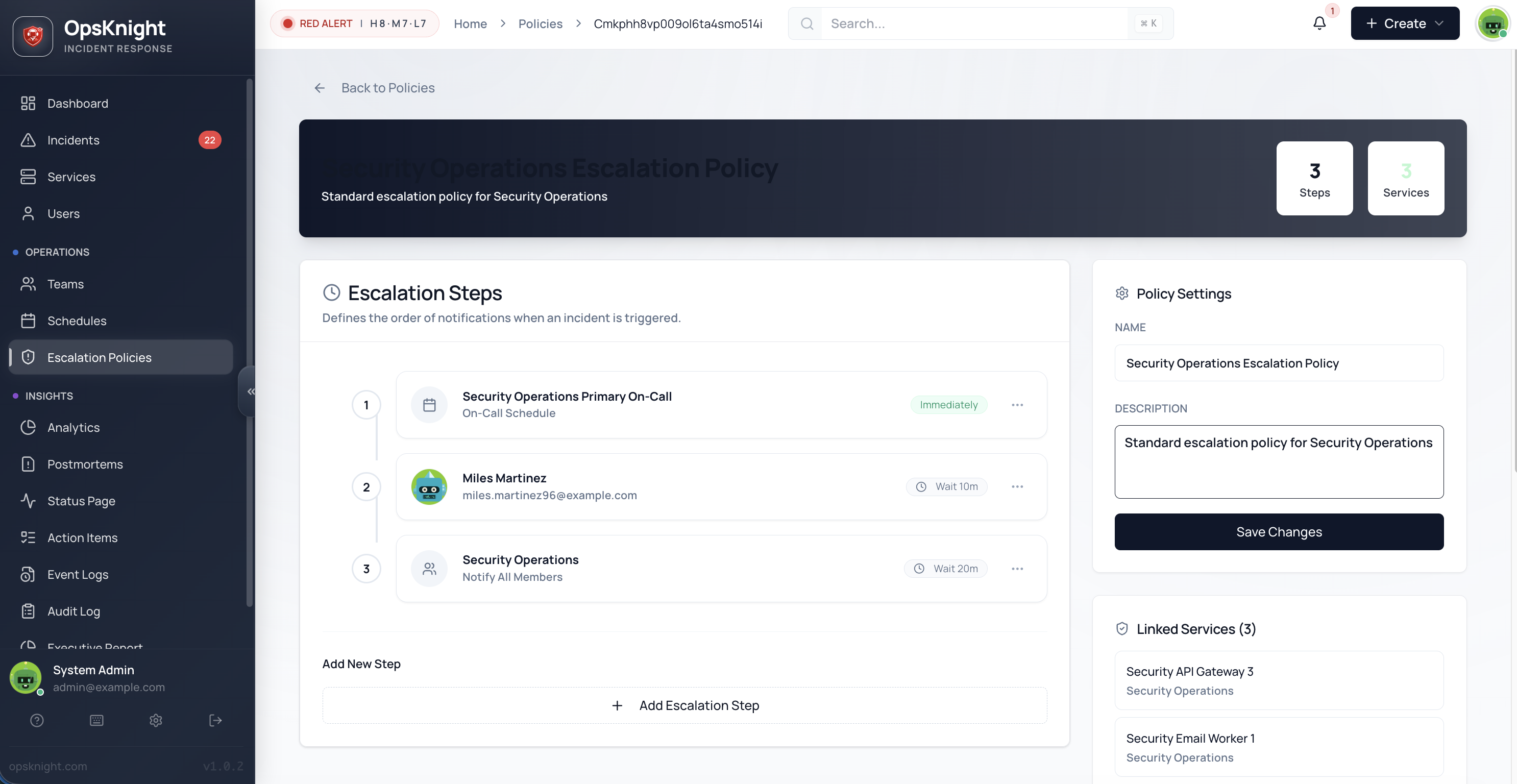
Payment API Escalation Policy
├── Step 1: Primary On-Call (Schedule) → wait 5 min
├── Step 2: Secondary On-Call (Schedule) → wait 10 min
├── Step 3: Platform Team Lead (User) → wait 10 min
└── Step 4: Entire Platform Team (Team) → repeat
Escalation Steps
Each step in a policy defines:
| Field | Description | Required |
|---|---|---|
| Target Type | USER, TEAM, or SCHEDULE | Yes |
| Target | The specific user, team, or schedule | Yes |
| Delay | Minutes to wait before moving to next step | Yes |
| Notification Channels | Override default channels (optional) | No |
| Notify Team Lead Only | For TEAM targets, only notify the lead | No |
Step Order
Steps execute in order (0-indexed internally):
- Step 1 executes immediately when incident triggers
- Step 2 executes after Step 1's delay (if not acknowledged)
- And so on...
Target Types
USER
Notify a specific individual directly.
| Use Case | Example |
|---|---|
| Backup escalation | Notify team lead after primary fails |
| Subject matter expert | Notify database admin for DB issues |
| Management escalation | Notify manager for critical incidents |
Target Type: USER
Target: [email protected]
Delay: 10 minutes
TEAM
Notify team members who have team notifications enabled.
| Option | Behavior |
|---|---|
| All Members | Every team member with notifications enabled |
| Team Lead Only | Only the designated team lead |
Target Type: TEAM
Target: Platform Engineering
Notify Team Lead Only: false
Delay: 15 minutes
Important: Only members with receiveTeamNotifications: true are notified.
SCHEDULE
Notify whoever is currently on-call in a schedule.
| Behavior | Description |
|---|---|
| Real-time Resolution | Determines on-call at escalation time |
| Layer Support | Considers all schedule layers |
| Override Support | Respects active overrides |
Target Type: SCHEDULE
Target: Primary On-Call Schedule
Delay: 5 minutes
This is the most common target type for initial escalation steps.
Delay Configuration
The delay determines how long to wait before escalating to the next step:
| Delay | Behavior |
|---|---|
| 0 minutes | Execute immediately (no delay after previous step) |
| 5 minutes | Wait 5 minutes before escalating |
| 10+ minutes | Standard escalation window |
Timing Guidelines
| Step | Recommended Delay | Rationale |
|---|---|---|
| Step 1 | 0 min | Immediate notification |
| Step 2 | 5-10 min | Give primary time to respond |
| Step 3 | 10-15 min | Backup escalation |
| Final | 15-30 min | Management/team-wide |
What Stops Escalation
Escalation stops when:
- Incident is acknowledged
- Incident is resolved
- Incident is snoozed
- Incident is suppressed
Notification Channel Overrides
By default, users receive notifications via their personal preferences. Steps can override this:
Available Channels
| Channel | Description |
|---|---|
| Email notification | |
| SMS | Text message |
| PUSH | Mobile/browser push |
| SLACK | Slack message |
| WEBHOOK | Custom webhook |
| WhatsApp message |
Per-Step Override
Configure specific channels for a step:
Step 2: Backup On-Call
├── Target: Secondary Schedule
├── Delay: 10 minutes
└── Channels: [SMS, PUSH]  ← Override
When channels are specified, only those channels are used (user preferences ignored for this step).
When to Override
- Critical escalations: Force SMS + Push for urgent steps
- Quiet hours: Use only SMS for after-hours escalation
- Slack-first: Use only Slack for non-urgent teams
Creating a Policy
Step 1: Basic Info
- Go to Policies in the sidebar
- Click Create Policy
- Enter:
- Name: "Payment API Escalation"
- Description: "Primary → Secondary → Team"
Step 2: Add Steps
- Click Add Step
- Configure the step:
- Select target type (USER, TEAM, SCHEDULE)
- Choose the target
- Set delay in minutes
- Optionally override notification channels
- Repeat for additional steps
Step 3: Review & Save
- Review the step order
- Drag to reorder if needed
- Click Create Policy
Managing Steps
Reordering Steps
Two methods to reorder:
- Drag and Drop: Grab the handle and drag to new position
- Menu Actions: Click ⋮ → Move Up / Move Down
Note: When reordering, delay values are preserved (not recalculated).
Editing Steps
- Click the Edit button on a step
- Modify target, delay, or channels
- Save changes
Deleting Steps
- Click ⋮ → Delete
- Confirm deletion
- Remaining steps are automatically renumbered
Assigning Policies to Services
Policies must be linked to services to take effect:
Link via Service Settings
- Open the service
- Go to Settings
- Select Escalation Policy from dropdown
- Save
Link via Policy Page
- Open the policy
- View Services Using This Policy
- Click Add Service
- Select services to link
Repeat Behavior
The final step can be configured to repeat:
| Behavior | Description |
|---|---|
| Stop | Escalation ends after final step |
| Repeat | Loop back to Step 1 and continue |
Repeat Configuration
Step 1: Primary On-Call → wait 5 min
Step 2: Secondary On-Call → wait 10 min
Step 3: Team → wait 15 min → REPEAT
With repeat enabled:
- After Step 3 delay, escalation returns to Step 1
- Continues until acknowledged/resolved
- Ensures someone eventually responds
How Escalation Executes
When an incident triggers:
Incident Created
       │
       ▼
┌──────────────────────┐
│ Find Service's       │
│ Escalation Policy    │
└──────────┬───────────┘
           │
           ▼
┌──────────────────────┐
│ Execute Step 1       │
│ (delay = 0, immediate)│
└──────────┬───────────┘
           │
           ▼
┌──────────────────────┐
│ Resolve Target       │──► USER: Return user ID
│ (at current time)    │──► TEAM: Return member IDs
│                      │──► SCHEDULE: Return on-call IDs
└──────────┬───────────┘
           │
           ▼
┌──────────────────────┐
│ Send Notifications   │
│ (via configured      │
│  channels)           │
└──────────┬───────────┘
           │
           ▼
┌──────────────────────┐
│ Schedule Next Step   │
│ (wait delay minutes) │
└──────────┬───────────┘
           │
    [Not acknowledged]
           │
           ▼
┌──────────────────────┐
│ Execute Step 2...    │
└──────────────────────┘
Schedule Resolution
When a step targets a SCHEDULE:
- Query schedule layers at current time
- Apply layer priority (higher layers override lower)
- Apply overrides (temporary substitutions)
- Return all on-call users from final result
This ensures the right person is notified even if schedules change.
Example Policies
Simple: Direct User
Policy: "CEO Direct Line"
└── Step 1: CEO (User) → no delay
Standard: Primary/Secondary
Policy: "Standard Escalation"
├── Step 1: Primary On-Call (Schedule) → wait 5 min
├── Step 2: Secondary On-Call (Schedule) → wait 10 min
└── Step 3: Team Lead (User) → wait 15 min
Complex: Multi-Tier
Policy: "Critical Infrastructure"
├── Step 1: Primary On-Call (Schedule) → wait 3 min
│   └── Channels: [SMS, PUSH]
├── Step 2: Secondary On-Call (Schedule) → wait 5 min
│   └── Channels: [SMS, PUSH, EMAIL]
├── Step 3: Platform Team Lead (Team Lead Only) → wait 10 min
├── Step 4: Entire Platform Team (Team) → wait 15 min
└── Step 5: VP Engineering (User) → repeat
Follow-the-Sun
Policy: "Global Support"
├── Step 1: Regional On-Call (Schedule) → wait 10 min
│   (Schedule has timezone-based layers)
├── Step 2: Global Support Lead (User) → wait 15 min
└── Step 3: All Regions On-Call (Team) → wait 20 min
Best Practices
Step Design
- Start with schedules — First step should target on-call
- Add redundancy — Include backup escalation path
- End with team — Final step should be team-wide or management
- Keep delays short — 5-10 minutes between steps
Channel Strategy
| Step | Channels | Rationale |
|---|---|---|
| Initial | User preference | Respect user settings |
| Backup | SMS + Push | Ensure delivery |
| Final | All channels | Maximum reach |
Policy Organization
- One policy per service tier — Different SLAs need different escalation
- Name clearly — "Payment API - P1" vs "Payment API - P2"
- Document the rationale — Use description field
Testing
- Create a test incident for the service
- Verify Step 1 notifications arrive
- Let it escalate to verify timing
- Acknowledge to confirm escalation stops
Troubleshooting
Notifications Not Sending
- Verify policy is assigned to service
- Check target user/team/schedule exists
- Verify users have contact methods configured
- Check notification channel is enabled for user
Wrong Person Notified
- Check schedule for correct on-call at incident time
- Verify overrides are set correctly
- Check team member notification preferences
Escalation Not Progressing
- Verify incident is not acknowledged/resolved
- Check delays are configured correctly
- Look at incident timeline for escalation events
Related Topics
- Schedules — On-call rotation configuration
- Teams — Team management
- Services — Service configuration
- Notifications — Channel setup
- Incidents — Incident lifecycle
Last updated for v1
Edit this page on GitHub