
Mobile1 min read
Mobile Setup
Mobile Setup (PWA + Push)
Get OpsKnight running on your phone in minutes. Install the PWA, enable push notifications, and start responding on the go.
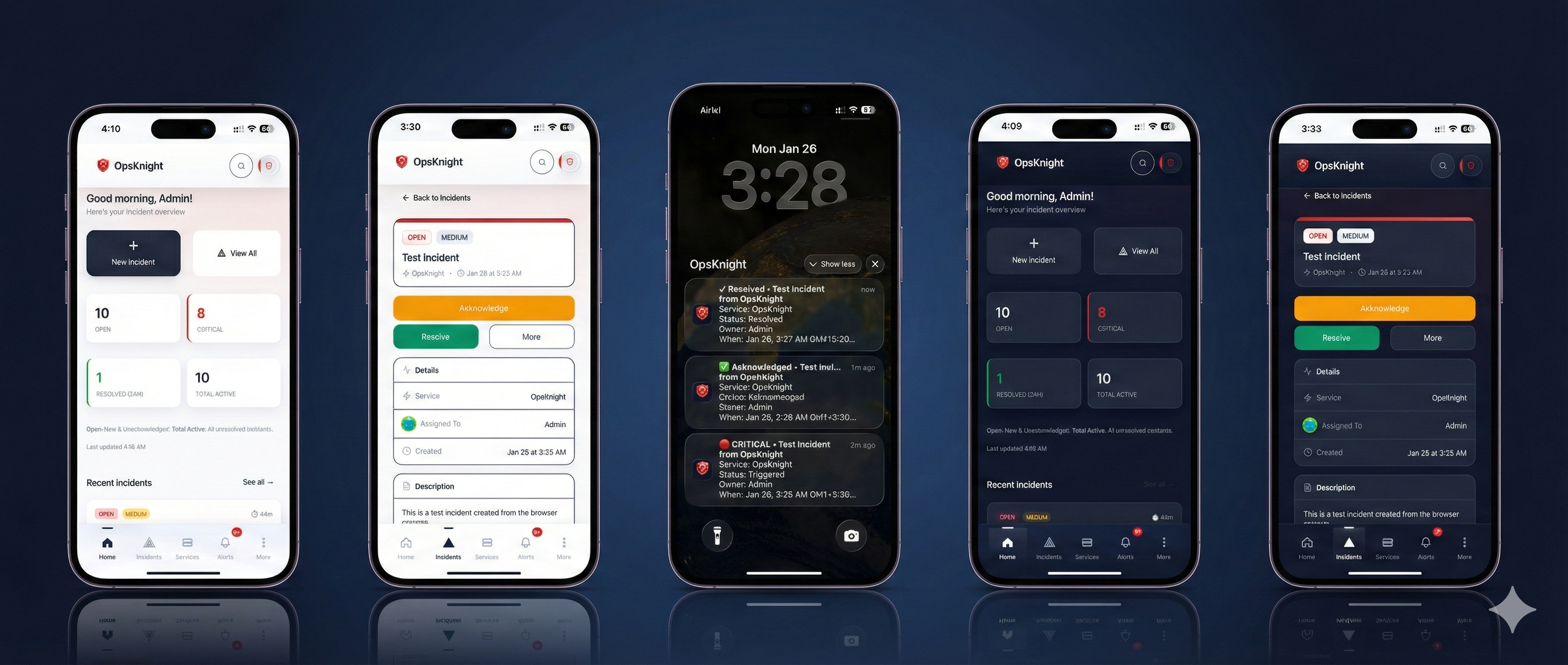
1) Install the PWA
iOS (Safari)
- Open OpsKnight in Safari
- Tap the Share button (square with arrow)
- Tap Add to Home Screen
- Tap Add
Android (Chrome)
- Open OpsKnight in Chrome
- Tap the three-dot menu
- Tap Add to Home Screen or Install App
- Tap Install
Desktop (Chrome/Edge)
- Open OpsKnight in your browser
- Click the install icon in the address bar
- Click Install
2) Enable Push Notifications
When prompted, tap Allow for notifications. Then verify your device is registered:
- Go to Profile → Devices
- Confirm your device appears in the list
- Ask your admin to enable Push in Settings → Notification Providers
3) Test Delivery
- Trigger a test incident or use a test alert integration
- Confirm you receive a push notification
- Open the incident from the notification and acknowledge it
Troubleshooting
- No prompt? Ensure you installed the PWA and notifications are allowed in OS settings.
- No device listed? Sign out/in and revisit Profile → Devices.
- No push delivery? Verify push is enabled in Settings → Notification Providers.
Last updated for v1
Edit this page on GitHub