
On-Call Schedules
Build flexible rotation schedules with layers, overrides, and timezone support
On-Call Schedules
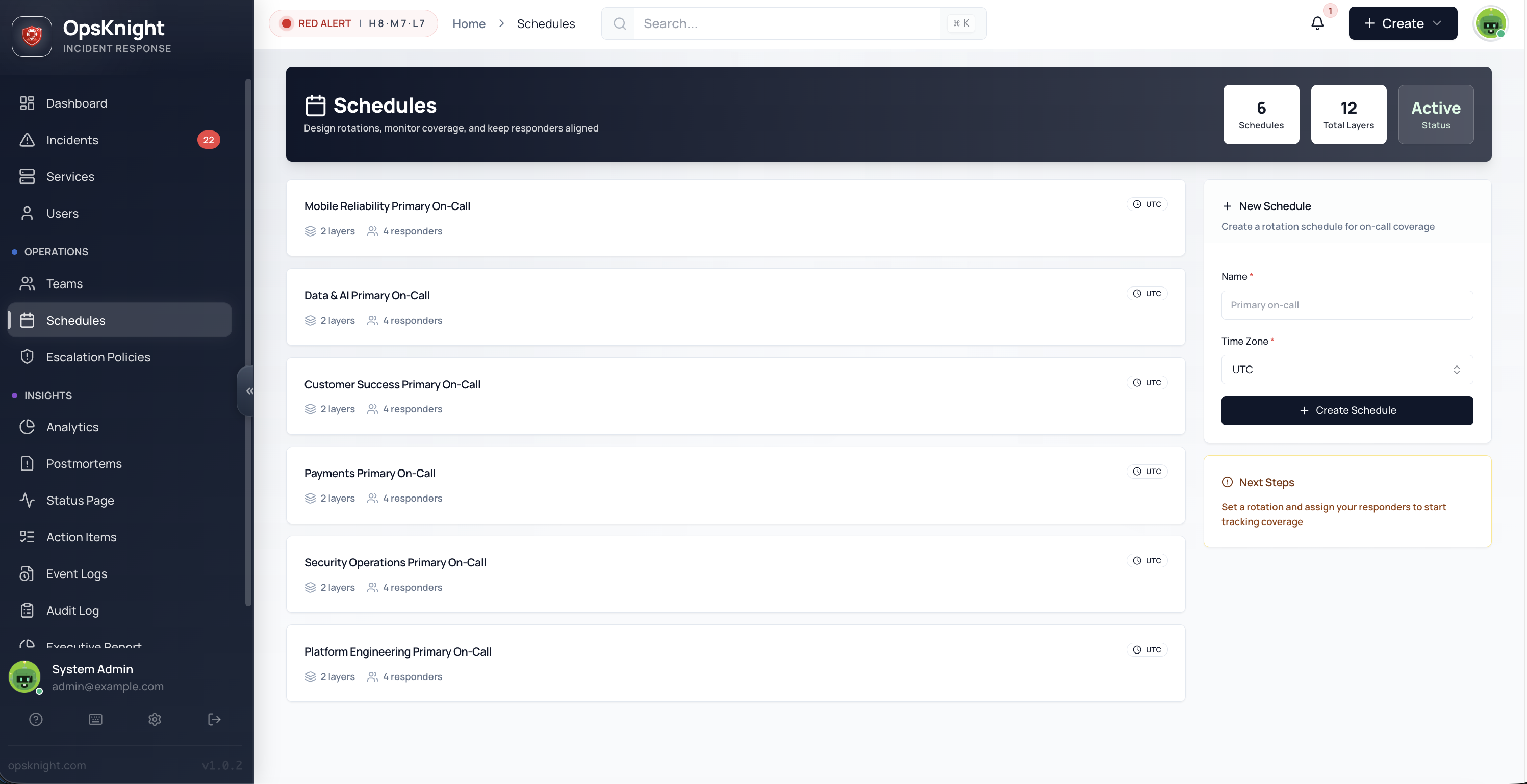
On-call schedules define who is responsible for responding to incidents during specific time periods. They're the backbone of reliable incident response, ensuring there's always someone available to help.
Why Schedules Matter
Without schedules, you'd have to manually assign every incident or broadcast alerts to everyone (causing alert fatigue). Schedules solve this by:
- Automatic routing — Escalation policies use schedules to find the right person
- Fair distribution — Rotate on-call duty fairly among team members
- Clear ownership — Everyone knows who's responsible at any given time
- Flexibility — Handle vacations, sick days, and coverage swaps easily
Key Concepts
Schedule
A schedule is a container that defines on-call coverage for a specific purpose (e.g., "Payment API Primary On-Call"). Each schedule has:
- Name — Descriptive identifier
- Timezone — All times are interpreted in this timezone
- Layers — One or more rotation patterns
Layer
A layer represents a rotation pattern within a schedule. Schedules can have multiple layers for complex coverage scenarios.
Why multiple layers?
- Primary/Secondary — Different responders for initial vs. backup
- Business hours/After hours — Different coverage by time of day
- Holiday coverage — Special rotations for holidays
Layer precedence: Higher layers override lower layers. If Layer 2 has someone on-call, they take precedence over Layer 1.
Rotation
A rotation defines how users cycle through on-call duty within a layer:
- Rotation Length — How long each person is on-call (24h, 168h, etc.)
- Rotation Order — The sequence of users in the rotation
Override
An override is a temporary change to the normal rotation, used for:
- Vacation coverage — Someone else takes over during PTO
- Shift swaps — Trading on-call with a teammate
- Emergency coverage — Filling gaps when someone is unavailable
Creating a Schedule
Step 1: Navigate to Schedules
- Click Schedules in the sidebar
Step 2: Create New Schedule
- Click Create Schedule
- Enter schedule details:
- Name:
Platform Team Primary - Timezone:
America/New_York(or your team's timezone)
- Name:
- Click Create
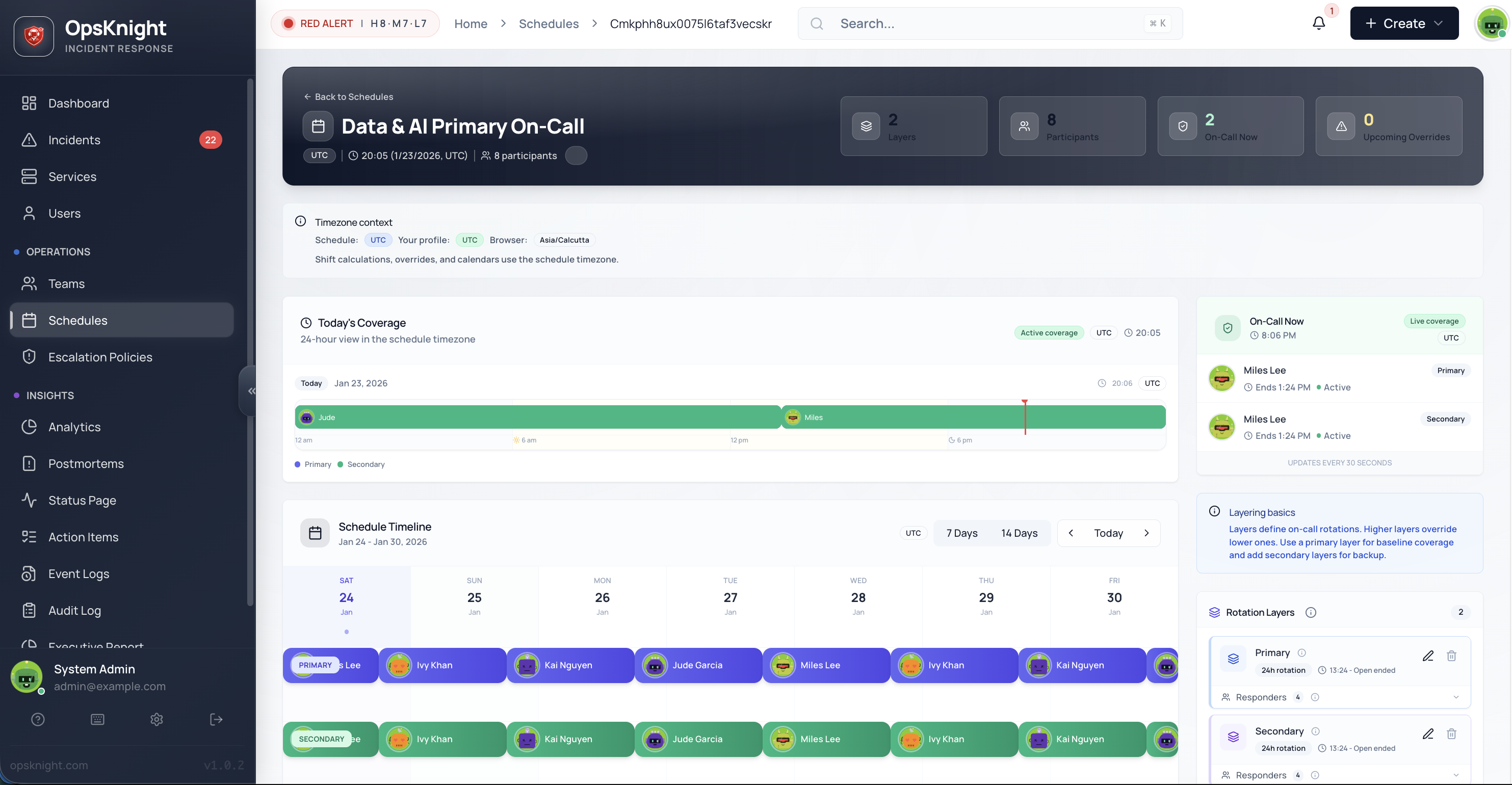
Step 3: Add a Layer
- Click Add Layer
- Configure layer settings:
- Name:
Weekly Rotation - Rotation Length:
168 hours(1 week) - Start Time: When the rotation should begin
- Name:
Step 4: Add Users
- Click Add User in the layer
- Select team members in rotation order
- Drag to reorder if needed
Result: Users rotate through on-call duty based on the rotation length.
Rotation Types
Daily Rotation (24 hours)
Each person is on-call for one day:
Monday:    Alice
Tuesday:   Bob
Wednesday: Charlie
Thursday:  Alice
Friday:    Bob
Saturday:  Charlie
Sunday:    Alice
Best for: Teams that want to limit on-call burden to one day at a time.
Weekly Rotation (168 hours)
Each person is on-call for one week:
Week 1: Alice
Week 2: Bob
Week 3: Charlie
Week 4: Alice
...
Best for: Most teams — provides continuity without too much context switching.
Custom Rotation
Set any rotation length in hours for specific needs:
- 12 hours — Split day/night shifts
- 48 hours — Two-day on-call periods
- 336 hours — Bi-weekly rotation
Schedule Layers
Layers are powerful tools for building complex coverage patterns.
How Layers Work
Think of layers as transparent overlays. Higher layers "cover" lower layers:
       ┌─────────────────────────────────────────┐
Layer 2│   │   Bob (Override)   │               │ ← Higher priority
       └─────────────────────────────────────────┘
       ┌─────────────────────────────────────────┐
Layer 1│ Alice │ Alice │ Alice │ Alice │ Alice │ ← Base rotation
       └─────────────────────────────────────────┘
        Mon    Tue    Wed    Thu    Fri

Result:  Alice  Bob    Bob    Alice  Alice
Example: Primary + Secondary
Layer 1 (Primary):
- Weekly rotation: Alice → Bob → Charlie
Layer 2 (Secondary):
- Weekly rotation: Bob → Charlie → Alice
When escalation looks for "Primary On-Call," it gets Layer 1. When escalation looks for "Secondary On-Call," it gets Layer 2.
Example: Business Hours Override
Layer 1 (24x7 Coverage):
- Weekly rotation among night team
Layer 2 (Business Hours Only):
- Time window: 9am - 6pm
- Daily rotation among day team
During business hours, Layer 2 takes over. Outside business hours, Layer 1 is active.
Example: Holiday Coverage
Layer 1 (Normal Rotation):
- Standard weekly rotation
Layer 2 (Holiday):
- Time window: Dec 24 - Jan 1
- Special rotation: Volunteers who signed up for holiday coverage
Overrides
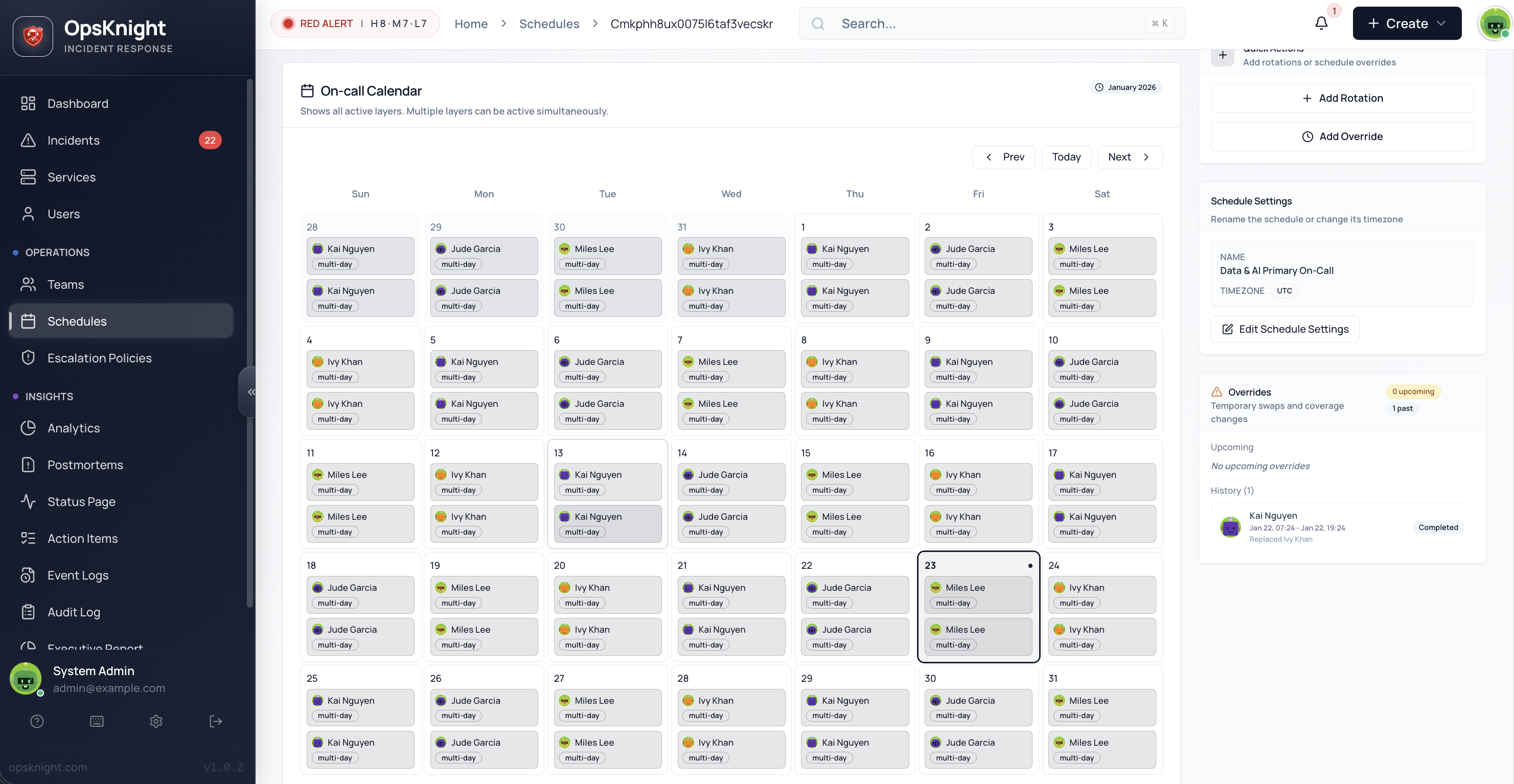
Overrides let you make temporary changes without modifying the base rotation.
Creating an Override
- Open the schedule
- Click on the timeline where you want the override
- Select Create Override
- Configure:
- Start/End Time: When the override is active
- User: Who will be on-call instead
- Replaces (optional): Whose shift is being covered
Common Override Scenarios
Vacation Coverage
Alice is on vacation next week. Bob agrees to cover:
Override:
  Start: Monday 9am
  End: Sunday 11:59pm
  User: Bob
  Replaces: Alice
Shift Swap
Charlie wants to swap Tuesday with Diana:
Override 1:
  Start: Tuesday 12am
  End: Tuesday 11:59pm
  User: Diana
  Replaces: Charlie

Override 2:
  Start: Thursday 12am
  End: Thursday 11:59pm
  User: Charlie
  Replaces: Diana
Emergency Gap Coverage
The scheduled person is suddenly unavailable:
Override:
  Start: Now
  End: Tomorrow 9am
  User: Team Lead
  Replaces: Original person
Viewing Overrides
- Calendar View: Overrides appear as highlighted blocks
- Override List: View all active and upcoming overrides
- Filter: Show only your overrides or all team overrides
Timezone Handling
Schedules are timezone-authoritative. This means:
- All times in the schedule are in the schedule's timezone
- When you view the schedule, times are shown in the schedule's timezone
- On-call lookups use the schedule's timezone
Example
Schedule: Platform Team On-Call
Timezone: America/New_York (EST/EDT)
If the rotation starts at "9am Monday":
- This means 9am Eastern Time
- NOT 9am in the viewer's local timezone
Working with Global Teams
For follow-the-sun coverage, you have two options:
Option 1: One schedule, multiple layers
Schedule: Global On-Call (UTC)
  Layer 1: APAC team (active 9am-5pm JST = 0am-8am UTC)
  Layer 2: EU team (active 9am-5pm CET = 8am-4pm UTC)
  Layer 3: US team (active 9am-5pm EST = 2pm-10pm UTC)
Option 2: Separate schedules per region
Schedule: APAC On-Call (Asia/Tokyo)
Schedule: EU On-Call (Europe/London)
Schedule: US On-Call (America/New_York)
Both work — choose based on your escalation policy needs.
Who's On-Call Now?
Via UI
- Open the Schedules page
- Each schedule shows the current on-call person
- Click a schedule to see the full calendar
Connecting Schedules to Escalation Policies
Schedules become useful when connected to escalation policies:
In Escalation Policy Builder
- Add a step
- Set Target Type:
Schedule - Select your schedule
- Set delay (usually 0 for first step)
What Happens at Escalation Time
- Escalation engine queries the schedule
- Schedule returns the current on-call user
- That user receives notifications
- If no ack, escalation continues to next step
Best Practices
For Rotation Design
- Avoid single-person schedules — Always have backup coverage
- Keep rotation length reasonable — Weekly is a good default
- Document handoff procedures — Clear context transfer
- Balance workload — Fair distribution among team members
For Overrides
- Create overrides proactively — Don't wait until the last minute
- Use "Replaces" field — Makes tracking easier
- Review upcoming overrides — Avoid gaps in coverage
- Set calendar reminders — For coverage you've agreed to provide
For Global Teams
- Choose a reference timezone — UTC or your HQ timezone
- Document timezone expectations — Clear communication
- Test coverage across timezones — Verify no gaps
- Consider on-call fatigue — Fair distribution across regions
Troubleshooting
"No one on-call" Error
Cause: Gap in coverage at the queried time
Fix:
- Check layer configurations for gaps
- Verify rotation start times
- Add users to layers
- Create overrides to fill gaps
Wrong Person Notified
Cause: Override or layer precedence issue
Fix:
- Check active overrides
- Review layer priority (higher layers win)
- Verify timezone settings
Schedule Shows Different Time Than Expected
Cause: Timezone mismatch
Fix:
- Verify schedule timezone setting
- Remember times display in schedule timezone, not your local time
- Adjust layer time windows if needed
Related Topics
- Escalation Policies — Connect schedules to notification routing
- Teams — Organize users who participate in schedules
- Notifications — Configure how on-call users are alerted
Last updated for v1
Edit this page on GitHub