
Mobile
Use OpsKnight on mobile devices via the Progressive Web App (PWA)
Mobile Access
OpsKnight provides a full-featured mobile experience through a Progressive Web App (PWA). Handle incidents, check schedules, and respond to alerts from anywhere.
Start here: Mobile Setup — install the PWA and enable push notifications.
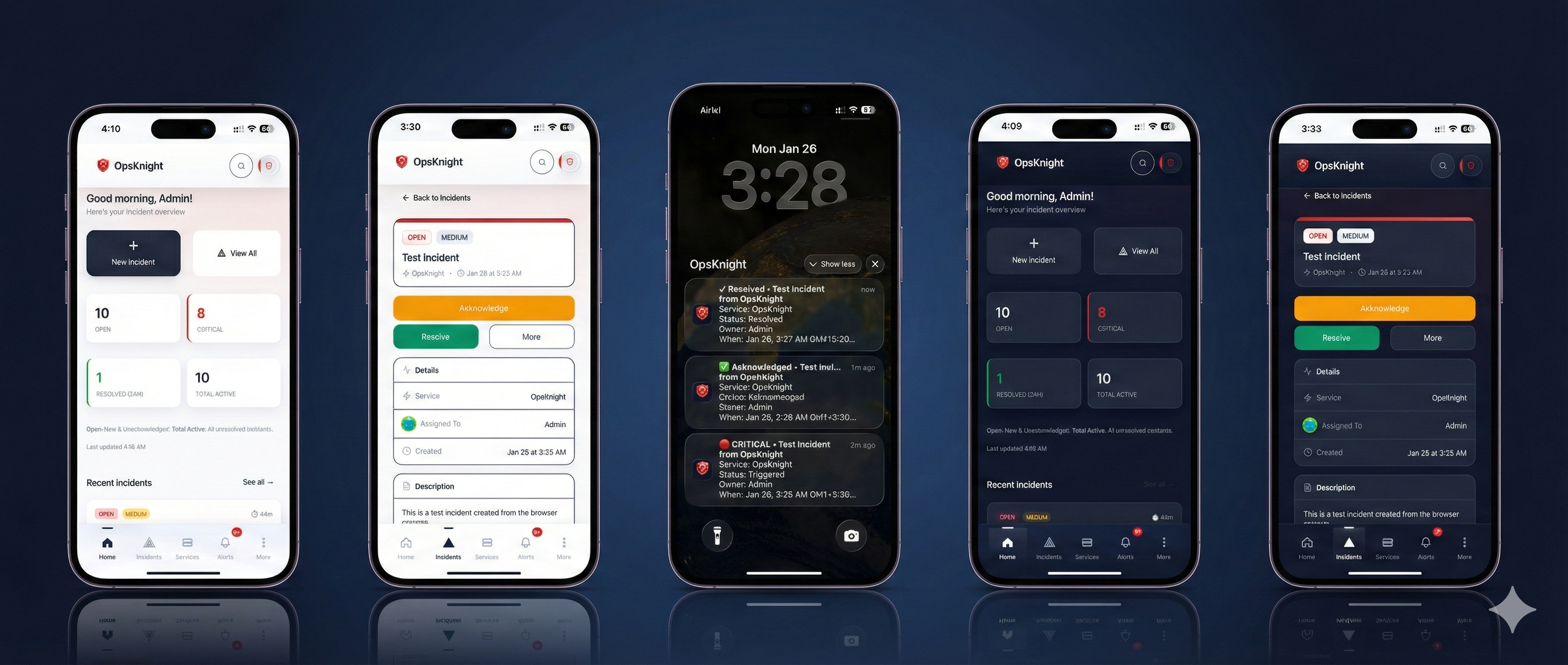
Built for on-call in the real world
- Installable PWA on iOS, Android, and desktop
- Fast, touch-first UI for incident response
- Push notifications with rich incident context
Why PWA?
A Progressive Web App provides the best of both worlds:
| Feature | PWA | Native App |
|---|---|---|
| Installation | Instant from browser | App store review |
| Updates | Automatic | Manual update |
| Push Notifications | Yes | Yes |
| Offline Support | Basic | Full |
| Cross-Platform | iOS + Android + Desktop | Separate codebases |
| Development | Single codebase | Multiple codebases |
Installing the PWA
On iOS (Safari)
- Open OpsKnight in Safari
- Tap the Share button (square with arrow)
- Scroll down and tap Add to Home Screen
- Tap Add
On Android (Chrome)
- Open OpsKnight in Chrome
- Tap the three-dot menu
- Tap Add to Home Screen or Install App
- Tap Install
On Desktop (Chrome/Edge)
- Open OpsKnight in browser
- Click the install icon in the address bar
- Click Install
Mobile Features
Dashboard
The mobile dashboard provides a quick overview:
- System Status — Current operational state
- Open Incidents — Count and urgency breakdown
- Your Queue — Incidents assigned to you
- On-Call Status — Who's currently on-call
Incident Management
Handle incidents with touch-optimized controls:
- View Incidents — List with filtering by status/urgency
- Quick Actions — Acknowledge, Resolve buttons
- Incident Detail — Full timeline, notes, context
- Add Notes — Comment on incidents
- Reassign — Change assignee (user or team)
On-Call Schedules
Check your on-call schedule:
- Current On-Call — See who's on-call now
- Schedule Timeline — Visual view of rotations
- Your Shifts — Upcoming on-call periods
- Overrides — View and create overrides
Notifications
Receive push notifications for:
- New Incidents — When assigned or on-call
- Escalations — When incident escalates to you
- Updates — When incidents you're watching change
While the app is open, the notification list updates in real time and falls back to periodic refresh if the live stream is unavailable.
Push Notifications
Enabling Push Notifications
- Install the PWA (recommended for best experience)
- When prompted, tap Allow for notifications
- Verify in Profile → Devices that your device appears
- Ask your admin to enable Push in Settings → Notification Providers
Notification Types
| Notification | When |
|---|---|
| Incident Triggered | You're on-call or assigned |
| Incident Escalated | Escalation reached your step |
| SLA Breach Warning | SLA about to breach |
| Incident Resolved | Incident you're watching resolved |
Managing Notifications
Control what notifications you receive:
- Go to Profile → Notification Preferences
- Enable/disable channels:
- Push notifications
- SMS (requires phone number)
- Set Quiet Hours to silence during sleep
Mobile Navigation
The mobile interface uses a bottom navigation bar:
| Icon | Page | Function |
|---|---|---|
| Home | Dashboard | Overview and quick access |
| Incidents | Incident List | View and manage incidents |
| Schedules | Schedules | On-call rotations |
| More | Menu | Additional features |
More Menu
Access additional features:
- Services — Service directory
- Teams — Team management
- Policies — Escalation policies
- Analytics — Metrics and reports
- Settings — User preferences
- Profile — Account settings
Offline Support
The PWA supports offline-friendly workflows:
| Feature | Offline Behavior |
|---|---|
| View cached incidents | Yes |
| View cached schedules | Yes |
| View cached services | Yes |
| View cached teams | Yes |
| Update incident status | Queued, syncs when online |
| Mark notifications read | Queued, syncs when online |
| Create incident | Requires connection |
Note: Push notifications require an internet connection.
Mobile-Specific UI
Touch Targets
All interactive elements are sized for touch:
- Buttons: Minimum 44px tap target
- List items: Full-width tap area
- Checkboxes: Enlarged for touch
Swipe Gestures
Some views support swipe gestures:
- Pull to refresh — Update incident list
- Swipe to action — Quick acknowledge/snooze/resolve (where enabled)
Haptics & Feedback
- Haptic feedback — Subtle tap feedback for primary actions
- Skeleton loading — Placeholder layouts reduce perceived load time
Responsive Layout
The UI adapts to different screen sizes:
- Phone (< 640px) — Single-column layout
- Tablet (640-1024px) — Two-column where appropriate
- Desktop (> 1024px) — Full desktop experience
Troubleshooting
Push Notifications Not Working
- Check permission — Ensure notifications are allowed in browser/OS settings
- Check device registration — Verify in Profile → Devices
- Check quiet hours — Make sure you're not in quiet hours
- Reinstall PWA — Remove and re-add to home screen
PWA Not Installing
- Use Safari (iOS) — Chrome on iOS can't install PWAs
- Check HTTPS — PWAs require HTTPS
- Clear cache — Try clearing browser data
- Check manifest — Verify service worker is loading
Slow Performance
- Check connection — PWA needs good connectivity
- Clear cache — Remove and reinstall PWA
- Check device — Older devices may be slower
- Reduce data — Filter incident lists to smaller sets
Best Practices
For Responders
- Install the PWA — Better experience than browser
- Enable push — Don't miss critical alerts
- Check schedules — Know when you're on-call
- Use quick actions — Acknowledge from notifications
For Administrators
- Encourage PWA installation — Send setup instructions
- Configure push — Set up Firebase or OneSignal
- Test notifications — Verify delivery on mobile
- Monitor device registrations — Check users have devices registered
Related Topics
- PWA Deployment — Technical PWA setup
- Push Notifications — Push configuration
- Schedules — On-call management
Last updated for v1
Edit this page on GitHub